
In this chapter we will study how to Setup Payments in Drupal. Payment is a process of paying money in an exchange of goods, services or both to a company or a person.
Following are the steps to setup payments in Drupal.
Step (1): Download the latest file of Basic Payment module and PayPal Payment module from the link and install in your Drupal site.
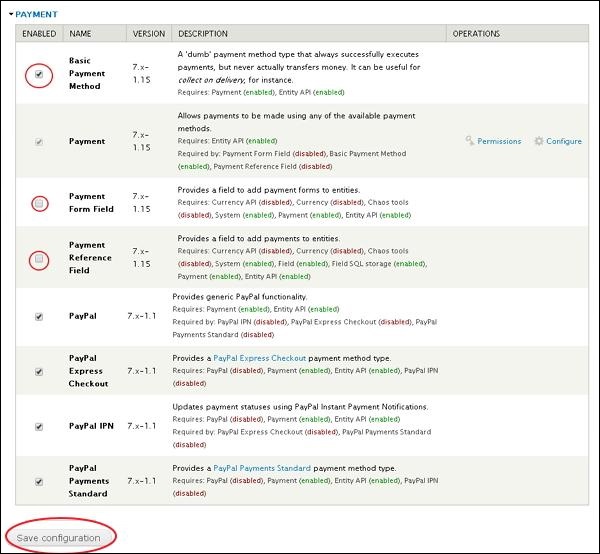
Step (2): Next, Enable the Basic Payment and PayPal Payment in Modules and click on Save configuration.
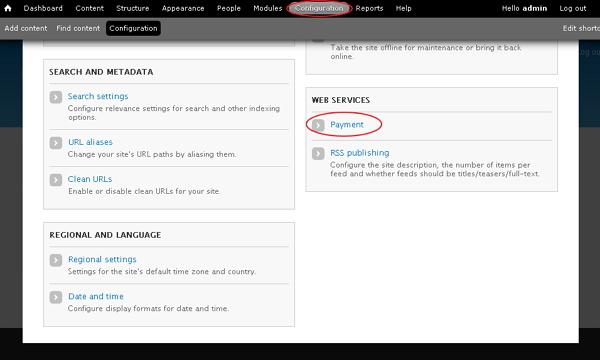
 Step (3): Click on Configuration --> Payment as shown.
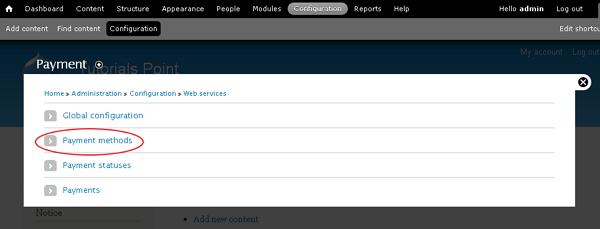
 Step (4): Next, Click on Payment methods.
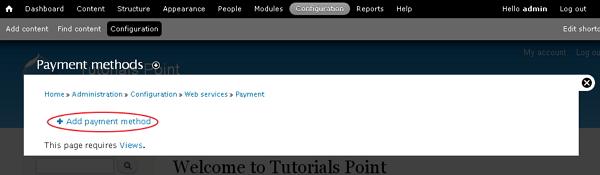
 Step (5): Next, click on Add payment method.
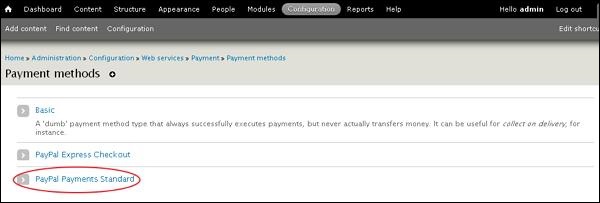
 Step (6): Next, Click on Paypal Payments Standard.
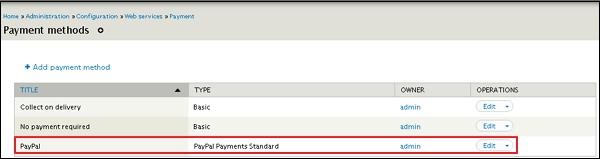
 Step (7): Next, you have to fill the form for PayPal payments.
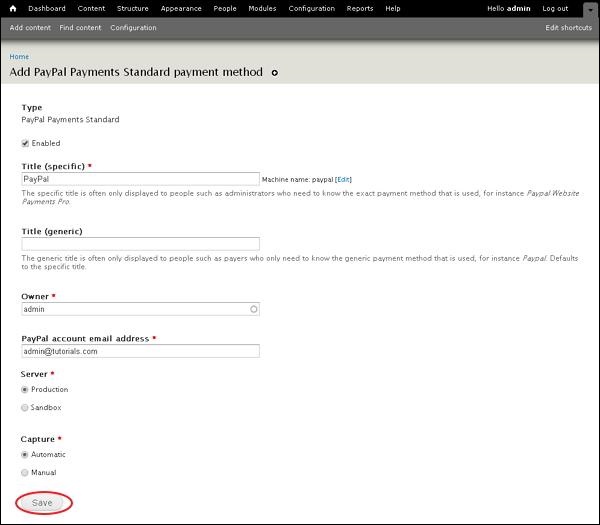 It contains below fields:
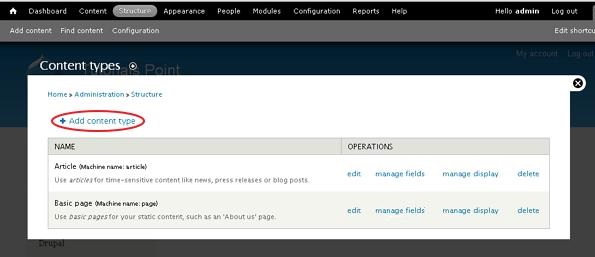
 Step (9): Next, go to Structure --> Content Types. The following page will get displayed, click on Add content type as shown.
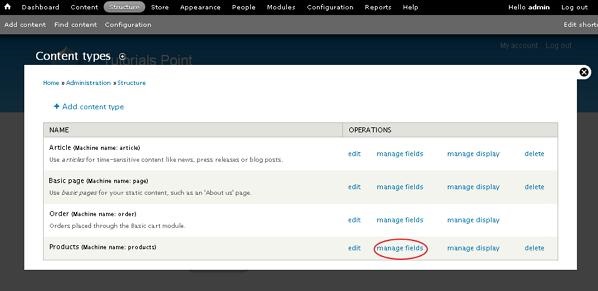
 Step (10): Here, create a content type name as Products and save it
 Step (11): Next, you can view the created Products content in the list. Click on the manage fields
 Step (12): Next, add a new field as Buy Now, Select Payment form for type of data from the dropdown.
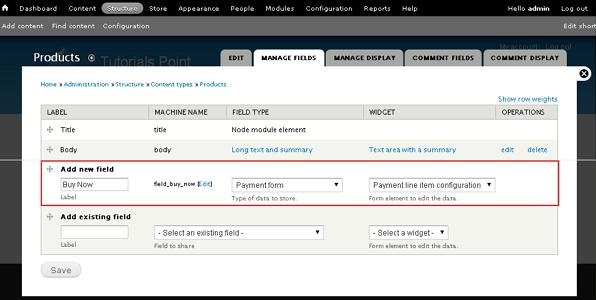 Click on Save button.
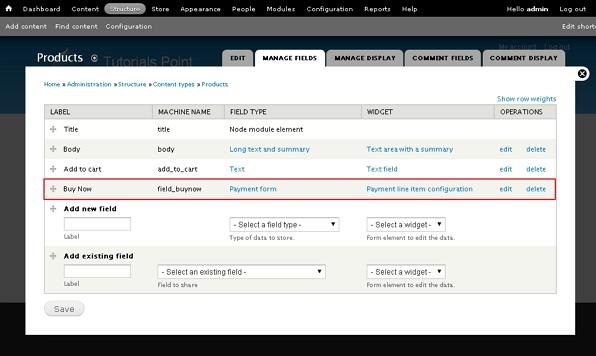
Step (13): Next, you can view the created Buy Now field in the list.
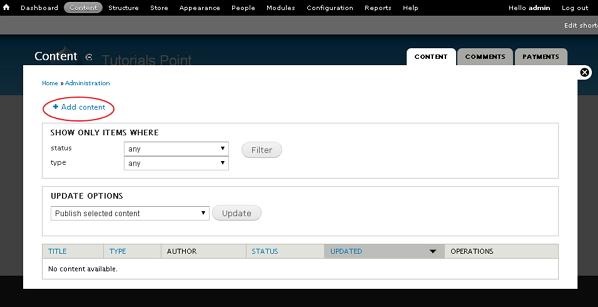
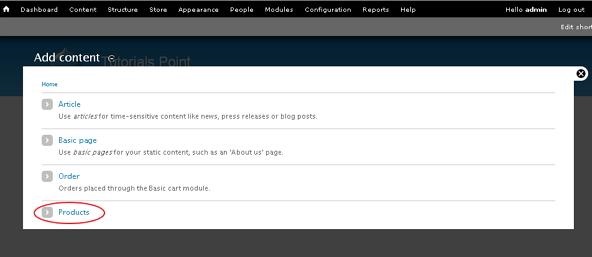
 Step (14): Next, go to Content, click on Add content
 Step (15): Next, Click on Products.
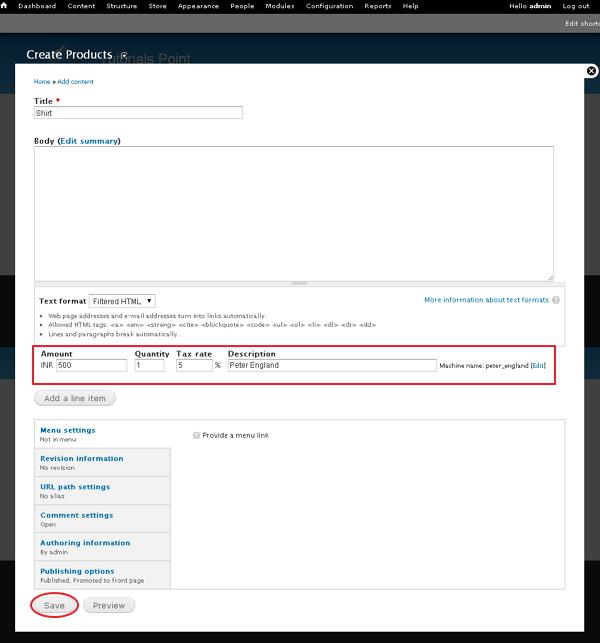
 Step (16): Enter your product information inside the fields as shown below and click on Save button.
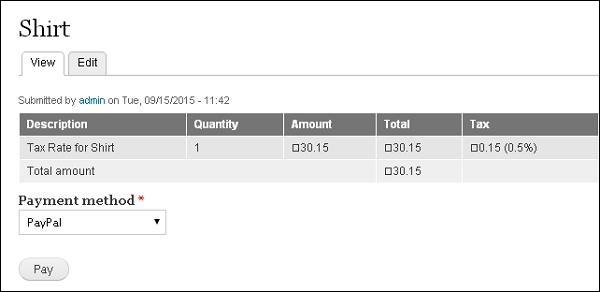
 Step (17): Next, you can view your content on your site as shown below. Click on Pay button.
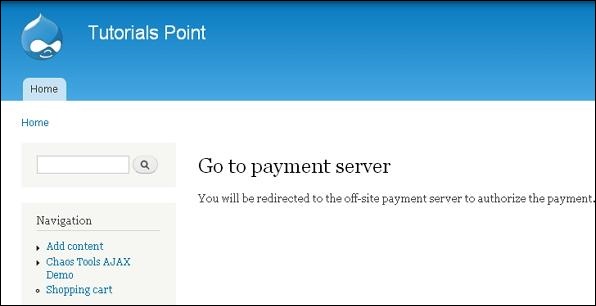
 Step (18): Next, you will be redirected to the off site payment server to authorize the payment.
 Later it'll direct you to the paypal site for future payments process.
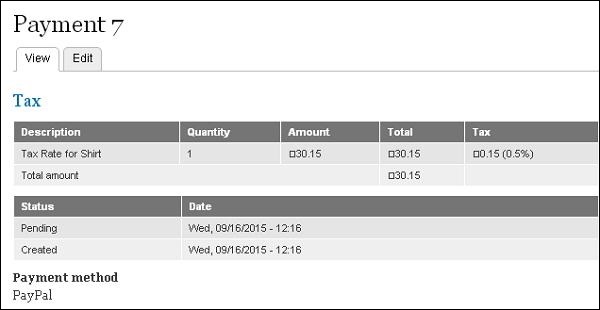
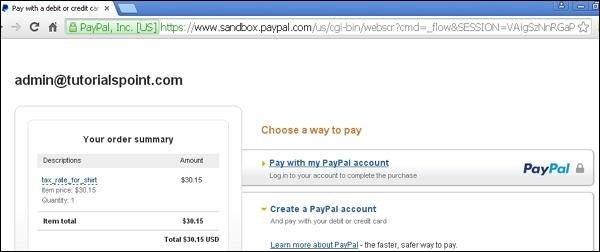 Step (19): Once the payment process is complete, you can view the details of the payment as shown below.
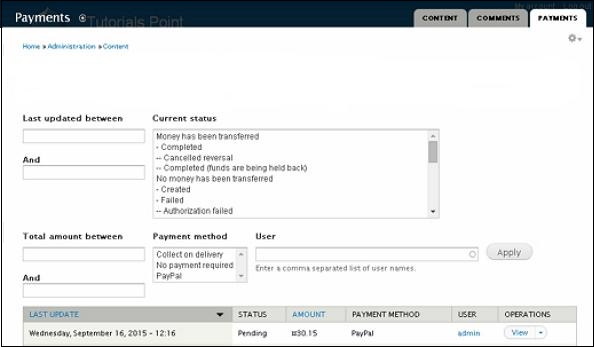
 Step (20):Next, go to Content --> Payments tab. Here you can view the payment status of your product.
Following are the steps to setup payments in Drupal.
Step (1): Download the latest file of Basic Payment module and PayPal Payment module from the link and install in your Drupal site.
Step (2): Next, Enable the Basic Payment and PayPal Payment in Modules and click on Save configuration.
Step (3): Click on Configuration --> Payment as shown.
Step (4): Next, Click on Payment methods.
Step (5): Next, click on Add payment method.
Step (6): Next, Click on Paypal Payments Standard.
Step (7): Next, you have to fill the form for PayPal payments.
It contains below fields:- Title(specific): Enter the specific title name.
- Title(generic): Enter the generic title name.
- Owner: Enter the name of the owner.
- PayPal account email address: Enter your email address.
- Server: Select the server from either of the one i.e. Production or Sandbox.
- Capture:Select either of the one capture method i.e. Manual or Automatic.
Step (9): Next, go to Structure --> Content Types. The following page will get displayed, click on Add content type as shown.
Step (10): Here, create a content type name as Products and save it
Step (11): Next, you can view the created Products content in the list. Click on the manage fields
Step (12): Next, add a new field as Buy Now, Select Payment form for type of data from the dropdown.
Click on Save button.Step (13): Next, you can view the created Buy Now field in the list.
Step (14): Next, go to Content, click on Add content
Step (15): Next, Click on Products.
Step (16): Enter your product information inside the fields as shown below and click on Save button.
Step (17): Next, you can view your content on your site as shown below. Click on Pay button.
Step (18): Next, you will be redirected to the off site payment server to authorize the payment.
Later it'll direct you to the paypal site for future payments process.
Step (19): Once the payment process is complete, you can view the details of the payment as shown below.
Step (20):Next, go to Content --> Payments tab. Here you can view the payment status of your product.

No comments:
Post a Comment