
This article provides step-by-step procedure for Drupal installation.
Befor installing Drupal, you require following system requirements.
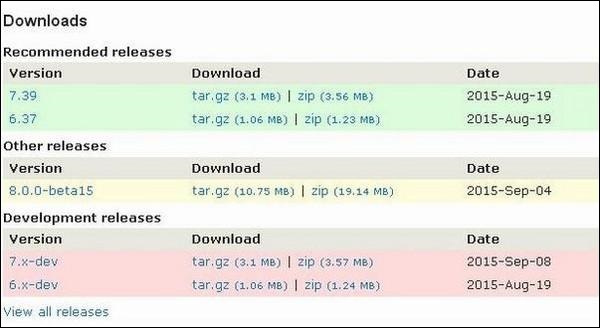
Step (2): Select the latest version of zip file which you want to download as shown in the below screen. The Recommended releases are the latest stable releases of either version.
Step (1): Download the zip file and extract it to your local computer. Rename the folder from its current name to any name you want to use to refer to your site.
Step (2): Drupal requires MySQL database. So create a new empty database with user/password for Drupal to use. (For e.g. user as "root" and password as "root" or else you can set as per your choice).
Step (3): Open your browser and navigate to your Drupal file path, you will see the first Drupal installer screen as shown below. In our case the path is localhost/< Your_drupal_folder >.
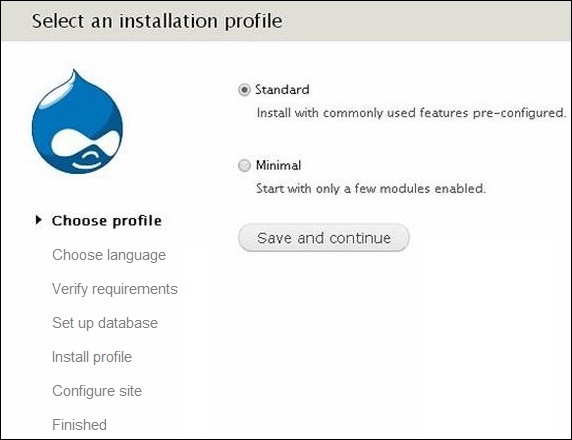 Next, select the Standard option and click Save and continue.
Step (4):Next, select the default language for the Drupal website.
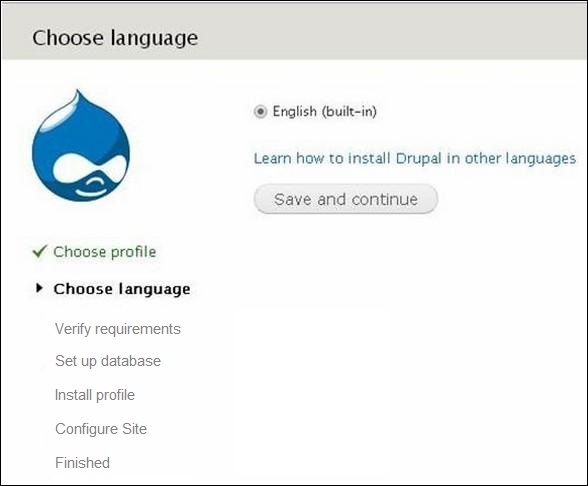 After selecting the language, click on Save and continue.
Step (5): Next is Database configuration page. Here you need to enter type of the database you will be using, Database name, Database username and Database password.
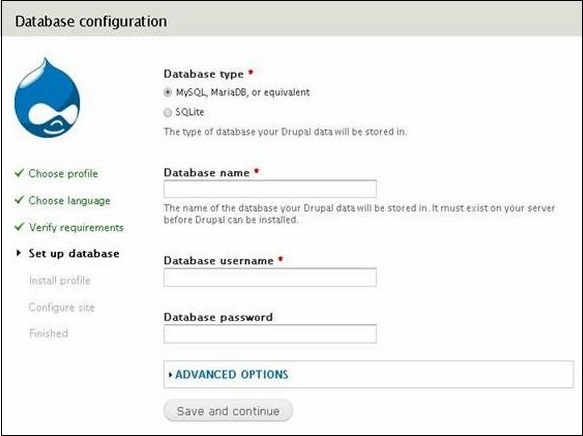
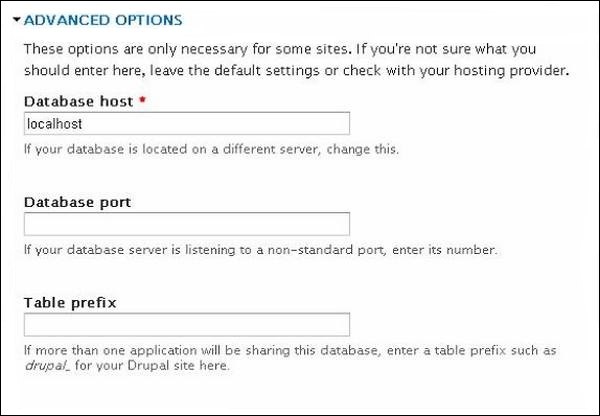 Here you can fill the advanced options for the database:
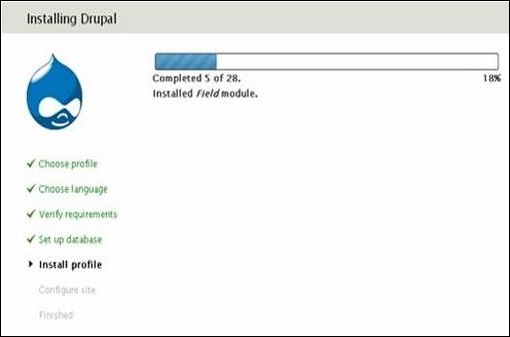
Step (6): Next, you will see the installation process starts on your machine.
 Step (7): Next, you will see the Configure site page:
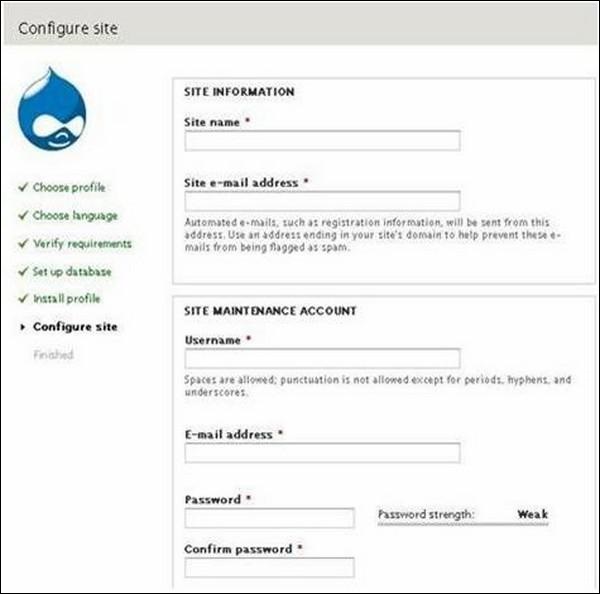 It contains below fields:
Step (8):Next, you will see the below page indicating that your drupal install is successful:
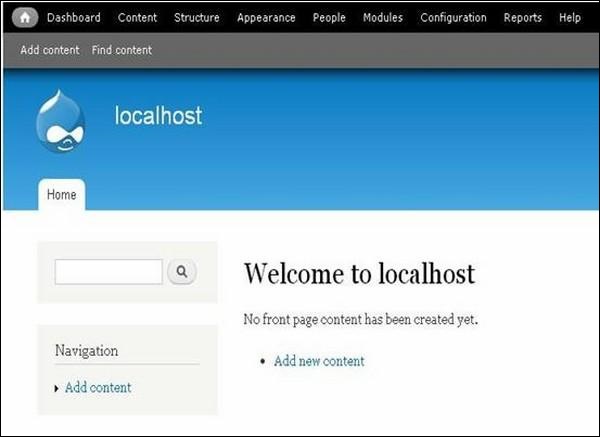
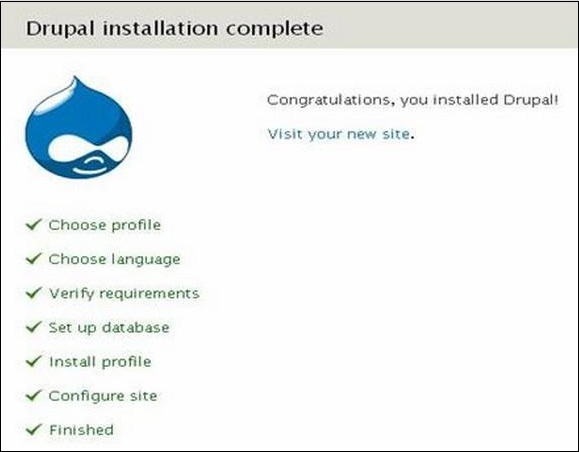 Step (9): Click the Visit your new site link as shown in the above image; you will get the newly installed Drupal homepage as shown below.
System Requirements for Drupal
- Database : MySQL 5.1 +
- Web Server :
- WAMP (Windows)
- LAMP (Linux)
- XAMP (Multi-platform)
- MAMP (Macintosh)
- Nginx
- Microsoft IIS
- Operating System : Cross-platform
- Browser Support : IE (Internet Explorer 8+), Firefox, Google Chrome, Safari, Opera
- SSL (Secure Socket Layer) : A valid security certificate is required for HTTPS
- PHP Compatibility : PHP 5.2+
Download Drupal
Step (1): Download the Drupal and copy to your web server from this link : https://www.drupal.org/project/drupalStep (2): Select the latest version of zip file which you want to download as shown in the below screen. The Recommended releases are the latest stable releases of either version.
Setup Wizard
It's very easy to setup Drupal on your system. The following steps describe how to setup Drupal locally on your system.Step (1): Download the zip file and extract it to your local computer. Rename the folder from its current name to any name you want to use to refer to your site.
Step (2): Drupal requires MySQL database. So create a new empty database with user/password for Drupal to use. (For e.g. user as "root" and password as "root" or else you can set as per your choice).
Step (3): Open your browser and navigate to your Drupal file path, you will see the first Drupal installer screen as shown below. In our case the path is localhost/< Your_drupal_folder >.
Next, select the Standard option and click Save and continue. Step (4):Next, select the default language for the Drupal website.
After selecting the language, click on Save and continue.Step (5): Next is Database configuration page. Here you need to enter type of the database you will be using, Database name, Database username and Database password.
- Database Type : Select the database type. By default it will be MySQL.
- Database name : Enter the database name for Drupal.
- Database username : Enter the user name of your MySQL database.
- Database password: Enter the password which you had set for MySQL Database.
Here you can fill the advanced options for the database:- Database Host : Enter the host name where your database is located.
- Database port : Enter the database port.
- Table Prefix : It is used to add prefix in the database tables which helps to run multiple sites on the same database.
Step (6): Next, you will see the installation process starts on your machine.
Step (7): Next, you will see the Configure site page:
It contains below fields:- Site name : The name that you want to give to your site.
- Site e-mail address : The email address that automated e-mails will be sent from this address.
- Username, Email-address and Password : These are all administrative details used for the maintenance account.
Step (8):Next, you will see the below page indicating that your drupal install is successful:
Step (9): Click the Visit your new site link as shown in the above image; you will get the newly installed Drupal homepage as shown below.

No comments:
Post a Comment