
It is very important to make the user feel home when they're using
your app. As a result you should not create dialog boxes using alert() calls. Electron provides a pretty good interface to accomplish the task of creating dialog boxes. Lets have a look at it.
Electron provides a dialog module that we can use for displaying native system dialogs for opening and saving files, alerting, etc.
Lets directly jump into an example and create an app to display simple textfiles.
Create a new main.js file and enter the following code in it:
Now create a new index.html file with the following contents:
 Once we select a file to display, its contents will be displayed on the app window:
 You can run the app using command:
The others having the same functionality are:
Electron provides a dialog module that we can use for displaying native system dialogs for opening and saving files, alerting, etc.
Lets directly jump into an example and create an app to display simple textfiles.
Create a new main.js file and enter the following code in it:
const {app, BrowserWindow} = require('electron')
const url = require('url')
const path = require('path')
const {ipcMain} = require('electron')

let win

function createWindow() {
   win = new BrowserWindow({width: 800, height: 600})
   win.loadURL(url.format({
      pathname: path.join(__dirname, 'index.html'),
      protocol: 'file:',
      slashes: true
   }))
}

ipcMain.on('openFile', (event, path) => {
      const {dialog} = require('electron')
      const fs = require('fs')
      dialog.showOpenDialog(function (fileNames) {
            // fileNames is an array that contains all the selected
          if(fileNames === undefined){
                  console.log("No file selected");
          }else{
                  readFile(fileNames[0]);
          }
      });

      function readFile(filepath){
         fs.readFile(filepath, 'utf-8', (err, data) => {
            if(err){
               alert("An error ocurred reading the file :" + err.message)
               return
            }
            // handle the file content
            event.sender.send('fileData', data)
      })
      }
})


app.on('ready', createWindow)
This code will pop open the open dialog box whenever our main process recieves a 'openFile' message from a renderer process. Which then will redirect the file contents back to the renderer process. Now we will have to print it.
Now create a new index.html file with the following contents:
<!DOCTYPE html>
<html>
   <head>
      <meta charset="UTF-8">
      <title>File read using system dialogs</title>
   </head>
   <body>
      <script type="text/javascript">
         const {ipcRenderer} = require('electron')
         ipcRenderer.send('openFile', () => {
            console.log("Event sent.");
         })
         ipcRenderer.on('fileData', (event, data) => {
            document.write(data)
         })
      </script>
   </body>
</html>
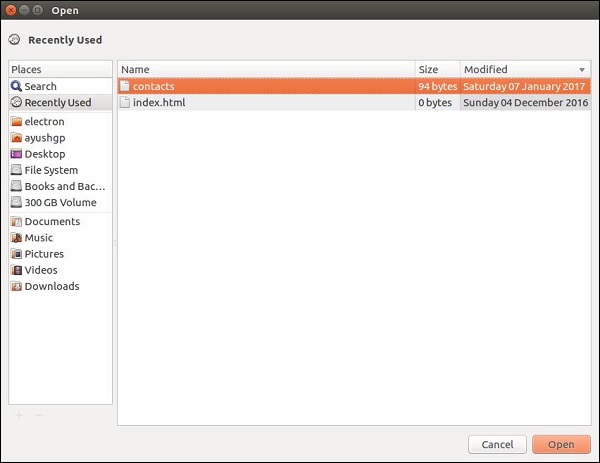
Now whenever we run our app, will pop up with a native open dialog box like:
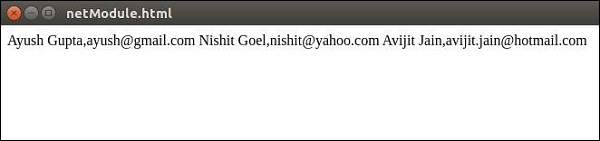
Once we select a file to display, its contents will be displayed on the app window:
You can run the app using command: $ electron ./main.jsThis was just one of the four dialogs that electron provides. They all have similar usage though. Once you learn how to do it using showOpenDialog, then you can use any of those dialogs.
The others having the same functionality are:
- showSaveDialog([browserWindow, ]options[, callback])
- showMessageDialog([browserWindow, ]options[, callback])
- showErrorDialog(title, content)


No comments:
Post a Comment