
In general, tax is a financial charge upon a taxpayer or source of
public revenue. Sales tax is a basic type for taxes that do not display
inclusive with product prices.
You can specify the tax rate for the products as defined in the below steps:
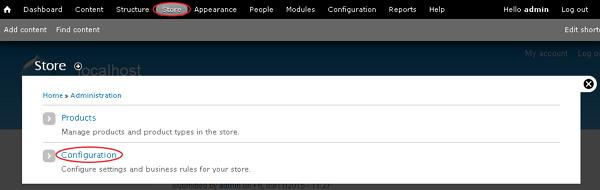
Step (1): Go to Store and click on the Configuration.
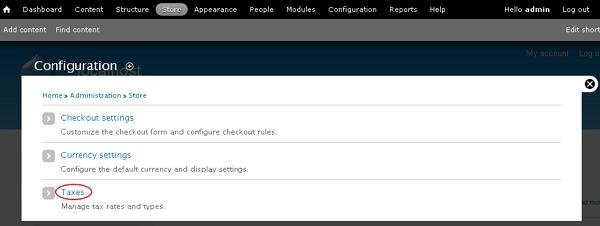
 Step (2): Next click on the Taxes link which manages tax rates and types.
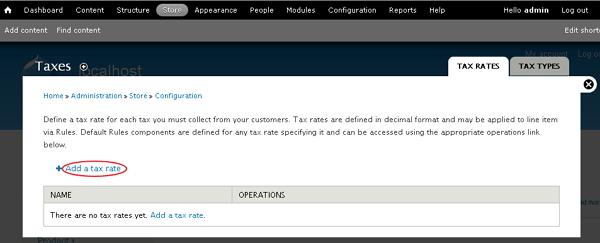
 Step (3): Click on the Add a tax rate link to add tax for the product.
 Step (4): It will open the taxes window for adding tax rate to the product as shown below.
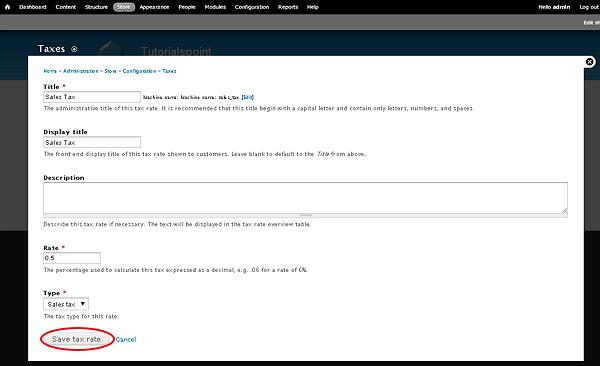 It contains some fields such as:
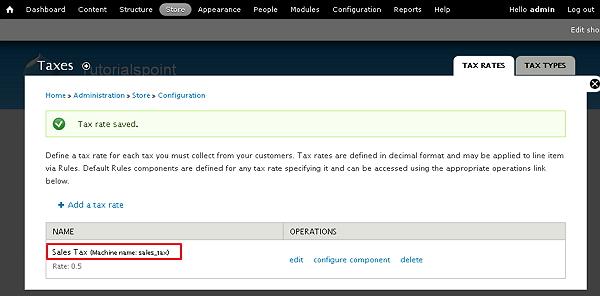
Step (5): You will see the created tax rate name which is used for the product as shown in the screen below.
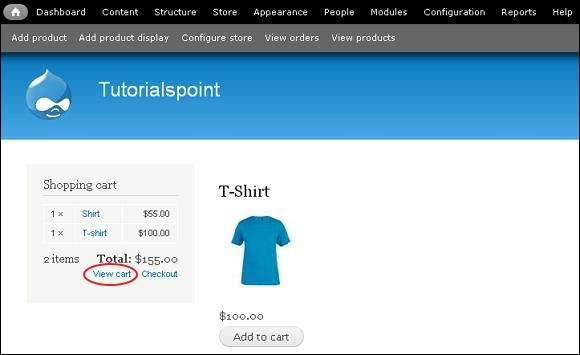
 Step (6): Go to Home page and click on the View cart link to see the products in shopping cart.
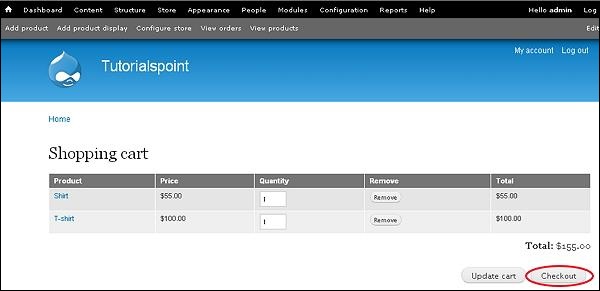
 Step (7): Click the Checkout button to see the tax rate added for the products.
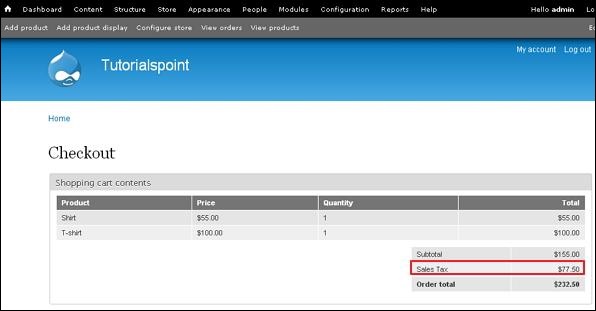
 Step (8): You can see the tax rate added along with the Subtotal as shown in the screen.
You can specify the tax rate for the products as defined in the below steps:
Step (1): Go to Store and click on the Configuration.
Step (2): Next click on the Taxes link which manages tax rates and types.
Step (3): Click on the Add a tax rate link to add tax for the product.
Step (4): It will open the taxes window for adding tax rate to the product as shown below.
It contains some fields such as:- Title: It is title of the tax rate.
- Display title: The front end display title of the tax rate shown to customers.
- Description: It is used to describe the tax rate.
- Rate: It is a percentage used to calculate the tax which is expressed as a decimal.
- Type: It selects the tax type for the tax rate using drop down menu.
Step (5): You will see the created tax rate name which is used for the product as shown in the screen below.
Step (6): Go to Home page and click on the View cart link to see the products in shopping cart.
Step (7): Click the Checkout button to see the tax rate added for the products.
Step (8): You can see the tax rate added along with the Subtotal as shown in the screen.

No comments:
Post a Comment