
System tray is a menu outside of your application window. On MacOS
and Ubuntu it is located on the top right corner of your screen. On
Windows it is on the bottom right corner. We can create menus for our
application in system trays using Electron.
Create a new main.js file and ad the following code to it. Have a png file ready to use for the system tray icon.
Run the application using:
Create a new main.js file and ad the following code to it. Have a png file ready to use for the system tray icon.
const {app, BrowserWindow} = require('electron')
const url = require('url')
const path = require('path')

let win

function createWindow() {
   win = new BrowserWindow({width: 800, height: 600})
   win.loadURL(url.format({
      pathname: path.join(__dirname, 'index.html'),
      protocol: 'file:',
      slashes: true
   }))
}

app.on('ready', createWindow)
Now we have set up a basic browser window, create a new index.html file with the following contents:
<!DOCTYPE html>
<html>
   <head>
      <meta charset="UTF-8">
      <title>Menus</title>
   </head>
   <body>
      <script type="text/javascript">
         const {remote} = require('electron')
         const {Tray, Menu} = remote
         const path = require('path')

         let trayIcon = new Tray(path.join('','/home/ayushgp/Desktop/images.png'))

         const trayMenuTemplate = [
            {
               label: 'Empty Application',
               enabled: false
            },
            {
               label: 'Settings',
               click: function () {
                  console.log("Clicked on settings")
               }
            },
            {
               label: 'Help',
               click: function () {
                  console.log("Clicked on Help")
               }
            }
         ]
         let trayMenu = Menu.buildFromTemplate(trayMenuTemplate)
         trayIcon.setContextMenu(trayMenu)
      </script>
   </body>
</html>
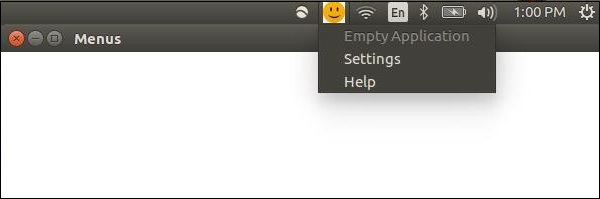
We created the tray using the Tray submodule. We then created a menu using a template and then attached the meny to our tray object.
Run the application using:
$ electron ./main.jsWhen you run it, check your system tray for the icon you used. I used a smiley face for my application. You can see the output here:


No comments:
Post a Comment