
You can customize the way a directory looks in your website. By
default, cPanel displays the list of files and directories, if there is
no index file in that directory. You can choose the way it displays the
list of contents in the front-end.
You can also choose to disable the indexing of files in that directory by choosing No Indexing.
To manage cPanel Indexes, follow these steps −
Step 1 − Open cPanel Index Manager by clicking on Indexes found under Advanced section of cPanel Home.
 Step 2 − You can select a directory of which you wish to
manage indexes by clicking over the name of directory. To navigate
within directories, you can click on the folder icon corresponding to
that directory to open up the directory.
Step 2 − You can select a directory of which you wish to
manage indexes by clicking over the name of directory. To navigate
within directories, you can click on the folder icon corresponding to
that directory to open up the directory.
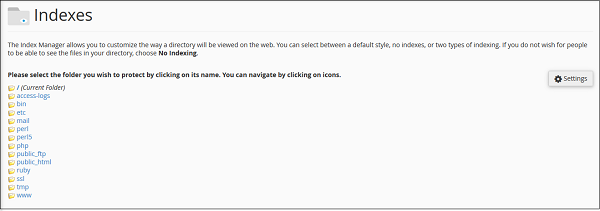 Step 3 − Once you have selected the directory, you will be given some options to choose form.
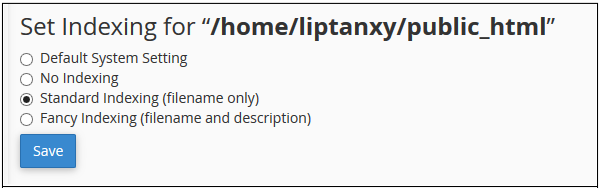 Step 4 − Click Save to save your choice for that directory. If successful, you will see a success message.
You can also choose to disable the indexing of files in that directory by choosing No Indexing.
To manage cPanel Indexes, follow these steps −
Step 1 − Open cPanel Index Manager by clicking on Indexes found under Advanced section of cPanel Home.
Step 2 − You can select a directory of which you wish to
manage indexes by clicking over the name of directory. To navigate
within directories, you can click on the folder icon corresponding to
that directory to open up the directory.
Step 3 − Once you have selected the directory, you will be given some options to choose form.- Default System Indexing − Enables the default setting your hosting provider setup for you.
- No Indexing − This option will disable the directory listing and if there is no index file such as index.php or index.html in the directory. User will get an error.
- Standard Indexing − This option will enable the directory listing and user will see the name of the directories.
- Fancy Indexing − This option will enable the directory listing and user will see the name and description of the files and directories under your indexed directory.
Step 4 − Click Save to save your choice for that directory. If successful, you will see a success message.

No comments:
Post a Comment