
Showing posts with label Eclipse Tutorial. Show all posts
Showing posts with label Eclipse Tutorial. Show all posts
Monday, January 16, 2017


Eclipse - Explore Windows
Parts of an Eclipse Window
The major visible parts of an eclipse window are −- Views
- Editors (all appear in one editor area)
- Menu Bar
- Toolbar
Eclipse - Explore Menus
Typical Eclipse Menus
The typical menus available on the menu bar of an Eclipse window are −Eclipse - Explore Views
About Views
Eclipse views allow users to see a graphical representation of project metadata. For example the project navigator view presents a graphical representation of the folders and files associated with a project and properties view presents a graphical representation of an element selected in another view or editor.Eclipse - Perspectives
What is a Perspective?
An eclipse perspective is the name given to an initial collection and arrangement of views and an editor area. The default perspective is called java.Eclipse - Workspaces
About Eclipse Workspace
The eclipse workspace contains resources such as −- Projects
- Files
- Folders
Eclipse - Create Java Project
Opening the New Java Project wizard
The New Java Project wizard can be used to create a new java project. There are many ways to open this wizard −Eclipse - Create Java Package
Opening the New Java Package wizard
You can use the New Java Package wizard to create a Java package. The Java Package wizard can be opened in different ways −Eclipse - Create Java Class
Opening the New Java Class Wizard
You can use the New Java Class wizard to create a Java class. The Java Class wizard can be invoked in different ways −Eclipse - Create Java Interface
Opening the New Java Interface Wizard
The New Java Interface wizard can be used to create a new java interface. There are many ways of opening this wizard −Eclipse - Create XML File
Opening the New XML File wizard
You can use the New XML file wizard to create an XML file. To invoke this wizard −- Click on the File menu and select New → Other or
- Click on the new drop down box (
 ) select other or
 - Press ctrl + N
Eclipse - Java Build Path
Setting the Java Build Path
The Java build path is used while compiling a Java project to discover dependent classes . It is made up of the following items −Eclipse - Run Configuration
Creating and Using a Run Configuration
The Run Configurations dialog allows you create multiple run configurations. Each run configuration can start an application. The Run Configuration dialog can be invoked by selecting the Run Configurations menu item from the Run menu.Eclipse - Running Program
Running a Java Program
The quickest way to run a Java program is by using the Package Explorer view.In the Package Explorer view −
Eclipse - Create Jar Files
Opening the Jar File wizard
The Jar File wizard can be used to export the content of a project into a jar file. To bring up the Jar File wizard −Eclipse - Close Project
Why Close a Project?
An eclipse workspace can contain any number of projects. A project can be either in the open state or closed state.Open projects −
Eclipse - Reopen Project
Reopening a Closed Project
To reopen a closed project, in the Package Explorer view, select the closed project and click on the Project menu and select Open Project.Eclipse - Build Project
Building a Java Project
A project can have zero or more builders associated with it. A java project is associated with a java builder. To see the builders associated with a project −Eclipse - Debug Configuration
Creating and Using a Debug Configuration
An eclipse debug configuration is similar to a run configuration but it used to start an application in the debug mode. Because the application is started in the debug mode the users are prompted to switch to the debug perspective.Eclipse - Debugging Program
Debugging a Java Program
The quickest way to debug a Java program is to using the Package Explorer view. In the Package Explorer view −- Right click on the java class that contains the main method.
- Select Debug As → Java Application.
Either actions mentioned above create a new Debug Configuration and use it to start the Java application.
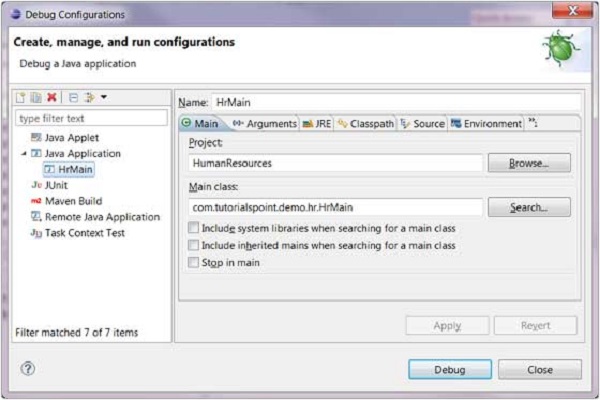
If a Debug configuration has already been created you can use it to start the Java application by selecting Debug Configurations from the Run menu, clicking on the name of the debug configuration and then clicking on the Debug button.
 The Debug menu item on the Run menu can be used to restart the java application that was previously started in the debug mode.
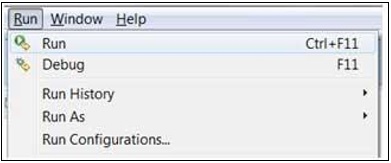 The shortcut key to launch the previously launched Java application
in the debug mode is F11. When a java program is started in the debug
mode, users are prompted to switch to the debug perspective. The debug
perspective offers additional views that can be used to troubleshoot an
application.
The shortcut key to launch the previously launched Java application
in the debug mode is F11. When a java program is started in the debug
mode, users are prompted to switch to the debug perspective. The debug
perspective offers additional views that can be used to troubleshoot an
application.The java editor allows users to place break points in the java code. To set a break point, in the editor area right click on the marker bar and select Toggle Breakpoint.
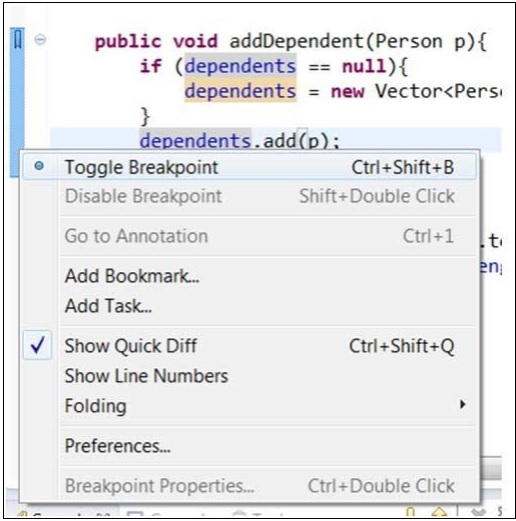 Breakpoints are shown on the marker bar. They are also visible in the Breakpoints View.
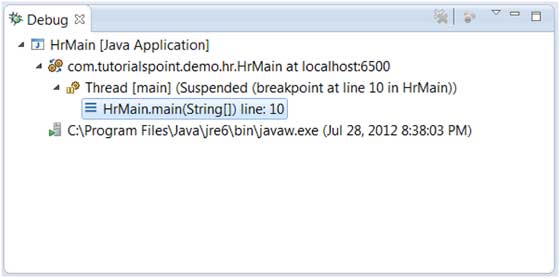
When the execution of code reaches a break point the JVM suspends the execution of the program. At this point, you can inspect the memory and execute the program in a controlled manner.
When the execution of a program is paused, the debug view can be used to inspect the call stack.
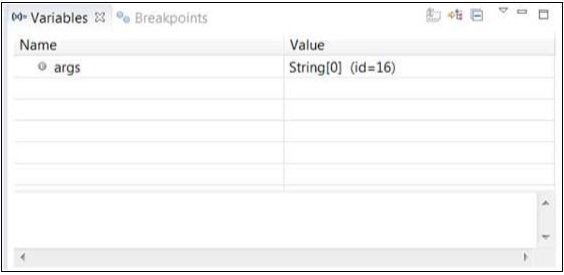
 The variables view can be used to inspect the value of variables.
 The run menu has menu items that allow you to Resume execution, step over a line of code, step into a function etc.
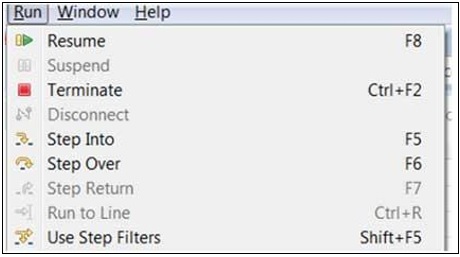 The picture given above shows the shortcut keys associated with actions such as Resume, Step Into and Step Over, etc.
Subscribe to:
Posts (Atom)