
We have 2 processes, as we discussed in the start of the tutorial,
that run our application. The main process and the renderer process.
Since the renderer process is the one being executed in our browser window, we can use Chrome Devtools to debug it. To open DevToolsuse the shortcut "Ctrl+Shift+I" or the <F12> key. You can check out how to use devtools here.
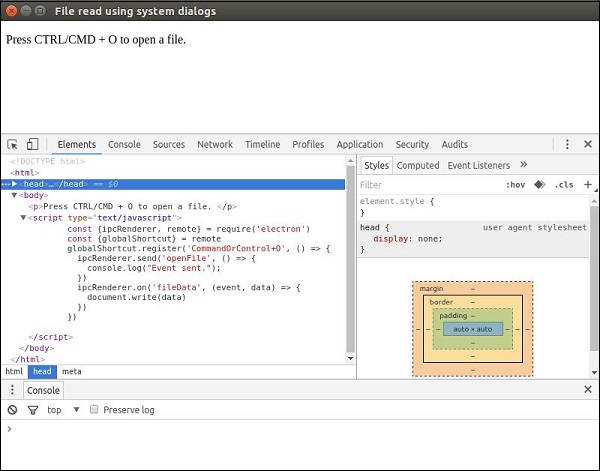
When you open the DevTools, your app would look like this:
Electron will listen for V8 debugger protocol messages on the specified port, an external debugger will need to connect on this port. The default port is 5858.
Run your app using the following:
Download and install VSCode. Open your Electron project in VSCode.
Add a file .vscode/launch.json with the following configuration:
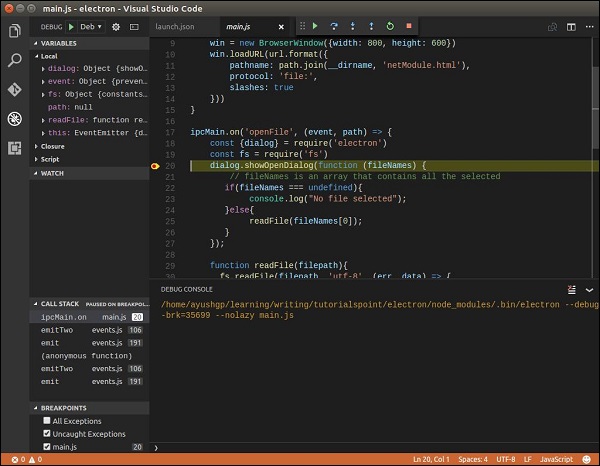
Set some breakpoints in main.js, and start debugging in the Debug View. When you hit the breakpoints, the screen will look something like this:
 The VSCode debugger is very powerful and will help you rectify
errors quickly. You also have other options like node-inspector for
debugging electron apps.
The VSCode debugger is very powerful and will help you rectify
errors quickly. You also have other options like node-inspector for
debugging electron apps.
Since the renderer process is the one being executed in our browser window, we can use Chrome Devtools to debug it. To open DevToolsuse the shortcut "Ctrl+Shift+I" or the <F12> key. You can check out how to use devtools here.
When you open the DevTools, your app would look like this:
Debugging the Main Process
The DevTools in an Electron browser window can only debug JavaScript that’s executed in that window (i.e. the web pages). To debug JavaScript that’s executed in the main process you will need to use an external debugger and launch Electron with the --debug or --debug-brk switch.Electron will listen for V8 debugger protocol messages on the specified port, an external debugger will need to connect on this port. The default port is 5858.
Run your app using the following:
$ electron --debug=5858 ./main.jsNow you'll need a debugger that supports the V8 debugger protocol. You could use VSCode or node-inspector for this purpose. For example, lets set up VSCode for this purpose. Follow the below steps to set it up:
Download and install VSCode. Open your Electron project in VSCode.
Add a file .vscode/launch.json with the following configuration:
{
   "version": "1.0.0",
   "configurations": [
      {
         "name": "Debug Main Process",
         "type": "node",
         "request": "launch",
         "cwd": "${workspaceRoot}",
         "runtimeExecutable": "${workspaceRoot}/node_modules/.bin/electron",
         "program": "${workspaceRoot}/main.js"
      }
   ]
}
Note: For Windows, use "${workspaceRoot}/node_modules/.bin/electron.cmd" for runtimeExecutable.
Set some breakpoints in main.js, and start debugging in the Debug View. When you hit the breakpoints, the screen will look something like this:
The VSCode debugger is very powerful and will help you rectify
errors quickly. You also have other options like node-inspector for
debugging electron apps. 

No comments:
Post a Comment