
Taxonomy can be thought of classifying website content which display
specific content based on taxonomy terms. Drupal taxonomy is made up of
several terms such as:
To work with Drupal Taxonomy, follow the below steps:
Step (1): Go to Structure and click the Taxonomy option.
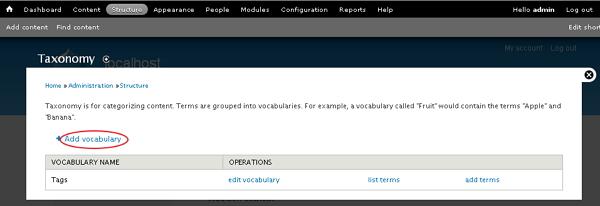
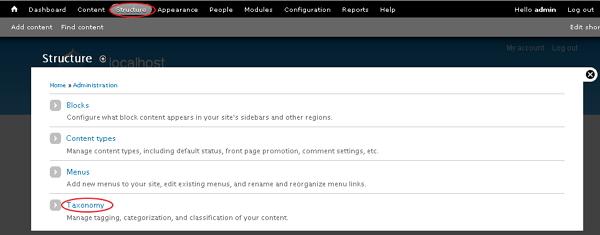 Step (2): You can create a new vocabulary for Drupal taxonomy by clicking on Add vocabulary link.
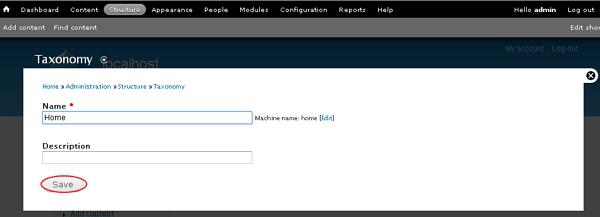
 Step (3): Next, it will open a screen with Name field for adding name for your vocabulary which is mandatory and Description field is used for adding description for the vocabulary and click the Save button.
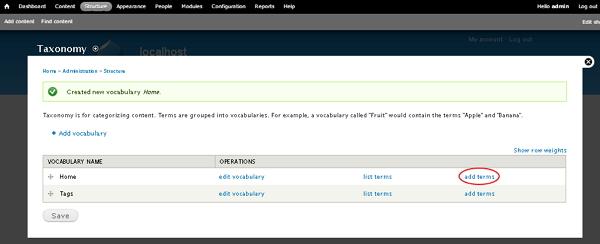
 Step (4): Click on the add terms to add new terms to the created vocabulary as shown below.
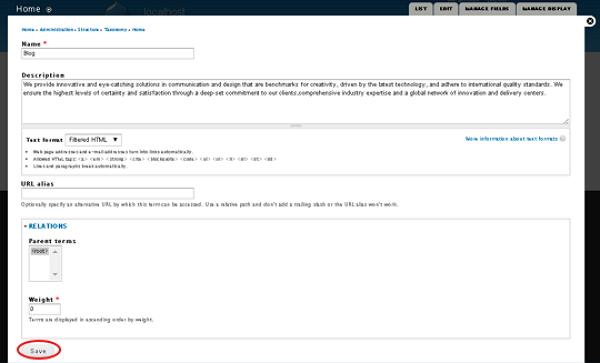
 Step (5): Next, it provides some fields as shown in the below screen.
To work with Drupal Taxonomy, follow the below steps:
Step (1): Go to Structure and click the Taxonomy option.
Step (2): You can create a new vocabulary for Drupal taxonomy by clicking on Add vocabulary link.
Step (3): Next, it will open a screen with Name field for adding name for your vocabulary which is mandatory and Description field is used for adding description for the vocabulary and click the Save button.
Step (4): Click on the add terms to add new terms to the created vocabulary as shown below.
Step (5): Next, it provides some fields as shown in the below screen.
- Name: It specifies name of the term.
- Description: It is used for adding description for the term.
- Text format: It provides different types of formats by using dropdown menu.
- URL alias: It optionally specifies an alternative URL by which this term can be accessed.
- Relations
- Parent Terms: In this field, you can set term as parent term for new one
- Weight: Specifies weight for each term which will then display in ascending order by weight.


No comments:
Post a Comment