
In this chapter, we will study about how to Create Categories
in Drupal. Taxonomy can be considered as categories or tags. Drupal
taxonomy is built up of vocabularies and terms. A vocabulary is a set of
terms and terms are just another word for categories.
Following are the simple steps to create categories in Drupal.
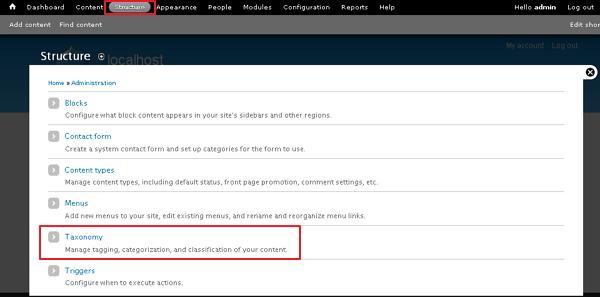
Step (1): Go to Structure and click on Taxonomy in the category as shown below.
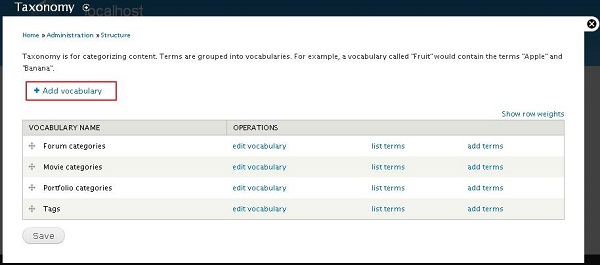
 Step (2): Next, click on Add vocabulary link.
 Step (3): Enter your new vocabulary (category) Name and Description as shown below.
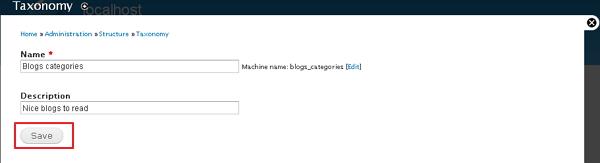 Click on Save button and your category is created.
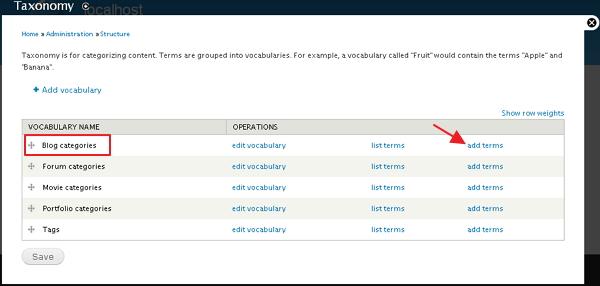
Step (4): You will see your new category is added to the list. Further you can click on add terms link to add some terms to it.
 Step (5): Next, you can add some sub categories to it. Enter the required details and click on Save button as shown below.
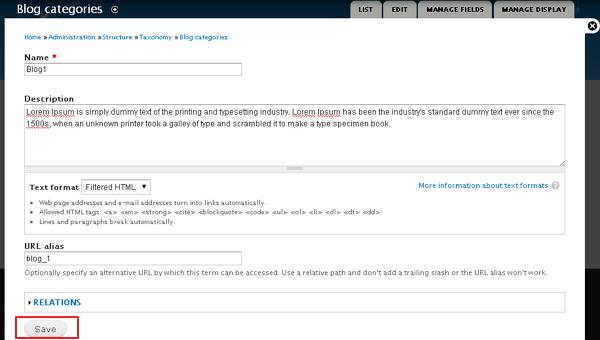 Step (6): Choose your parent category from the list and click on list terms link to view your sub categories list as shown below.
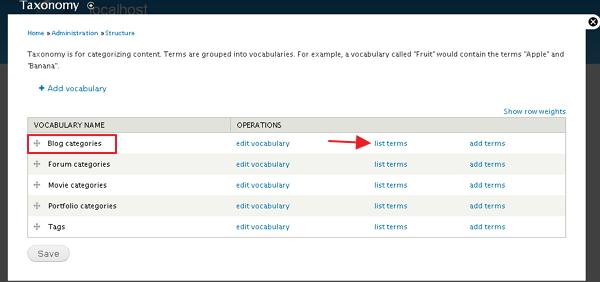 Below we have mentioned the details about the fields present in above screen.
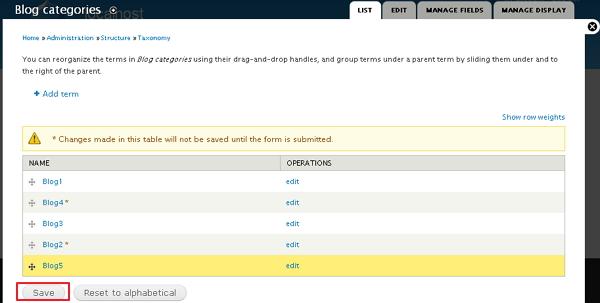
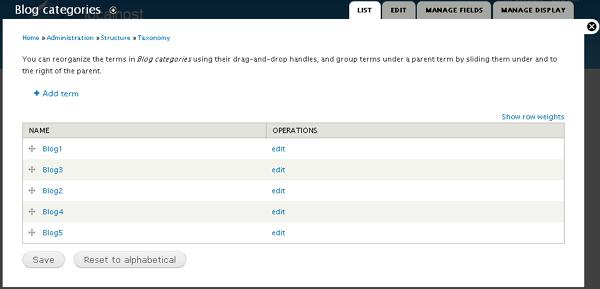 Step (8): Next, you can rearrange your subcategories by dragging them as per the demand.
Following are the simple steps to create categories in Drupal.
Step (1): Go to Structure and click on Taxonomy in the category as shown below.
Step (2): Next, click on Add vocabulary link.
Step (3): Enter your new vocabulary (category) Name and Description as shown below.
Click on Save button and your category is created.Step (4): You will see your new category is added to the list. Further you can click on add terms link to add some terms to it.
Step (5): Next, you can add some sub categories to it. Enter the required details and click on Save button as shown below.
Step (6): Choose your parent category from the list and click on list terms link to view your sub categories list as shown below.
Below we have mentioned the details about the fields present in above screen.- edit vocabulary: You can edit your category name and description.
- list terms: It displays your subcategory list.
- add terms: You can add your subcategories through this link.
Step (8): Next, you can rearrange your subcategories by dragging them as per the demand.

No comments:
Post a Comment