
In this chapter we'll study about Site Backup in Drupal. It helps in backing up the files and the database file.
Following are the simple steps used to backup the files in Drupal:
Step (1): Open the FileZilla Client as shown below.
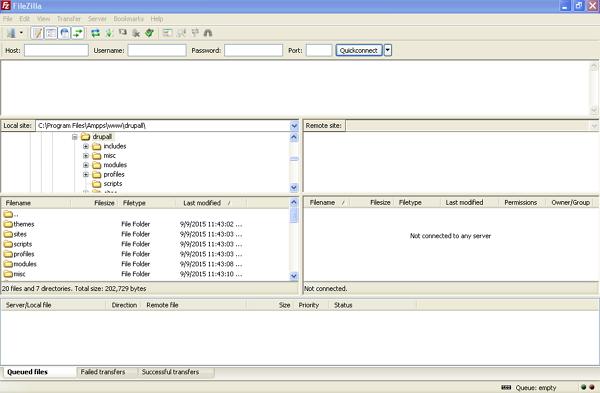 Step (2): Enter the Host, Username, Password and Port as same as you have used to login for your cpanel.
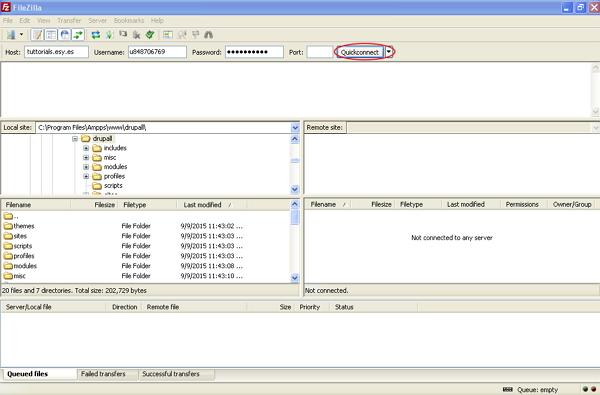 After filling all the fields, click on Quickconnect button.
Step (3): Next, you will get all files and folder of your Drupal site at the right side as shown below
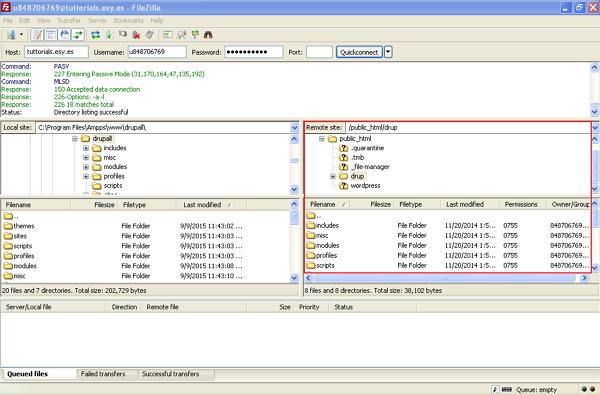 Step (4): Select all the files and folders and right click on the mouse, click on Download option.
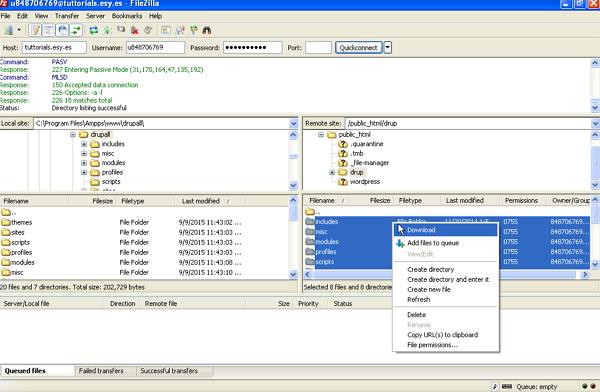 After downloading the Drupal files from cpanel, it will get saved on your System.
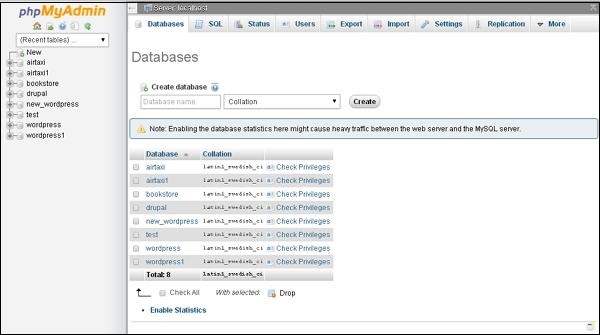
Step (1): Type the path http://localhost/phpmyadmin in browser. You will get the below screen
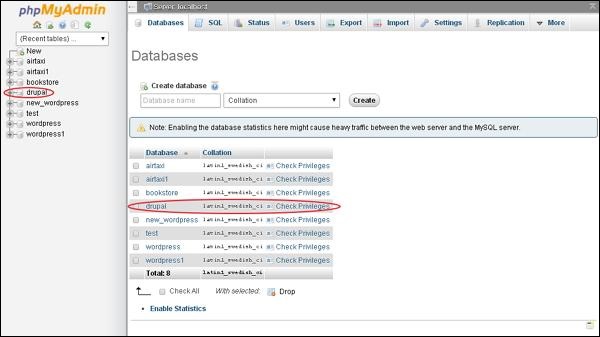
 Step (2): Click on the database name drupal, which you have created for Drupal.
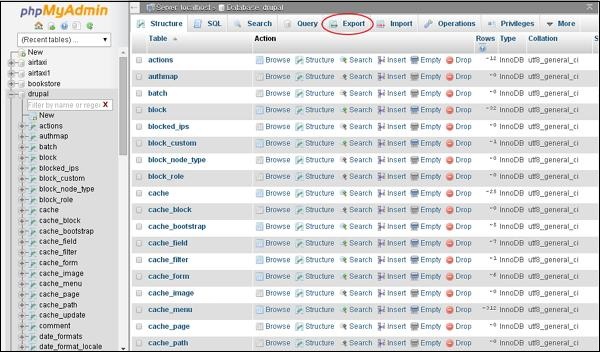
 Step (3): After clicking on database drupal, it will open the below page, click on Export tab.
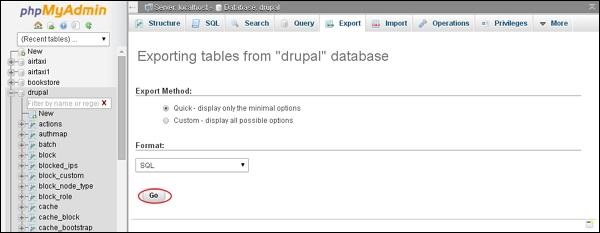
 Step (4): Next, you will get two methods to export the database i.e. Quick and Custom. Select any one of the methods and click on Go button.
 After exporting the database file, it will get saved on your System.
Backup Files in Drupal
To get the backup files of Drupal, you need to install FileZilla Client on your system.Following are the simple steps used to backup the files in Drupal:
Step (1): Open the FileZilla Client as shown below.
Step (2): Enter the Host, Username, Password and Port as same as you have used to login for your cpanel.
After filling all the fields, click on Quickconnect button.Step (3): Next, you will get all files and folder of your Drupal site at the right side as shown below
Step (4): Select all the files and folders and right click on the mouse, click on Download option.
After downloading the Drupal files from cpanel, it will get saved on your System.Backup Database in Drupal
Following are the simple steps used to backup the database in Drupal:Step (1): Type the path http://localhost/phpmyadmin in browser. You will get the below screen
Step (2): Click on the database name drupal, which you have created for Drupal.
Step (3): After clicking on database drupal, it will open the below page, click on Export tab.
Step (4): Next, you will get two methods to export the database i.e. Quick and Custom. Select any one of the methods and click on Go button.
After exporting the database file, it will get saved on your System.

No comments:
Post a Comment