
In this chapter we will learn about Form module in Drupal. This module lets you create a form in your Drupal based on the website for your users.
Following are the steps to install Form Module in Drupal.
Step (1) : Download the latest file of Form Builder module and from the link and install in your Drupal site.
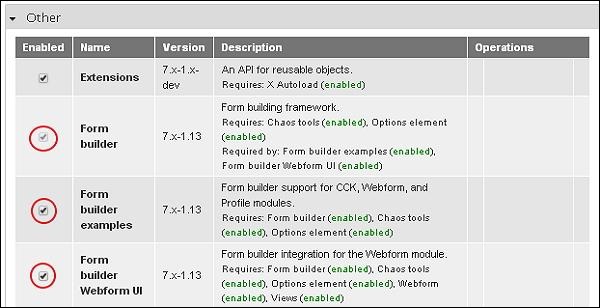
Step (2): Enable Form Builder module from the module page.
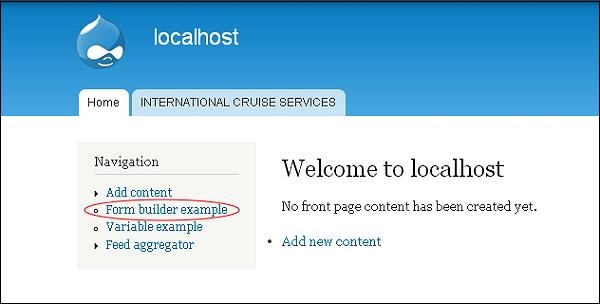
 Step (3): Click on Form Builder example from the dashboard.
 Step (4): Next, a Form builder example page gets displayed as shown below.
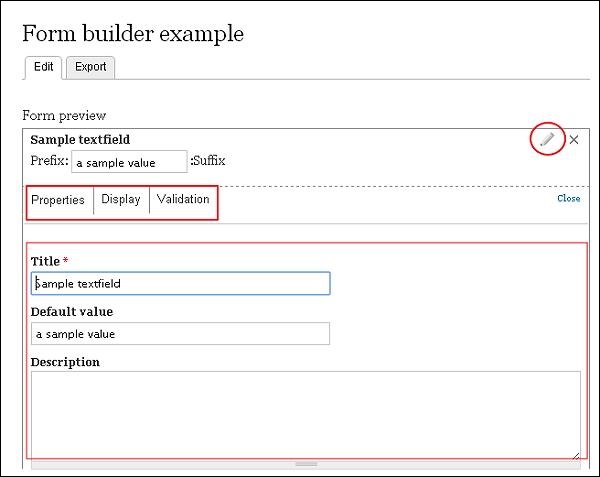 Here you can add, edit or remove the details manually.
Sample Text Field (Properties)
Following are the steps to install Form Module in Drupal.
Step (1) : Download the latest file of Form Builder module and from the link and install in your Drupal site.
Step (2): Enable Form Builder module from the module page.
Step (3): Click on Form Builder example from the dashboard.
Step (4): Next, a Form builder example page gets displayed as shown below.
Here you can add, edit or remove the details manually.Sample Text Field (Properties)
- Title:Enter your title name for your form.
- Default value: Sets the default value.
- Description:Enter description related to the title in that box.
- Prefix: Enter the prefix text.
- Suffix: Here you must put the suffix text.
- Size: Input size accordingly.
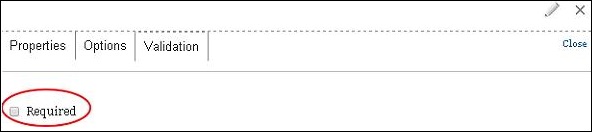
- Required: Check the box, when you want to validate the text field.
- Title:Enter your title name for your form.
- Description: Enter description related to the title in that box.
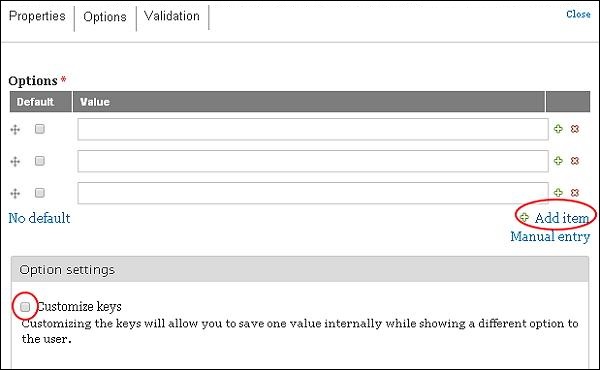
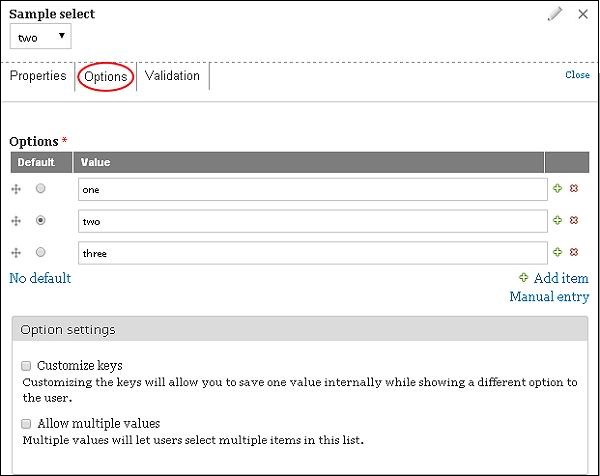
- Options: Here add items, mark as default and input the values.
- Customize Keys: Enable this setting if you want to save any one value.
- Required: Check the box when you want to validate the field.
- Title: Enter your title name for your form.
- Default value: Set the default value.
- Description:Enter description related to the title in that box.
- Rows: Enter rows.
- Columns: Enter columns.
- Required: Check the box when you want to validate the field.
- Title: Enter your title name for your form.
- Description: Enter description related to the title in that box.
- Options: Here add items, mark as default and input the values.
- Customize Keys: Enable this setting if you want to save any one value.
- Required: Check the box when you want to validate the field.
- Title: Enter your title name for your form.
- Description: Enter description related to the title in that box.
- Customize Keys: Enable this setting if you want to save any one value.
- Allow Multiple values: This will help users choose multiple items in your lists.


No comments:
Post a Comment