
In this chapter let us study about Creating content. In Drupal
content type defines the style in which contents are collected and
displayed. When you install Drupal, by default two content types will be
fixed and they are Articles and Basic page. When you enable other core and contributed modules by visiting Modules you can use other content types also.
Following are the simple steps used for creating content.
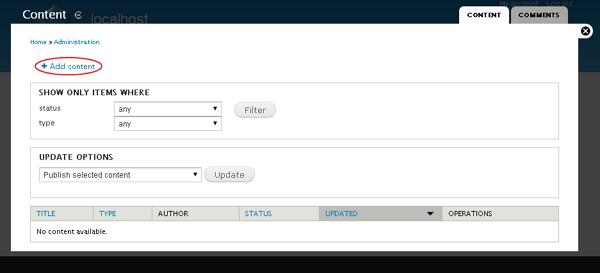
Step(1): Click on Content as shown below.
 Step(2): Next, click on Add content as shown below.
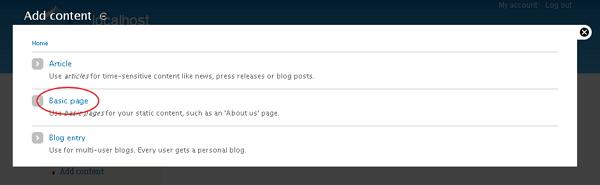
 Step(3): You can choose any of the content type. We shall take Basic page as we have already studied about Articles and Blog entry. Click on Basic page as shown below
 Step(4): Next, you will see the screen as shown below. You can add content to the page and click on Save button to save the content.
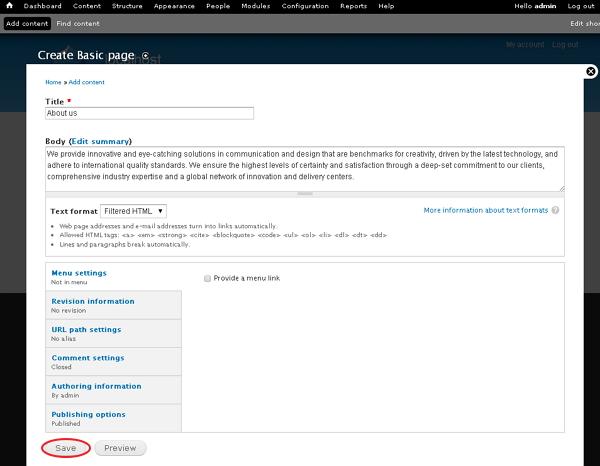 Below, we have mentioned the details about the fields present in above screen.
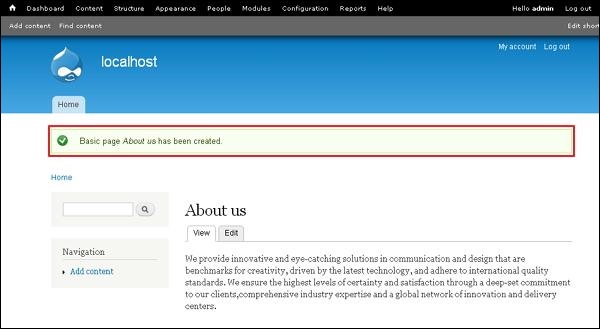
Following are the simple steps used for creating content.
Step(1): Click on Content as shown below.
Step(2): Next, click on Add content as shown below.
Step(3): You can choose any of the content type. We shall take Basic page as we have already studied about Articles and Blog entry. Click on Basic page as shown below
Step(4): Next, you will see the screen as shown below. You can add content to the page and click on Save button to save the content.
Below, we have mentioned the details about the fields present in above screen.- Title: It specifies the title of the page.
- Body: Write the content of your page.
- Menu setting: It allows you to provide a menu link.
- Revision Information It provides an explanation of the changes you are making.
- URL path settings: It allows you to optionally define an alternative URL, by which your content can be accessed.
- Comment Setting: It allows users to send their comments depending upon the permission you set that is Open or closed.
- Authorizing information: It specifies the author information.
- Publishing options: It permits you to promote your content to the front page and stick your content on top of the list on the front page.


No comments:
Post a Comment