
User Management manages the information of the user, which allows creating or deleting the user, changing passwords, time and roles.
Following are the simple steps to manage the users in Drupal
Step (1): Click on People --> Permissions Tab.
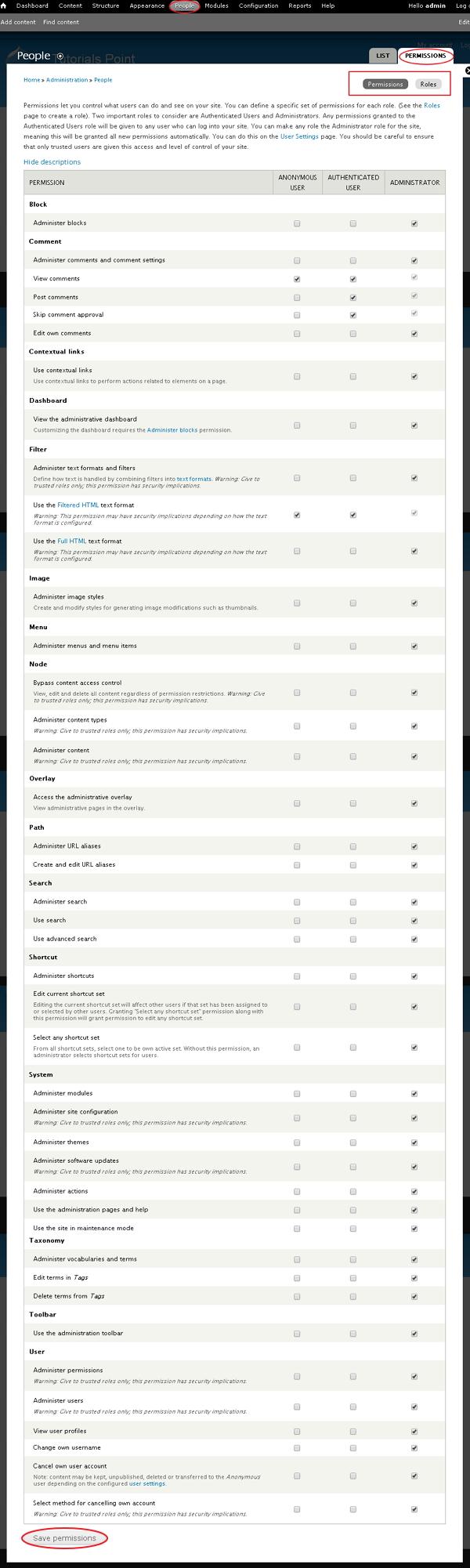 In Permission tab, you can view two more tabs i.e. Permissions and Roles as shown.
Following are the simple steps to manage the users in Drupal
Step (1): Click on People --> Permissions Tab.
In Permission tab, you can view two more tabs i.e. Permissions and Roles as shown.Permission
This section is related to posting content permission. It contains the following types of permission:
- Block: Sets permission to view, create, enable and disable the blocks.
- Comment: Set permission to users to view, edit, post comment or skip comment approval.
- Contextual links: Sets permission to use contextual link to perform action related to elements on a page.
- Dashboard: Sets permission to allow user to view and make changes in the dashboard.
- Filter: Permission to filter the amount of roles and permission on the site.
- Image: Permission to create or modify the styles of images.
- Menu: Allows permission to access menu item and create menu through the admin interface.
- Node: Allows to manage the view, edit and delete permissions for content type.
- Overlay: Sets permission to display administrative page as a layer over the current page.
- Path: Set permission to access path to all pages of Drupal site.
- Search: Sets permission to use normal and advanced search.
- Shortcut: Allows permission to set the shortcut toolbar on top of the page.
- System: Permission is granted to administer site configuration, view the themes, sute reports etc.
- Taxonomy: Permission to set the vocabularies and terms and also to edit and delete terms in tags.
- Toolbar: Allows permission to access the administration toolbar.
- User: Sets permission to individual users without assigning any special role to provide an interface.
Roles
It allows to set permissions for group of users by defining there roles. Here you can create the roles and edit permissions for each user.
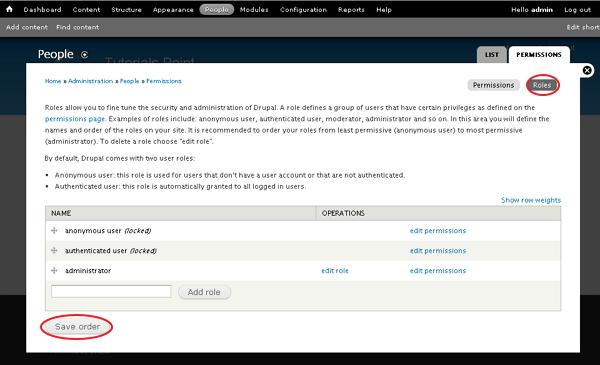
- Anonymous user: Allows user to access your website without asking them for the username or password.
- Authenticated user: Allows only those users to access your website, who are autenticated to use it.
- Administrator: User who is responsible to manage the complete website and allow users to create or view by his permission.


No comments:
Post a Comment