
In this chapter we will learn about Internationalization in
Drupal. Internationalization is a module which lets you create
multilingual sites. This way you can display your website in different
languages.
Following are the steps to use Internationalization:
Step (1): First, click on Module from the menu bar.
 Step (2): To get the Internationalization module you must first download and install it in Drupal. Here you must enable the Internationalization module, and then click on Save Configuration button.
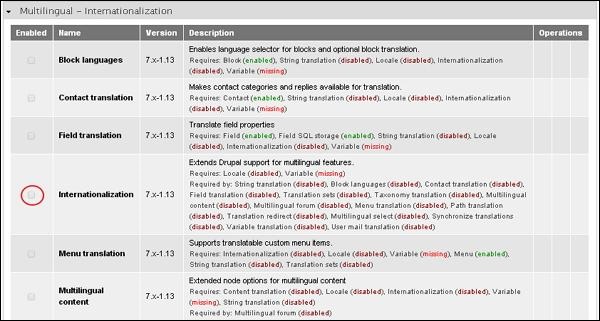 Step (3): Next, you can see a Configure setting at the right side of the page for Internationalization module as shown below:
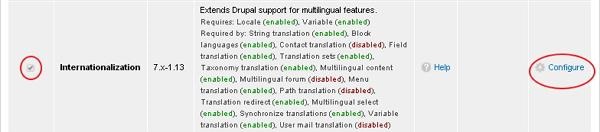 Step (4): Click on Configure and you get a page as shown below.
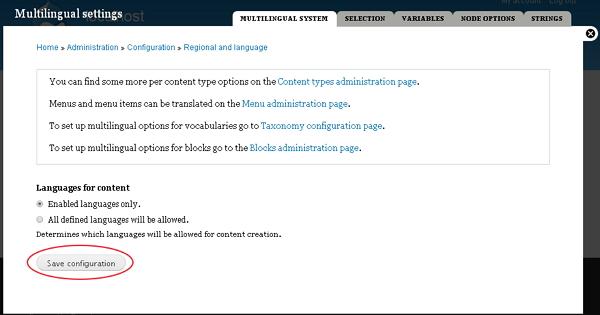 In Languages for content:
Following are the steps to use Internationalization:
Step (1): First, click on Module from the menu bar.
Step (2): To get the Internationalization module you must first download and install it in Drupal. Here you must enable the Internationalization module, and then click on Save Configuration button.
Step (3): Next, you can see a Configure setting at the right side of the page for Internationalization module as shown below:
Step (4): Click on Configure and you get a page as shown below.
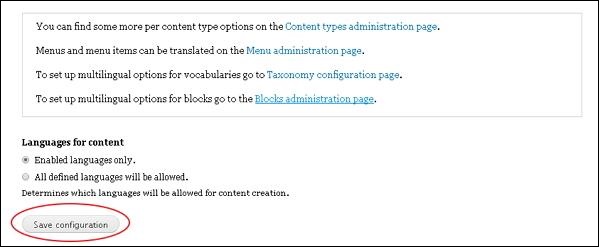
In Languages for content:- Enabled language only: When you check this box you can only view those languages that are enabled.
- All Defined languages will be allowed: Only the defined languages will be allowed.
-
Multilingual Settings: You can study about multilingual settings in detail in the chapter Drupal - Multilingual Content
- Selection: Here you can select nodes, taxonomy according to language.
- Variables: Selected variables to be set.
- Node Options: Helps you to set nodes.
- Strings: Change format of the page here.


No comments:
Post a Comment