
File handling is a very important part of building a desktop application. Almost all desktop apps interact with files.
We will create a form in our app that'll take as input a Name and Email address. We'll save this to a file and create a list that'll show this as output.
Set up your main process using the following code in the mian.js file:
In your view.js file, enter the following code:
 For more fs module API calls, please refer to Node File System tutorial.
Now we can handle files using electron! We'll look at how to call the save and open dialog boxes(native) for files in the dialogs chapter.
We will create a form in our app that'll take as input a Name and Email address. We'll save this to a file and create a list that'll show this as output.
Set up your main process using the following code in the mian.js file:
const {app, BrowserWindow} = require('electron')
const url = require('url')
const path = require('path')

let win

function createWindow() {
   win = new BrowserWindow({width: 800, height: 600})
   win.loadURL(url.format({
      pathname: path.join(__dirname, 'index.html'),
      protocol: 'file:',
      slashes: true
   }))
}

app.on('ready', createWindow)
Now open the index.html file and enter the following code in it:
<!DOCTYPE html>
<html>
   <head>
      <meta charset="UTF-8">
      <title>File System</title>
      <link rel="stylesheet" href="./bower_components/bootstrap/dist/css/bootstrap.min.css" />
      <style type="text/css">
         #contact-list{
            height: 150px;
            overflow-y: auto;
         }
      </style>
   </head>
   <body>
      <div class="container">
         <h1>Enter Names and Email addresses of your contacts</h1>
         <div class="form-group">
            <label for="Name">Name</label><input type="text" name="Name" value="" id="Name" placeholder="Name" class="form-control" required>
         </div>
         <div class="form-group">
            <label for="Email">Email</label><input type="email" name="Email" value="" id="Email" placeholder="Email" class="form-control" required>
         </div>
         <div class="form-group">
            <button class="btn btn-primary" id="add-to-list">Add to list!</button>
         </div>
         <div id="contact-list">
            <table class="table-striped" id="contact-table">
               <tr>
                  <th class="col-xs-2">S. No.</th>
                  <th class="col-xs-4">Name</th>
                  <th class="col-xs-6">Email</th>
               </tr>
            </table>
         </div>
         <script src="./view.js" ></script>
      </div>
   </body>
</html>
Now we need to handle the addition event. We'll do this in our view.js file. We will create a function loadAndDisplayContacts() that will initially load contacts from the file. Then we'll create a click handler on our add to list button. This will add the entry to both the file and the table.
In your view.js file, enter the following code:
let $ = require('jquery')
let fs = require('fs')
let filename = 'contacts'
let sno = 0

$('#add-to-list').on('click', () => {
   let name = $('#Name').val()
   let email = $('#Email').val()

   fs.appendFile('contacts', name + ',' + email + '\n')

   addEntry(name, email)
})

function addEntry(name, email) {
   if(name && email){
      sno++
      let updateString = ''+ sno + ''+ name +'' + email +''
      $('#contact-table').append(updateString)
   }
}

function loadAndDisplayContacts(){
   //Check if file exists
   if(fs.existsSync(filename)){
      let data = fs.readFileSync(filename, 'utf8').split('\n')
      data.forEach((contact, index) => {
         let [ name, email ] = contact.split(',')
         addEntry(name, email)
      })
   }
   else {
      console.log("File Doesn\'t Exist. Creating new file.")
      fs.writeFile(filename, '', (err) => {
         if(err)
            console.log(err)
      })
   }
}

loadAndDisplayContacts()
Now run the application using:
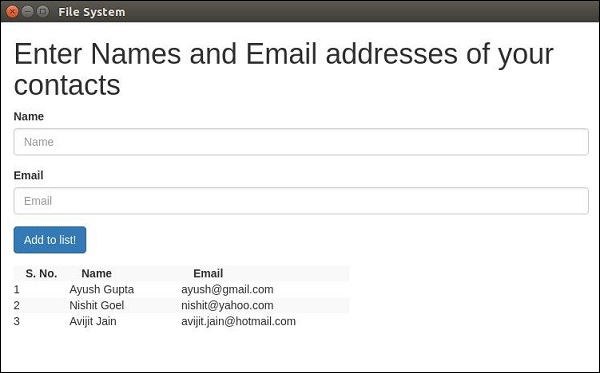
$ electron ./main.jsOnce you add some contacts to it, the application will look like:
For more fs module API calls, please refer to Node File System tutorial.Now we can handle files using electron! We'll look at how to call the save and open dialog boxes(native) for files in the dialogs chapter.


No comments:
Post a Comment