
We typically have memorized certain shortcuts for all the apps that
we use on our PC daily. To make your applications feel intuitive and
easily accessible to the user, you must allow the user to use shortcuts.
We'll use the globalShortcut module to define shortcuts in our app.
Note that Accelerators are Strings that can contain multiple modifiers and key codes, combined by the + character. These accelerators are used to define keyboard shortcuts throughout our application.
Let's take an example and create a shortcut in our dialog boxes example where we used the open dialog box for opening files. We'll register an 'CommandOrControl+O' shortcut to bring up the dialog box.
Our main.js code will remain the same as before. So create a new main.js file and enter the following code in it:
Now create a new index.html file with the following contents:
Now once the app is opened, We'll get the message to open the file using the shortcut we just defined.
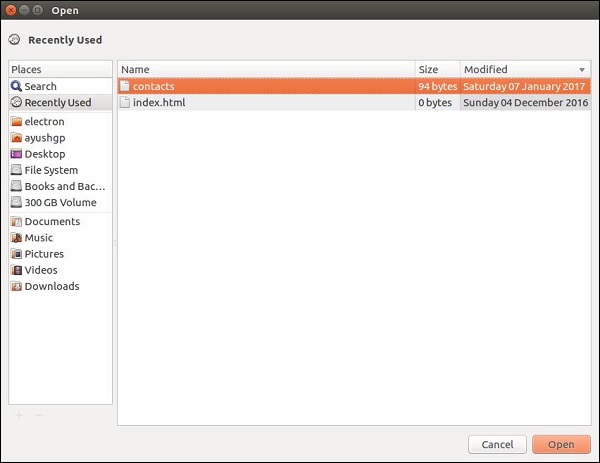 These shortcuts can be made customizable by allowing the user to choose his own shortcuts for defined actions.
We'll use the globalShortcut module to define shortcuts in our app.
Note that Accelerators are Strings that can contain multiple modifiers and key codes, combined by the + character. These accelerators are used to define keyboard shortcuts throughout our application.
Let's take an example and create a shortcut in our dialog boxes example where we used the open dialog box for opening files. We'll register an 'CommandOrControl+O' shortcut to bring up the dialog box.
Our main.js code will remain the same as before. So create a new main.js file and enter the following code in it:
const {app, BrowserWindow} = require('electron')
const url = require('url')
const path = require('path')
const {ipcMain} = require('electron')

let win

function createWindow() {
   win = new BrowserWindow({width: 800, height: 600})
   win.loadURL(url.format({
      pathname: path.join(__dirname, 'index.html'),
      protocol: 'file:',
      slashes: true
   }))
}

ipcMain.on('openFile', (event, path) => {
   const {dialog} = require('electron')
   const fs = require('fs')
   dialog.showOpenDialog(function (fileNames) {
         // fileNames is an array that contains all the selected
      if(fileNames === undefined)
         console.log("No file selected")
      else
         readFile(fileNames[0])
   })

   function readFile(filepath){
      fs.readFile(filepath, 'utf-8', (err, data) => {
         if(err){
            alert("An error ocurred reading the file :" + err.message)
            return
         }
         // handle the file content
         event.sender.send('fileData', data)
   })
   }
})


app.on('ready', createWindow)
This code will pop open the open dialog box whenever our main process recieves a 'openFile' message from a renderer process. Earlier this dialog box popped up whenever the app was run. Now lets limit it to open only when we press CommandOrControl+O.
Now create a new index.html file with the following contents:
<!DOCTYPE html>
<html>
   <head>
      <meta charset="UTF-8">
      <title>File read using system dialogs</title>
   </head>
   <body>
      <p>Press CTRL/CMD + O to open a file. </p>
      <script type="text/javascript">
         const {ipcRenderer, remote} = require('electron')
         const {globalShortcut} = remote
         globalShortcut.register('CommandOrControl+O', () => {
            ipcRenderer.send('openFile', () => {
               console.log("Event sent.");
            })
            ipcRenderer.on('fileData', (event, data) => {
               document.write(data)
            })
         })
      </script>
   </body>
</html>
We registered a new shortcut and passed a callback that'll be executed whenever we press this shortcut. We can deregister shortcuts as well if we don't need them anymore or they are not required in the current context anymore.
Now once the app is opened, We'll get the message to open the file using the shortcut we just defined.
These shortcuts can be made customizable by allowing the user to choose his own shortcuts for defined actions. 

No comments:
Post a Comment