
In this chapter, we will study about how to Create Menus in
Drupal. Menus are very important to navigate your website easily.Menus
offer a set of links as a result, you can navigate your website. The
Drupal menu allows you to add, remove and rename the menus and menu
items.
Following are the simple steps to create menus in Drupal.
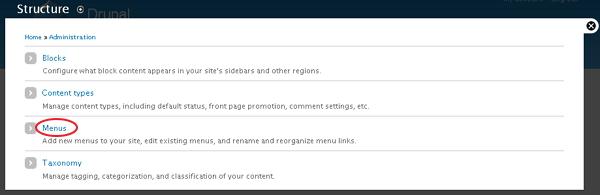
Step (1): Click on Structure -> Menus as shown below
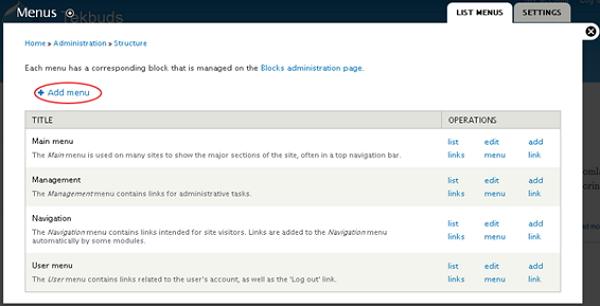
 Step (2): Further, click on Add menu option to add menu.
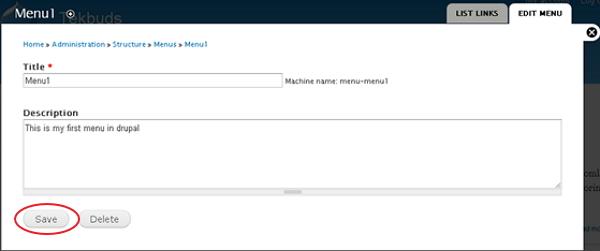
 Step (3): Next, you need to fill in the required details as shown below.
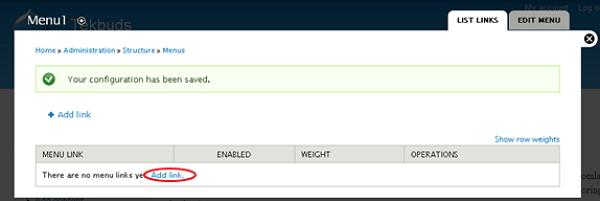
Step (4): Once you save the menu bar, the following screen will get displayed. Here you have to define the path link to your created menu page. Click on Add link as shown below.
 Step (5): Next, you will see the created Menu1 page as shown below.
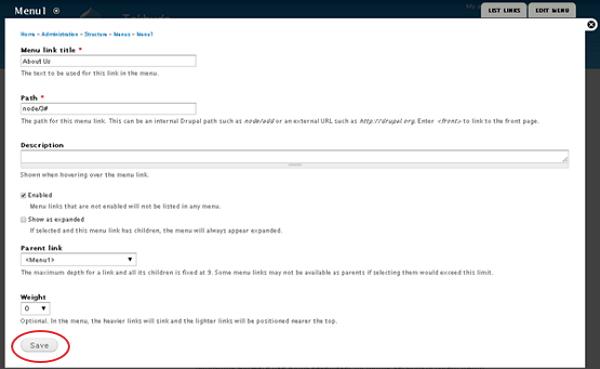 It contains below fields:
Step (6): Further you will see the following screen as shown below.
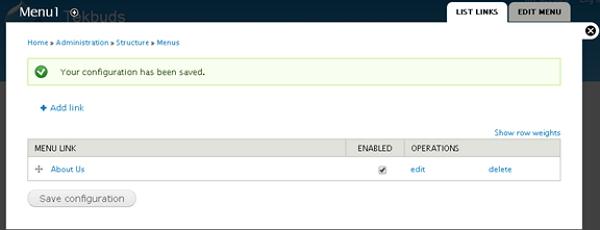 Step (7): Click on Structure -> Menus then you will get the following screen as shown.
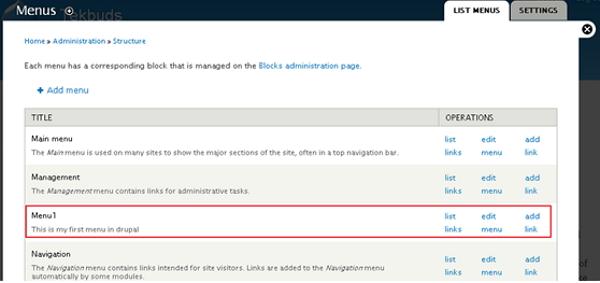 Here, you will see the created Menu1 name in the list of Menus.
Following are the simple steps to create menus in Drupal.
Step (1): Click on Structure -> Menus as shown below
Step (2): Further, click on Add menu option to add menu.
Step (3): Next, you need to fill in the required details as shown below.
- Title: It displays title in the Administrator Menu bar.
- Description: Enter a brief description about the menu. The description field will display only in the admin dashboard under the menu list, but it does not display any information to site visitors
Step (4): Once you save the menu bar, the following screen will get displayed. Here you have to define the path link to your created menu page. Click on Add link as shown below.
Step (5): Next, you will see the created Menu1 page as shown below.
It contains below fields:- Menu link title: Specify the name of the menu item.
- Path: Specify the url path of the page which you want to display.
- Description: Description about the menu link.
- Enabled: It enables the item to display on menu.
- Show as expanded: If it consist of sub menus, then it will be displayed under parent menu item.
- Parent Link: It sets the main structure of menu.
- Weight: Sets the order of menu items.
Step (6): Further you will see the following screen as shown below.
Step (7): Click on Structure -> Menus then you will get the following screen as shown.
Here, you will see the created Menu1 name in the list of Menus.

No comments:
Post a Comment