
In this chapter we'll study about Creating Products in Drupal site. Products are the items that are offered for sale.
Following are the simple steps used for Creating Product.
Step(1): Click on Add Product.
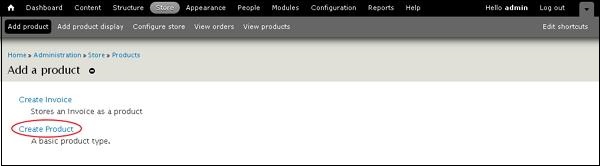
 Step(2): Next, click on Create Product.
 Step(3):Next, you have to create a product by filling the product information as shown below..
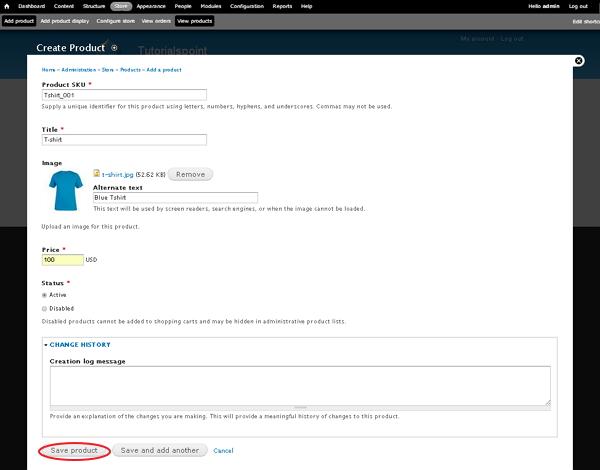 It contains below fields:
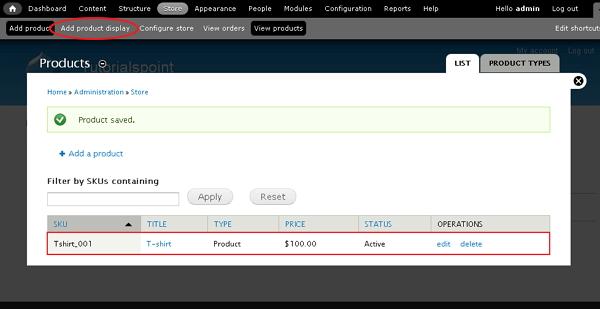
Step(4): Now you can see that your product is added, click on Add product display as shown below.
 Step(5):Next, Create Product display page will get displayed as shown below.
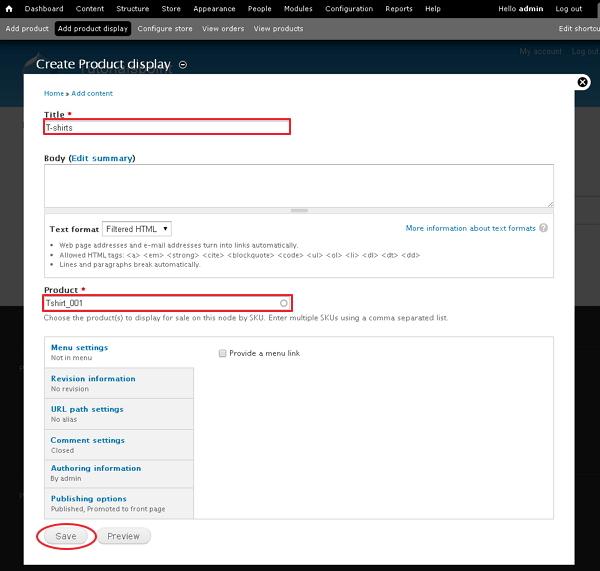 It contains below fields:
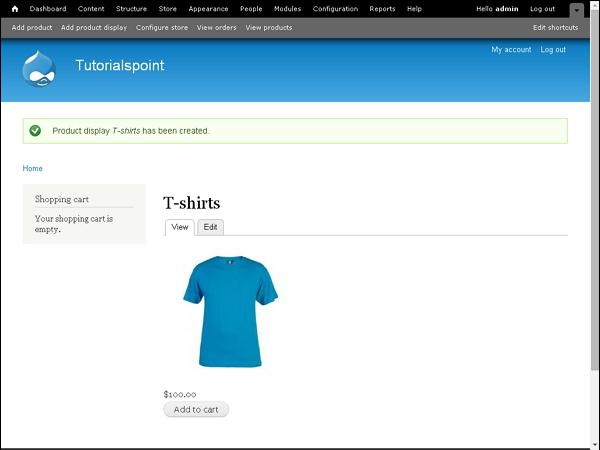
Following are the simple steps used for Creating Product.
Step(1): Click on Add Product.
Step(2): Next, click on Create Product.
Step(3):Next, you have to create a product by filling the product information as shown below..
It contains below fields:- Product SKU: Unique identifier for the product is given here.
- Title: Enter the title of the product.
- Image: Here you can upload image and give alternate text for your product which will be used by screen readers, search engines, or when the image cannot be loaded.
- Price: It contains the price of the product.
- Status: Set this field to Active option, so that it can be added to shopping cart. If it is set to Disabled option, products cannot be added to shopping carts and may be hidden in administrative product lists.
- Change History: It provides history of changes made to the product.
Step(4): Now you can see that your product is added, click on Add product display as shown below.
Step(5):Next, Create Product display page will get displayed as shown below.
It contains below fields:- Title: It contains title of the product.
- Body: Here you can add summary for the product.
- Product: Choose the products to display for sale on this node by SKU and you can enter multiple SKU's using a comma separated list.


No comments:
Post a Comment