
In this chapter, we will study about Creating articles in Drupal.
Creating articles help your visitors know about the company and your
website in detail in the form of articles.
Following are the steps used to create articles in Drupal.
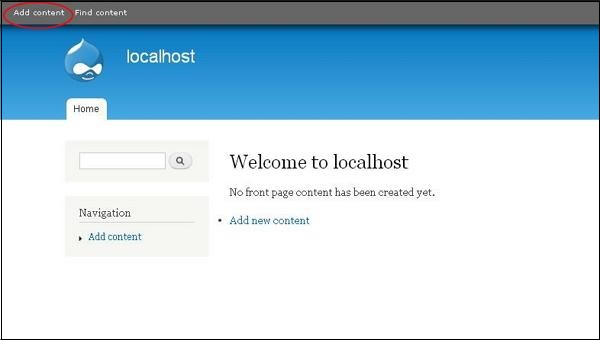
Step (1): Click on Add content in Drupal.
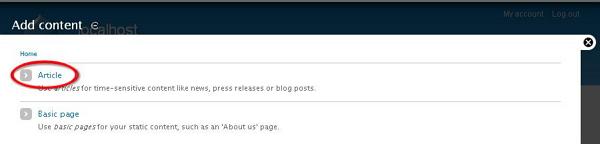
 Step (2): Next, you will get the pop-up window as shown below. Select Article.
 Step (3): Next, you will get the following screen.
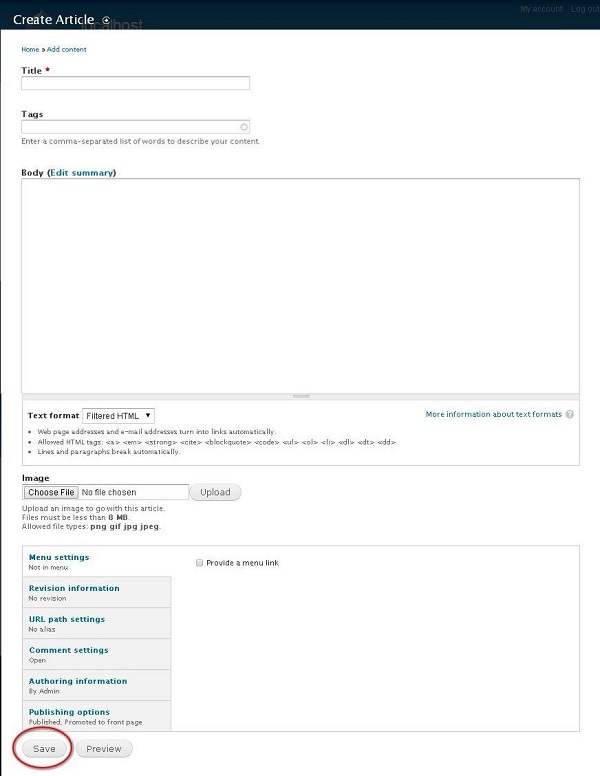 Below are the fields present in Create Article page.
Following are the steps used to create articles in Drupal.
Step (1): Click on Add content in Drupal.
Step (2): Next, you will get the pop-up window as shown below. Select Article.
Step (3): Next, you will get the following screen.
Below are the fields present in Create Article page.- Title: It specifies the title for new article.
- Tags: Describes the content of your article. Tags contain those words which are included into your articles relating to it.
- Body: Enter the description.
- Text format: It specifies the Text format such as Filtered HTML, FULL HTML and Plain text.
- Image: Upload images by choosing a particular file.
- Menu settings: By clicking on Provide a menu link checkbox it shows all the related details of Menu such as Menu link title, Description, Parent item, and Weight.
- Revision information: Provide revised information if any changes are made in the article.
- URL path settings: Add URL alias to access the content of article to the users.
- Comment settings: By selecting open or close, it allows others to write comment for the article.
- Authoring information: Specifies the authored name and the date when article has been authored.
- Publishing options: Article should be Published, Promoted to front page and Sticky at top of lists to the users.
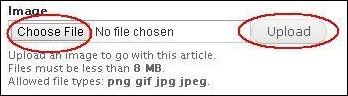 When you click on choose file a pop up window appears, you can
select an image from your local file, once you choose a file, click on Upload. The image gets uploaded.
When you click on choose file a pop up window appears, you can
select an image from your local file, once you choose a file, click on Upload. The image gets uploaded.

No comments:
Post a Comment