
Basically cart is a process of collecting items or services and uses
checkout to collect payment. In this article, we will see how to setup
shopping cart for Drupal site by using Commerce Kickstart module.
Commerce Kickstart is a good way to work with Drupal - E-Commerce which comes with different types of features to create user friendly web store which makes more complete, easier to launch and administer. You can download the Drupal Commerce Kickstart from here.
Step (1): Download the latest file of Commerce Kickstart module from the above link and install it on your system. After installing the module, you will see the below screen.
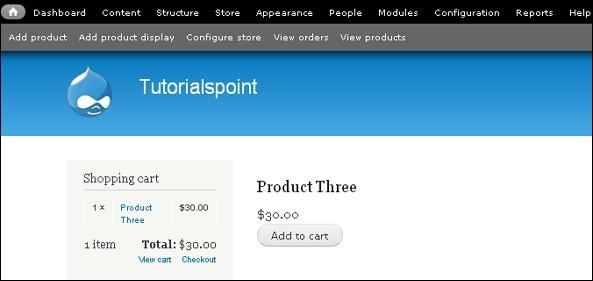 Step (2): Before adding products in your cart, you need to create products in the store. Click on Add Product --> Create Product.
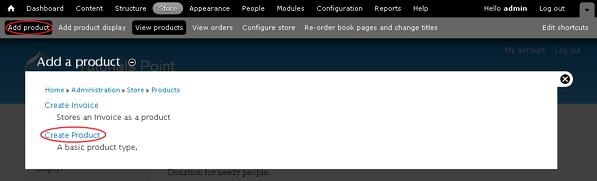
Step (3): Here, you can create product as shown in the screen.
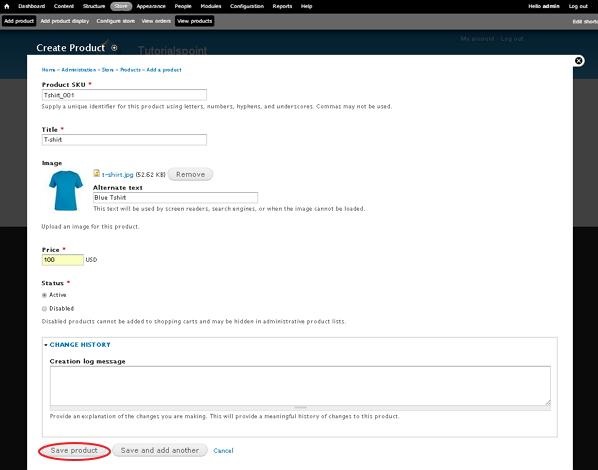 Above screen has some fields which are described below.
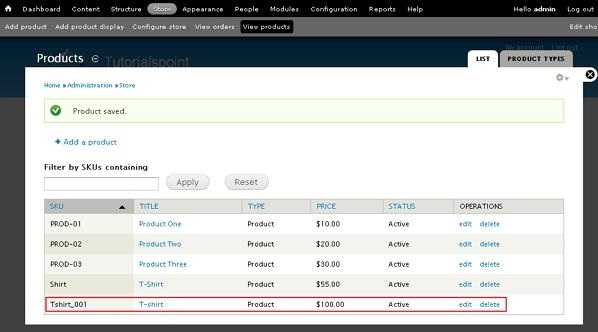
Step (3): You will see the created product in the table.
 Step (4): To display your product in the cart, click on Add product display.
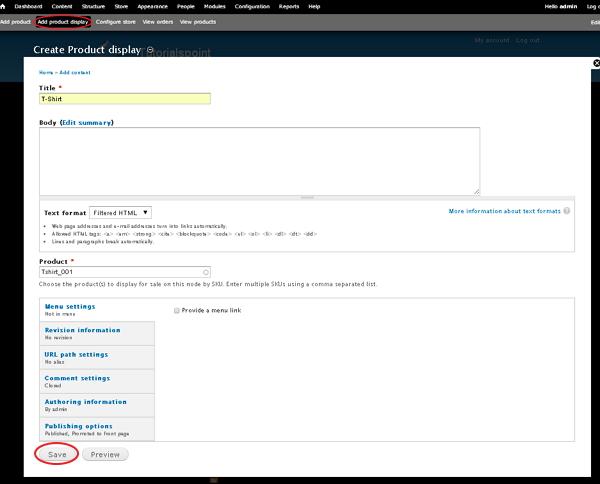 In this window, Title field contains title of the product, you can add summary for the product in the Body field, Product field uses product SKU to display for the sale. After done with the settings, click the Save button.
Step (5): Next you will see the product displayed on the home page as shown in the screen.
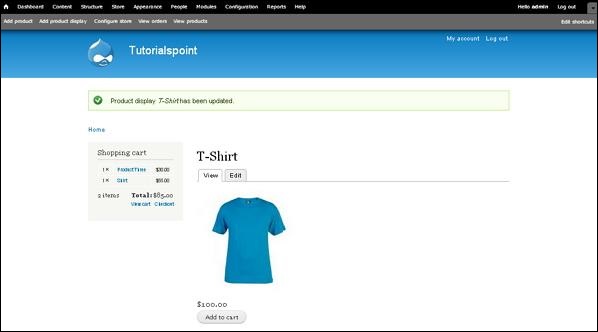 Step (6): Click the Add to cart button to add the created product in the cart.
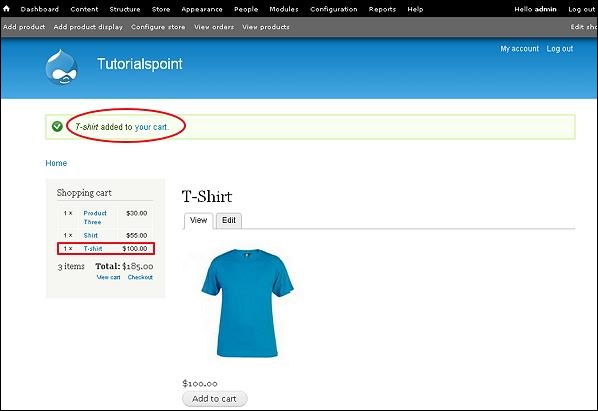 It will display the successful message after adding product to the cart. You can see the product name along with price in the Shopping cart block.
Step (7): Next click on the View cart link to see the added product in the shopping cart.
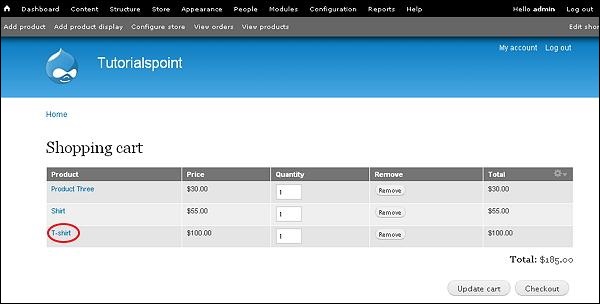
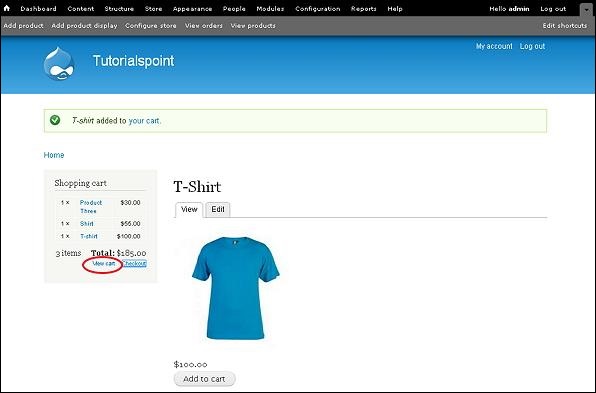 Step (8): You will see the shopping cart table along with the products as shown in the below screen.
Commerce Kickstart is a good way to work with Drupal - E-Commerce which comes with different types of features to create user friendly web store which makes more complete, easier to launch and administer. You can download the Drupal Commerce Kickstart from here.
Step (1): Download the latest file of Commerce Kickstart module from the above link and install it on your system. After installing the module, you will see the below screen.
Step (2): Before adding products in your cart, you need to create products in the store. Click on Add Product --> Create Product.
Step (3): Here, you can create product as shown in the screen.
Above screen has some fields which are described below.- Product SKU: Unique identifier for the product is given here.
- Title: This specifies the title of the product.
- Image: Here you can upload image and give alternate text for your product which will be used by screen readers, search engines, when image the cannot be loaded.
- Price: It contains price of the product.
- Status: Set this field to Active option, so that it can be added to shopping cart. If it set to Disabled option, products cannot be added to shopping carts and may be hidden in administrative product lists.
- Change History: It provides history of changes made to the product.
Step (3): You will see the created product in the table.
Step (4): To display your product in the cart, click on Add product display.
In this window, Title field contains title of the product, you can add summary for the product in the Body field, Product field uses product SKU to display for the sale. After done with the settings, click the Save button.Step (5): Next you will see the product displayed on the home page as shown in the screen.
Step (6): Click the Add to cart button to add the created product in the cart.
It will display the successful message after adding product to the cart. You can see the product name along with price in the Shopping cart block.Step (7): Next click on the View cart link to see the added product in the shopping cart.
Step (8): You will see the shopping cart table along with the products as shown in the below screen.

No comments:
Post a Comment