
In this chapter we'll study how to upgrade the Drupal site. Upgrade
is a process of replacing the old version to the latest version. Here we
will upgrade the Drupal to the latest version.
Below are simple steps to upgrade the site in Drupal.
Step (1): Backup your Drupal files. You can study about this in detail in the chapter Drupal - Site Backup.
Step (2): If there is any updation to be done on Drupal site, then a message gets displayed on your site as shown below.
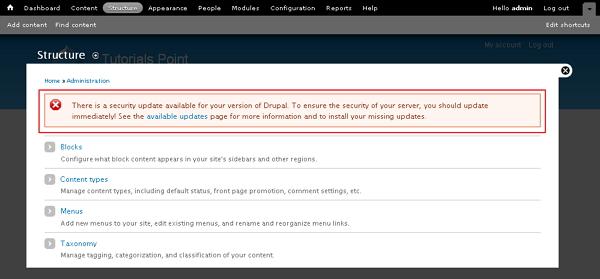 Step (3): Next, click on highlighted word available updates present into the message .
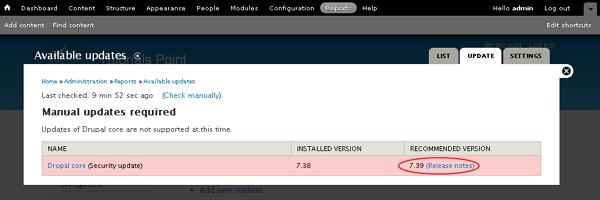
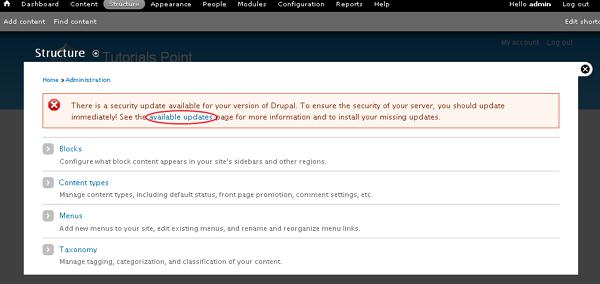 Step (4): Next, you can view the Available Updates
page, where it shows the exactly updation to be done on the site to.
Here, it shows you the recommended version to update your site. Click on
Release notes.
Step (4): Next, you can view the Available Updates
page, where it shows the exactly updation to be done on the site to.
Here, it shows you the recommended version to update your site. Click on
Release notes.
 Step (5): Next, it will take you to Drupal official site page where you can see the latest version tar.gz files available in Drupal. While writing this tutorial, the latest version was drupal - 7.39.tar.gz. Click on drupal - 7.39.tar.gz.
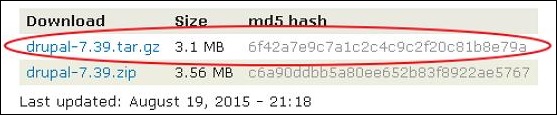 The tar.gz files get downloaded on your system.
Step (6): Extract the downloaded file, copy all the files and folder exccept the Sites folder present inside the latest downloaded folder. Later paste these files into your existing Drupal folder.
Step (7): Next, go to Reports --> Available updates or else you can refresh the page; here you will view a message as shown in the below image.
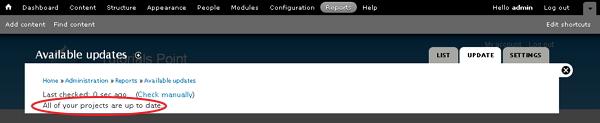 Step (8):Next, click on Reports --> Status report.
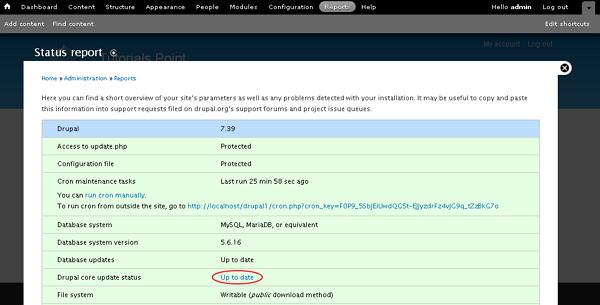 Here, you can view your site is upgraded to latest version and it will show the status Up to date for Drupal core update status as shown in the image.
Below are simple steps to upgrade the site in Drupal.
Step (1): Backup your Drupal files. You can study about this in detail in the chapter Drupal - Site Backup.
Step (2): If there is any updation to be done on Drupal site, then a message gets displayed on your site as shown below.
Step (3): Next, click on highlighted word available updates present into the message .
Step (4): Next, you can view the Available Updates
page, where it shows the exactly updation to be done on the site to.
Here, it shows you the recommended version to update your site. Click on
Release notes.
Step (5): Next, it will take you to Drupal official site page where you can see the latest version tar.gz files available in Drupal. While writing this tutorial, the latest version was drupal - 7.39.tar.gz. Click on drupal - 7.39.tar.gz.
The tar.gz files get downloaded on your system.Step (6): Extract the downloaded file, copy all the files and folder exccept the Sites folder present inside the latest downloaded folder. Later paste these files into your existing Drupal folder.
Step (7): Next, go to Reports --> Available updates or else you can refresh the page; here you will view a message as shown in the below image.
Step (8):Next, click on Reports --> Status report.
Here, you can view your site is upgraded to latest version and it will show the status Up to date for Drupal core update status as shown in the image.

No comments:
Post a Comment