Unit testing can be done in two ways − manual testing and automated testing.
পৃষ্ঠাসমূহ
Labels
Search Your Article
CS
Welcome to GoogleDG – your one-stop destination for free learning resources, guides, and digital tools.
At GoogleDG, we believe that knowledge should be accessible to everyone. Our mission is to provide readers with valuable ebooks, tutorials, and tech-related content that makes learning easier, faster, and more enjoyable.
What We Offer:
-
📘 Free & Helpful Ebooks – covering education, technology, self-development, and more.
-
💻 Step-by-Step Tutorials – practical guides on digital tools, apps, and software.
-
🌐 Tech Updates & Tips – simplified information to keep you informed in the fast-changing digital world.
-
🎯 Learning Support – resources designed to support students, professionals, and lifelong learners.
✔ Latest world News
Our Vision
To create a digital knowledge hub where anyone, from beginners to advanced learners, can find trustworthy resources and grow their skills.
Why Choose Us?
✔ Simple explanations of complex topics
✔ 100% free access to resources
✔ Regularly updated content
✔ A community that values knowledge sharing
We are continuously working to expand our content library and provide readers with the most useful and relevant digital learning materials.
📩 If you’d like to connect, share feedback, or suggest topics, feel free to reach us through the Contact page.
Pageviews
Saturday, January 21, 2017
JUnit - Overview
Unit testing can be done in two ways − manual testing and automated testing.
JUnit - Environment Setup
Try it Online Option
We have set up the Java Programming environment online, so that you can compile and execute all the available examples online. It gives you confidence in what you are reading and enables you to verify the programs with different options. Feel free to modify any example and execute it online.
JUnit - Test Framework
JUnit - Basic Usage
Create a Class
Create a java class to be tested, say, MessageUtil.java in C:\>JUNIT_WORKSPACEJUnit - API
JUnit - Writing a Test
Create EmployeeDetails.java in C:\>JUNIT_WORKSPACE, which is a POJO class.
JUnit - Using Assertion
Assertion
All the assertions are in the Assert class.public class Assert extends java.lang.ObjectThis class provides a set of assertion methods, useful for writing tests. Only failed assertions are recorded. Some of the important methods of Assert class are as follows −
JUnit - Execution Procedure
Create a java class file named ExecutionProcedureJunit.java in C:\>JUNIT_WORKSPACE to test annotation.
JUnit - Executing Tests
Following is the declaration for org.junit.runner.JUnitCore class:
JUnit - Suite Test
JUnit - Ignore Test
JUnit - Time Test
JUnit - Exceptions Test
JUnit - Parameterized Test
JUnit - Plug with ANT
Step 1: Download Apache Ant
JUnit - Plug with Eclipse
Step 1: Download JUnit Archive
Download a JUnit jar based on the operating system you have on your system.JUnit Questions and Answers
JUnit - Quick Guide
JUnit - Overview
Testing is the process of checking the functionality of an application to ensure it runs as per requirements. Unit testing comes into picture at the developers’ level; it is the testing of single entity (class or method). Unit testing plays a critical role in helping a software company deliver quality products to its customers.Unit testing can be done in two ways − manual testing and automated testing.
JUnit - Useful Resources
Discuss JUnit
JSP - Overview
What is JavaServer Pages?
JavaServer Pages (JSP) is a technology for developing web pages that support dynamic content which helps developers insert java code in HTML pages by making use of special JSP tags, most of which start with <% and end with %>.JSP - Environment Setup
This tutorial will guide you to setup your JSP development environment which involves following steps:
JSP - Architecture
JSP - Life Cycle
A JSP life cycle can be defined as the entire process from its creation till the destruction which is similar to a servlet life cycle with an additional step which is required to compile a JSP into servlet.
The following are the paths followed by a JSP
JSP - Syntax
The Scriptlet:
A scriptlet can contain any number of JAVA language statements, variable or method declarations, or expressions that are valid in the page scripting language.JSP - Directives
JSP - Actions
JSP - Implicit Objects
JSP supports nine Implicit Objects which are listed below:
JSP - Client Request
JSP - Server Response
HTTP/1.1 200 OK Content-Type: text/html
JSP - Http Status Codes
- An initial status line + CRLF ( Carriage Return + Line Feed ie. New Line )
- Zero or more header lines + CRLF
- A blank line ie. a CRLF
JSP - Form Processing
JSP - Filters
- To intercept requests from a client before they access a resource at back end.
- To manipulate responses from server before they are sent back to the client.
JSP - Cookies Handling
There are three steps involved in identifying returning users:
JSP - Session Tracking
Still there are following three ways to maintain session between web client and web server:
JSP - File Uploading
JSP - Handling Date
JSP - Page Redirecting
JSP - Hits Counter
To implement a hit counter you can make use of Application Implicit object and associated methods getAttribute() and setAttribute().
JSP - Auto Refresh
JSP - Sending Email
JSP - Standard Tag Library (JSTL) Tutorial
JSP - Database Access
For more detail on how to access database using JDBC and its environment setup you can go through our JDBC Tutorial.
JSP - XML Data
JSP - JavaBeans
Following are the unique characteristics that distinguish a JavaBean from other Java classes:
JSP - Custom Tags
JSP - Expression Language (EL)
JSP - Exception Handling
JSP - Debugging
Here are a few hints and suggestions that may aid you in your debugging.
JSP - Security
JSP - Internationalization| i18n| l10n
- Internationalization (i18n): This means enabling a web site to provide different versions of content translated into the visitor's language or nationality.
JSP Questions and Answers
JSP - Quick Guide
What is JavaServer Pages?
JavaServer Pages (JSP) is a technology for developing web pages that support dynamic content which helps developers insert java code in HTML pages by making use of special JSP tags, most of which start with <% and end with %>.JSP - Useful Resources
Discuss JSP
JSON - Overview
JSON - Syntax
JSON - DataTypes
| Type | Description |
|---|---|
| Number | double- precision floating-point format in JavaScript |
| String | double-quoted Unicode with backslash escaping |
JSON - Objects
Creating Simple Objects
JSON objects can be created with JavaScript. Let us see the various ways of creating JSON objects using JavaScript −JSON - Schema
JSON - Comparison with XML
JSON with PHP
JSON with Perl
JSON with Python
JSON with Ruby
JSON with Java
JSON with Ajax
JSON - Useful Resources
Discuss JSON
JPA - Introduction
JPA - Architecture
JPA - ORM Components
Object Relational Mapping
Object Relational Mapping (ORM) briefly tells you about what is ORM and how it works. ORM is a programming ability to covert data from object type to relational type and vice versa.The main feature of ORM is mapping or binding an object to its data in the database. While mapping we have to consider the data, type of data and its relations with its self-entity or entity in any other table.
Advanced Features
- Idiomatic persistence : It enables you to write the persistence classes using object oriented classes.
- High Performance : It has many fetching techniques and hopeful locking techniques.
- Reliable : It is highly stable and eminent. Used by many industrial programmers.
ORM Architecture
Here follow the ORM architecture.
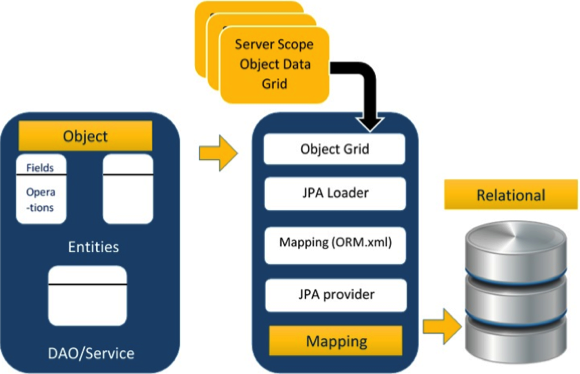
The above architecture explains how object data is stored into relational database in three phases.Phase1
The first phase, named as the Object data phase contains POJO classes, service interfaces and classes. It is the main business component layer, which has business logic operations and attributes.For example let us take an employee database as schema-
- Employee POJO class contain attributes such as ID, name, salary, and designation. And methods like setter and getter methods of those attributes.
- Employee DAO/Service classes contains service methods such as create employee, find employee, and delete employee.
Phase 2
The second phase named as mapping or persistence phase which contains JPA provider, mapping file (ORM.xml), JPA Loader, and Object Grid.- JPA Provider : The vendor product which contains JPA flavor (javax.persistence). For example Eclipselink, Toplink, Hibernate, etc.
- Mapping file : The mapping file (ORM.xml) contains mapping configuration between the data in a POJO class and data in a relational database.
- JPA Loader : The JPA loader works like cache memory, which can load the relational grid data. It works like a copy of database to interact with service classes for POJO data (Attributes of POJO class).
- Object Grid : The Object grid is a temporary location which can store the copy of relational data, i.e. like a cache memory. All queries against the database is first effected on the data in the object grid. Only after it is committed, it effects the main database.
Phase 3
The third phase is the Relational data phase. It contains the relational data which is logically connected to the business component. As discussed above, only when the business component commit the data, it is stored into the database physically. Until then the modified data is stored in a cache memory as a grid format. Same is the process for obtaining data.The mechanism of the programmatic interaction of above three phases is called as object relational mapping.
Mapping.xml
The mapping.xml file is to instruct the JPA vendor for mapping the Entity classes with database tables.Let us take an example of Employee entity which contains four attributes. The POJO class of Employee entity named Employee.java is as follows:
public class Employee { private int eid; private String ename; private double salary; private String deg; public Employee(int eid, String ename, double salary, String deg) { super( ); this.eid = eid; this.ename = ename; this.salary = salary; this.deg = deg; } public Employee( ) { super(); } public int getEid( ) { return eid; } public void setEid(int eid) { this.eid = eid; } public String getEname( ) { return ename; } public void setEname(String ename) { this.ename = ename; } public double getSalary( ) { return salary; } public void setSalary(double salary) { this.salary = salary; } public String getDeg( ) { return deg; } public void setDeg(String deg) { this.deg = deg; } }The above code is the Employee entity POJO class. It contain four attributes eid, ename, salary, and deg. Consider these attributes are the table fields in the database and eid is the primary key of this table. Now we have to design hibernate mapping file for it. The mapping file named mapping.xml is as follows:
<? xml version="1.0" encoding="UTF-8" ?> <entity-mappings xmlns="http://java.sun.com/xml/ns/persistence/orm" xmlns:xsi="http://www.w3.org/2001/XMLSchema-instance" xsi:schemaLocation="http://java.sun.com/xml/ns/persistence/orm http://java.sun.com/xml/ns/persistence/orm_1_0.xsd" version="1.0"> <description> XML Mapping file</description> <entity class="Employee"> <table name="EMPLOYEETABLE"/> <attributes> <id name="eid"> <generated-value strategy="TABLE"/> </id> <basic name="ename"> <column name="EMP_NAME" length="100"/> </basic> <basic name="salary"> </basic> <basic name="deg"> </basic> </attributes> </entity> </entity-mappings>The above script for mapping the entity class with database table. In this file
- <entity-mappings> : tag defines the schema definition to allow entity tags into xml file.
- <description> : tag defines description about application.
- <entity> : tag defines the entity class which you want to convert into table in a database. Attribute class defines the POJO entity class name.
- <table> : tag defines the table name. If you want to keep class name as table name then this tag is not necessary.
- <attributes> : tag defines the attributes (fields in a table).
- <id> : tag defines the primary key of the table. The <generated-value> tag defines how to assign the primary key value such as Automatic, Manual, or taken from Sequence.
- <basic> : tag is used for defining remaining attributes for table.
- <column-name> : tag is used to define user defined table field name.
Annotations
Generally Xml files are used to configure specific component, or mapping two different specifications of components. In our case, we have to maintain xml separately in a framework. That means while writing a mapping xml file we need to compare the POJO class attributes with entity tags in mapping.xml file.Here is the solution: In the class definition, we can write the configuration part using annotations. The annotations are used for classes, properties, and methods. Annotations starts with ‘@’ symbol. Annotations are declared before the class, property or method is declared. All annotations of JPA are defined in javax.persistence package.
Here follows the list of annotations used in our examples
| Annotation | Description |
|---|---|
| @Entity | This annotation specifies to declare the class as entity or a table. |
| @Table | This annotation specifies to declare table name. |
| @Basic | This annotation specifies non constraint fields explicitly. |
| @Embedded | This annotation specifies the properties of class or an entity whose value instance of an embeddable class. |
| @Id | This annotation specifies the property, use for identity (primary key of a table) of the class. |
| @GeneratedValue | This annotation specifies, how the identity attribute can be initialized such as Automatic, manual, or value taken from sequence table. |
| @Transient | This annotation specifies the property which in not persistent i.e. the value is never stored into database. |
| @Column | This annotation is used to specify column or attribute for persistence property. |
| @SequenceGenerator | This annotation is used to define the value for the property which is specified in @GeneratedValue annotation. It creates a sequence. |
| @TableGenerator | This annotation is used to specify the value generator for property specified in @GeneratedValue annotation. It creates a table for value generation. |
| @AccessType | This type of annotation is used to set the access type. If you set @AccessType(FIELD) then Field wise access will occur. If you set @AccessType(PROPERTY) then Property wise assess will occur. |
| @JoinColumn | This annotation is used to specify an entity association or entity collection. This is used in many- to-one and one-to-many associations. |
| @UniqueConstraint | This annotation is used to specify the field, unique constraint for primary or secondary table. |
| @ColumnResult | This annotation references the name of a column in the SQL query using select clause. |
| @ManyToMany | This annotation is used to define a many-to-many relationship between the join Tables. |
| @ManyToOne | This annotation is used to define a many-to-one relationship between the join Tables. |
| @OneToMany | This annotation is used to define a one-to-many relationship between the join Tables. |
| @OneToOne | This annotation is used to define a one-to-one relationship between the join Tables. |
| @NamedQueries | This annotation is used for specifying list of named queries. |
| @NamedQuery | This annotation is used for specifying a Query using static name. |
Java Bean Standard
Java class, encapsulates the instance values and behaviors into a single unit callled object. Java Bean is a temporary storage and reusable component or an object. It is a serializable class which has default constructor and getter & setter methods to initialize the instance attributes individually.Bean Conventions
- Bean contains the default constructor or a file that contains serialized instance. Therefore, a bean can instantiate the bean.
- The properties of a bean can be segregated into Boolean properties and non-Boolean properties.
- Non-Boolean property contains getter and setter methods.
- Boolean property contain setter and is method.
- Getter method of any property should start with small lettered ‘get’ (java method convention) and continued with a field name that starts with capital letter. E.g. the field name is ‘salary’ therefore the getter method of this field is ‘getSalary ()’.
- Setter method of any property should start with small lettered ‘set’ (java method convention), continued with a field name that starts with capital letter and the argument value to set to field. E.g. the field name is ‘salary’ therefore the setter method of this field is ‘setSalary (double sal)’.
- For Boolean property, is method to check if it is true or false. E.g. the Boolean property ‘empty’, the is method of this field is ‘isEmpty ()’.
JPA - Installation
JPA - Entity Managers
The main modules for this example are as follows:
JPA - JPQL
JPA - Advanced Mappings
JPA - Entity Relationships
JPA - Criteria API
Java DIP - Useful Resources
Discuss JPA
JOGL - Overview
JOGL - Installation
JOGL - API for Basic Template
JOGL - Canvas with AWT
JOGL - Canvas with Swing
JOGL - GLJPanel Class
JOGL - Drawing Basics
JOGL - Drawing with GL Lines
This chapter provides examples to draw shapes like triangle, rhombus and a house, using glBegin() method and GL_Lines.
JOGL - Pre Defined Shapes
Other than GL_LINES, the glBegin() method accepts eight more parameters. You can use them to draw different shapes.
JOGL - Transformation
JOGL - Coloring
JOGL - Scaling
Scaling an object is done by using the glScalef(float x, float y, float z) method of GLMatrixFunc interface. This method accepts three floating point parameters, using which we specify the scale factors along the x, y, and z axes respectively.
JOGL - Rotation
The following steps guide you to rotate an object successfully −
JOGL - Lighting
To set lighting, initially enable lighting using the glEnable() method. Then apply lighting for the objects, using the glLightfv(int light, int pname, float[] params, int params_offset) method of GLLightingFunc interface. This method takes four parameters.
JOGL - 3D Basics
JOGL - 3D Triangle
Below given is the program to draw a 3d triangle an rotate it.
JOGL - 3D Cube
JOGL - Appendix
JNI − Java Native Interface. Using which, java access native methods.
JOGL - Useful Resources
Discuss JOGL
Friday, January 20, 2017
jMeter - Overview
jMeter - Environment
System Requirement
jMeter - Build Test Plan
What is a Test Plan?
A Test Plan can be viewed as a container for running tests. It defines what to test and how to go about it. A complete test plan consists of one or more elements such as thread groups, logic controllers, sample-generating controllers, listeners, timers, assertions, and configuration elements. A test plan must have at least one thread group.jMeter - Test Plan Elements
jMeter - Web Test Plan
jMeter - Database Test Plan
jMeter - FTP Test Plan
Rename Test Plan
jMeter - Webservice Test Plan
jMeter - JMS Test Plan
jMeter - Monitor Test Plan
jMeter - Listeners
jMeter - Functions
JMeter Functions and User Variables
JMeter functions are special values that can populate fields of any Sampler or other element in a test tree.- A function call looks like this −
jMeter - Regular Expressions
jMeter - Best Practices
jMeter - Useful Resources
Discuss jMeter
JFreeChart - Overview
This tutorial helps you to understand what exactly the JfreeChart is, why is it required and the various ways to create different types of charts within a Java based application or independently.
JFreeChart Installation
JFreeChart Architecture
JFreeChart Referenced APIs
JFreeChart - Pie Chart
JFreeChart - Bar Chart
A bar chart uses different orientation (horizontal or vertical) bars to show comparisons in various categories. One axis (domain axis) of the chart shows the specific domain being compared, and the other axis (range axis) represents discrete values.
JFreeChart - Line Chart
JFreeChart - XY Chart
JFreeChart - 3D Pie/Bar Chart
JFreeChart - Bubble Chart
JFreeChart - TimeSeries Chart
JFreeChart - File Interface
JFreeChart - Database Interface
JFreeChart - Useful Resources
Useful Links on JFreeChart
- JFreeChart − Official website on JFreeChart.
- JFreeChart Documentation − JFreeChart (JFreeChart Class Library (version x.x.x))
- JFreeChart @ Wikipedia − Brief description of JFreeChart on wikipedia.
- JFreeChart (FSE) − This is a development version of JFreeChart that has been branched from the JFreeChart 1.0.x series
Useful Books on Java
To enlist your site on this page, please drop an email to contact@tutorialspoint.comDiscuss JFreeChart
JDBC - Introduction
What is JDBC?
JDBC stands for Java Database Connectivity, which is a standard Java API for database-independent connectivity between the Java programming language and a wide range of databases.The JDBC library includes APIs for each of the tasks mentioned below that are commonly associated with database usage.
JDBC - SQL Syntax
SQL is supported by almost any database you will likely use, and it allows you to write database code independently of the underlying database.
JDBC - Environment Setup
JDBC - Sample, Example Code
All the steps mentioned in this template example, would be explained in subsequent chapters of this tutorial.
JDBC - Driver Types
What is JDBC Driver?
JDBC drivers implement the defined interfaces in the JDBC API, for interacting with your database server.For example, using JDBC drivers enable you to open database connections and to interact with it by sending SQL or database commands then receiving results with Java.
JDBC - Database Connections
The programming involved to establish a JDBC connection is fairly simple. Here are these simple four steps
JDBC - Statements, PreparedStatement and CallableStatement
JDBC - Result Sets
JDBC - Data Types
JDBC - Transactions
That may be fine for simple applications, but there are three reasons why you may want to turn off the auto-commit and manage your own transactions −
JDBC - Exceptions Handling
JDBC - Batch Processing
When you send several SQL statements to the database at once, you reduce the amount of communication overhead, thereby improving performance.
JDBC - Stored Procedure
JDBC - Streaming ASCII and Binary Data
JDBC - Create Database Example
JDBC - Select Database Example
JDBC - Drop Database Example
JDBC - Create Tables Example
JDBC - Drop Tables Example
JDBC - Insert Records Example
JDBC - Select Records Example
JDBC - Update Records Example
JDBC - Delete Records Example
JDBC - WHERE Clause Example
JDBC - Like Clause Example
JDBC - Sorting Data Example
JDBC Questions and Answers
JDBC - Useful Resources
Discuss JDBC
JDB - Introduction
JDB - Installation
JDB - Syntax
- JDB
- option
- class
- arguments
JDB - Options
JDB - Session
There are two different ways to start a JDB session:
JDB - Basic Commands
The following is the list of commands used for debugging.
JDB - Breakpoints
JDB - Stepping
JDB - Exception
JDB - In Eclipse
Step 1: Download and Install Eclipse
You can download Eclipse from the following link: http://www.eclipse.org/downloads/packages/eclipse-ide-java-ee-developers/indigosr2Step 2: Create a New Project and a New Class
- Create a new Java project by following the options File-> New -> Java project.
- Name it as “sampledebug”.
- Create a new class by right clicking on the samplebebug project.
- Select options ->new -> class
- Name it as “Add.java”
Add.java
public class Add { public int addition( int x, int y) { int z = x + y; return z; } public static void main( String ar[ ] ) { int a = 5, b = 6; Add ob = new Add(); int c = ob.addition(a,b); System.out.println("Add: " + c); } }
Step 3: Open the Debug Perspective
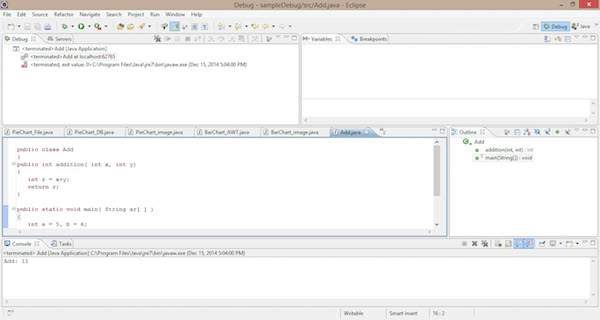
Follow the instructions given below to open the debug perspective.On the Eclipse IDE, go to Window -> Open perspective -> Debug. Now you get the debug perspective for the program Add.java. You get to see the following window.
Sections in Debug Perspective
The sections in the Debug perspective are as follows:Coding Section
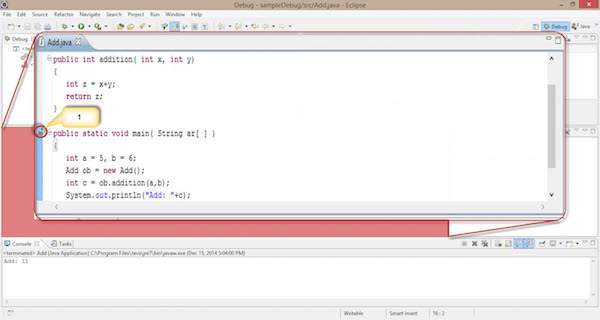
Java code is displayed in this section. It is the code you want to debug, that is, Add.java. Here we can add a breakpoint on a line by double clicking in front of the line. You find the blue bubble with an arrow symbol to point out the breakpoint of that line. See the following screenshot; you can find the selected area with a red circle pointed as “1”.- Double click here. You can set the breakpoint for this line.
Breakpoint Section
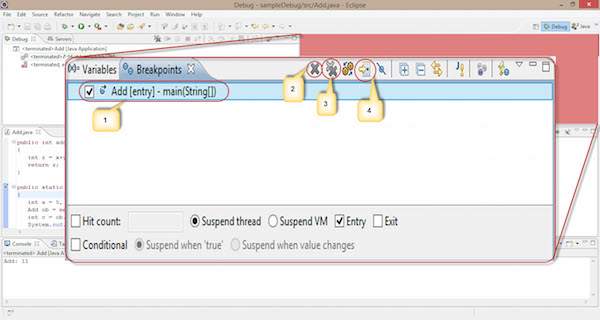
This section defines the list of breakpoints that are set to the program code. Here we can add, delete, find, and manage the breakpoints. The following screenshot shows the breakpoint section.
Observe the following options in the given screenshot:- Using the check box in the left, we can select or deselect a breakpoint. Here, we use one breakpoint, i.e., Add class-main() method.
- The single cross icon “X” is used to delete the selected breakpoint.
- The double cross icon “XX” is used to delete all the breakpoints in your code.
- The arrow pointer is used to point to the code where the selected breakpoint is applied.
- Hitcount : It shows how many times the control hits this breakpoint. It is used for recursive logic.
- Suspend thread : We can suspend the current thread by selecting it.
- Suspend VM : We can suspend the VM by selecting it.
Debug Section
This section is used for the process of debugging. It contains options that are used in debugging.Start debugging : Follow the instructions given below to start debugging.
Right click on the code -> click Debug as -> click 1 Java application.
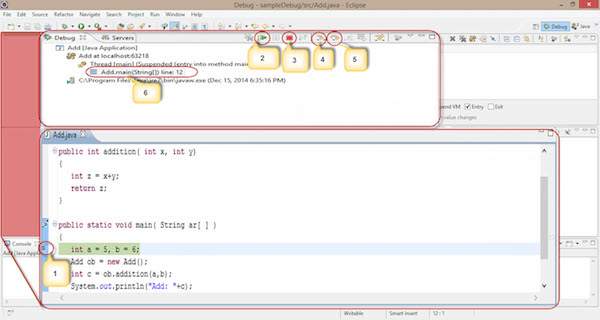
The process of debugging starts as shown in the following screenshot. It contains some selected options, highlighted using numeric digits.
- We apply a breakpoint on the Add class main() method. When we start debugging, the controller gets stuck at the first line of the main() method.
- It is used to Resume the debugging process and skip the current breakpoint. It works similar to the cont command in the JDB command line.
- It is used to stop the debugging process.
- It works similar to the step in process in the JDB command line. It is used for moving the control to the next line, i.e., point “1” moves to the next line.
- It works similar to the step over process in the JDB command line.
- It is used to see on which line the breakpoint is applied.
Follow the given steps and sections to debug your code in eclipse IDE. By default, every IDE contains this debugging process.JDB - Useful Resources
Discuss JDB
jBPM5 - Overview
jBPM5 - Eclipse Plugin
- Java 1.5 (or higher) SE JDK
- Eclipse 4.2 or any version and the jBPM plugin
jBPM5 - Hello World!
Go to File → New → Drools Project −
jBPM5 - Components
jBPM5 - Workflow Components
jBPM5 - Draw & Validate a Workflow
With the help of screenshots, I will depict you how to create a workflow.
jBPM5 - Example
jBPM5 - Useful Resources
Discuss jBPM5
JavaMail API - Overview
JavaMail API - Environment Setup
JavaMail API - Core Classes
JavaMail API - Sending Emails
Basic steps followed in all the above scenarios are as below:
JavaMail API - Checking Emails
- Checking an email in JavaMail is a process where we open
the respective folder in the mailbox and get each message. Here we only
check the header of each message i.e the From, To, subject. Content is not read.
JavaMail API - Fetching Emails
JavaMail API - Authentication
JavaMail API - Replying Emails
- Get the Session object with POP and SMPT server details in the properties. We would need POP details to retrieve messages and SMPT details to send messages.
JavaMail API - Forwarding Emails
- Get the Session object with POP and SMPT server details in the properties. We would need POP details to retrieve messages and SMPT details to send messages.
JavaMail API - Deleting Emails
JavaMail API - Gmail SMPT Server
JavaMail API - Folder Management
JavaMail API - Quota Management
JavaMail API - Bounced Messages
JavaMail API - SMTP Servers
JavaMail API - IMAP Servers
JavaMail API - POP3 Servers
JavaMail API - Useful Resources
Useful Websites on JavaMail API
- Download JavaMail - Download JavaMail API and associated documentation.
- Download JavaBeans Activation Framework (JAF) - Download JavaMail API and associated documentation
- Java 2 SDK, Standard Edition - Official site for Java 2 SDK, Standard Edition.
- Free Java Download - Download Java for your desktop computer now!
Discuss JavaMail API
Thursday, January 19, 2017
JavaFX - Overview
JavaFX - Environment
In addition to it, IDE’s like Eclipse and NetBeans provide support for JavaFX. This chapter teaches you how to set the environment to run JavaFX Applications in various ways.
JavaFX - Architecture
JavaFX - Application
JavaFX - 2D Shapes
JavaFX - Text
This class contains several properties to create text in JavaFX and modify its appearance. This class also inherits the Shape class which belongs to the package javafx.scene.shape.
JavaFX - Effects
JavaFX - Transformations
Using JavaFX, you can apply transformations on nodes such as rotation, scaling and translation. All these transformations are represented by various classes and these belong to the package
JavaFX - Animations
JavaFX - Colors
JavaFX - Images
This chapter teaches you how to load images in to JavaFX, how to project an image in multiple views and how to alter the pixels of an image.