
In this chapter we will study how to create a Poll module in
Drupal. This module helps you create polls for your website. You can ask
questions, give any number of answers and your visitors can vote.
Following are the steps to Poll Module.
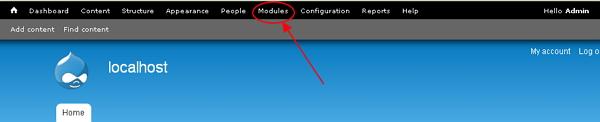
Step (1): Click on Module from the menu bar.
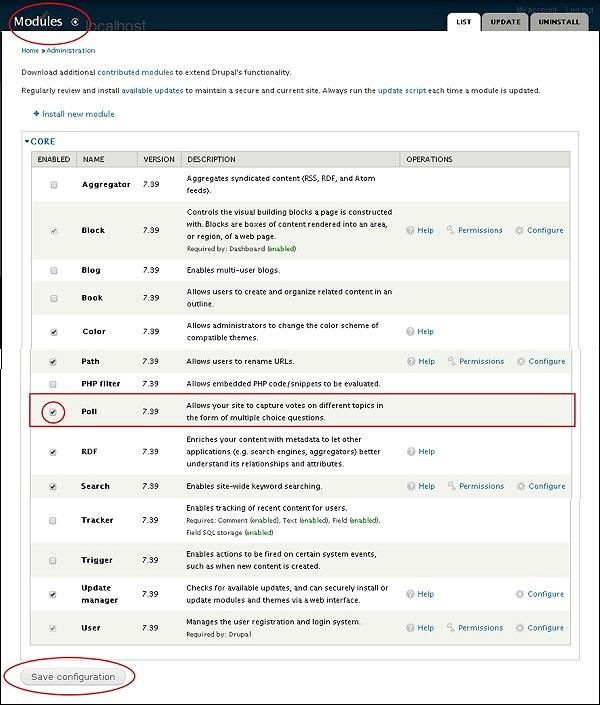
 Step (2): Next, Enable the Poll module and then click on Save Configuration.
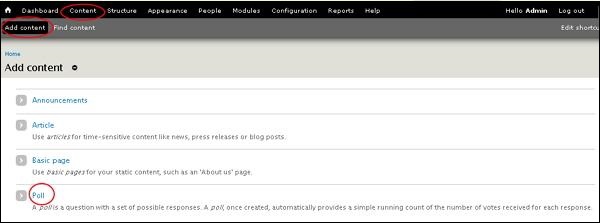
 Step (3): Click on Content -> Add Content. Click on Poll as shown below.
 Step 4: Next, a Create Poll page gets display where you must create a Poll.
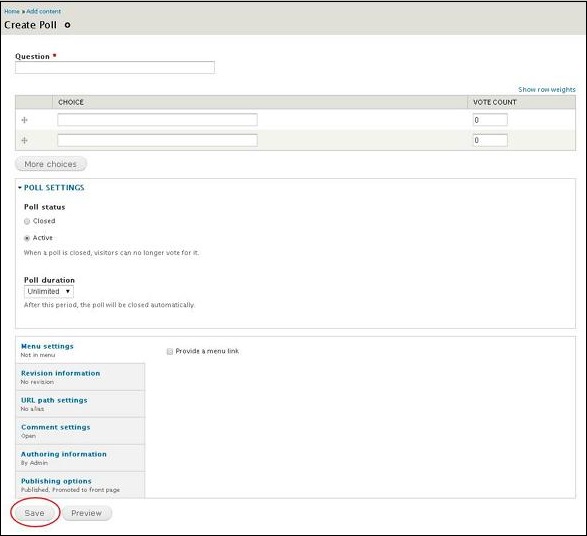 It contains the following fields.
 After you complete updating settings, click on Save button.
Following are the steps to Poll Module.
Step (1): Click on Module from the menu bar.
Step (2): Next, Enable the Poll module and then click on Save Configuration.
Step (3): Click on Content -> Add Content. Click on Poll as shown below.
Step 4: Next, a Create Poll page gets display where you must create a Poll.
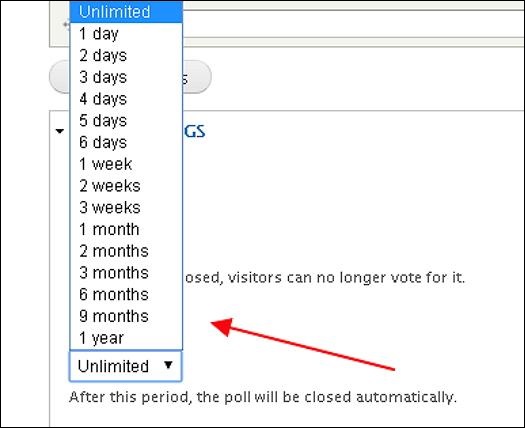
It contains the following fields.- Question: Add a question you want to add in the poll.
- Poll Status:If you click on Closed, then visitors cannot vote. And if you click on Active then visitors are enabled to vote.
- Poll Duration: Select a particular time period till you want your poll to exist. After the time period is completed the Poll closes by itself.
After you complete updating settings, click on Save button.

No comments:
Post a Comment