
In this chapter, we will study about Drupal Blocks & Regions.
Blocks are container objects that are used to organize your content of
your website. It can be displayed in the regions on your page.
Following are the simple steps for creating Drupal Blocks.
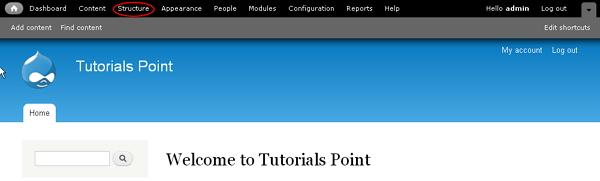
Step (1): Click on Structure in Drupal as shown below.
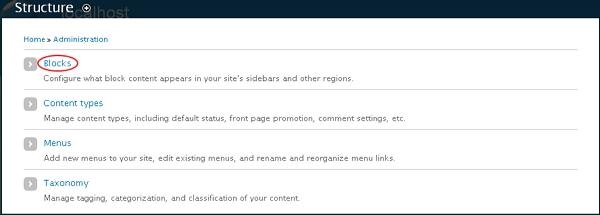
 Step (2): Next, click on Blocks.
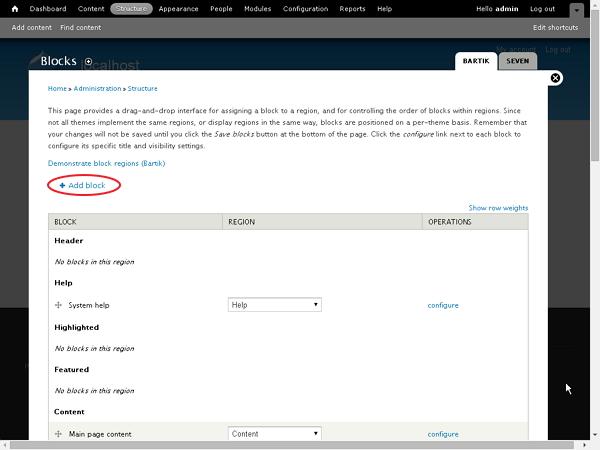
 Step (3): Next, Blocks page gets displayed. Click on Add block.
 Step (4): Next, a block page will gets displayed to create a new custom block as shown below.
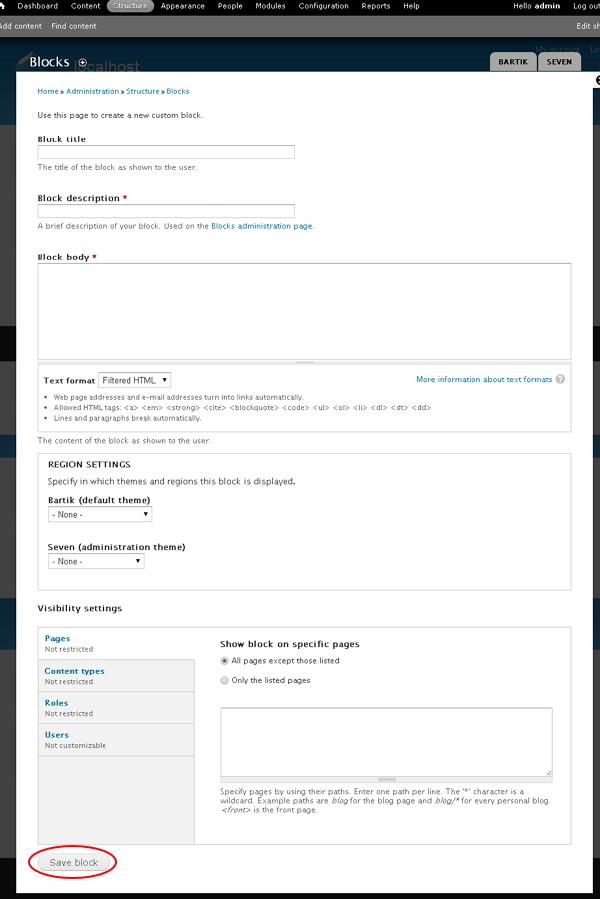 Below we have mentioned the details about the fields present in Blocks page.
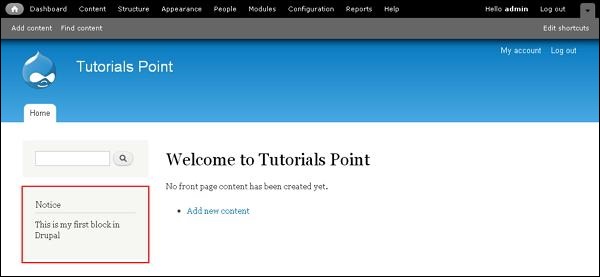
Step (5): Next, you can view the created block as shown below.
Following are the simple steps for creating Drupal Blocks.
Step (1): Click on Structure in Drupal as shown below.
Step (2): Next, click on Blocks.
Step (3): Next, Blocks page gets displayed. Click on Add block.
Step (4): Next, a block page will gets displayed to create a new custom block as shown below.
Below we have mentioned the details about the fields present in Blocks page. - Block Settings
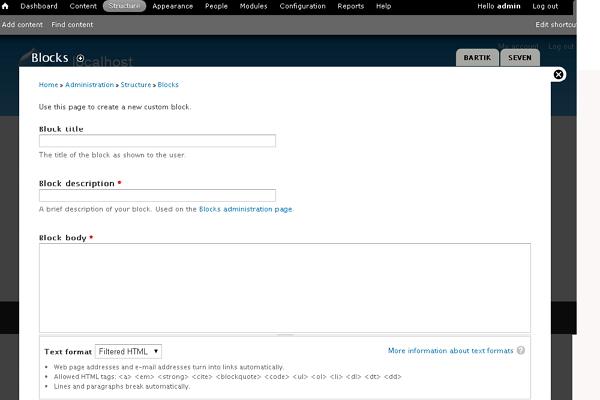
- Block title: Enter the title for your block.
- Block description: Enter the description about block.
- Block body: Enter the content of the block.
- Text format: Select the format for your text i.e. Filtered HTML, FULL HTML, and Plain text.
- Region Settings
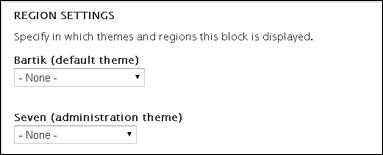
- Bartik (default theme): Select the region to display block in the theme.
- Seven (administration theme): Select the region to display block in the administration theme.
- Visibility Setting
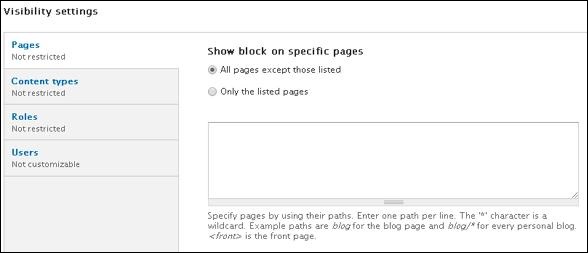
- Page: Allows displaying blocks on all pages or specific pages.
- Content Types: Allow to display the blocks in specific content i.e. Article or Basic Page.
- Roles: Allows displaying the blocks for specific type of users i.e. anonymous user, authenticated user, administrator user.
- Users: Allows each user to customize the visibility of block in their settings.
Step (5): Next, you can view the created block as shown below.


No comments:
Post a Comment