
In this chapter we will study about Book Module in Drupal.
Books have an in-built hierarchical navigation, which means that you can
organize them to read in a special order. The book content type also
allows you to create your website content easier for site visitors to
print.
Following are the simple steps to configure Book module in Drupal.
Step (1): Enable the Book in Modules and click on Save configuration.
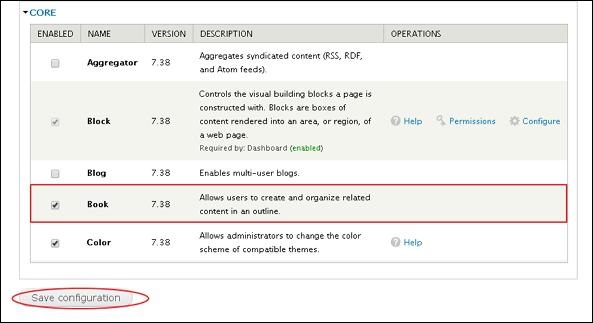 Step (2): Next, click on Content and check the boxes, select the content type that you want to enable for books.
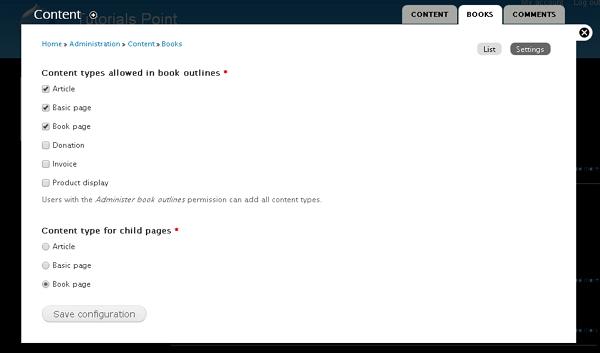 Click on Save configuration button to save your content type.
Step (3): Click on Create content -> Book page or on Shortcut bar Book page as shown below.
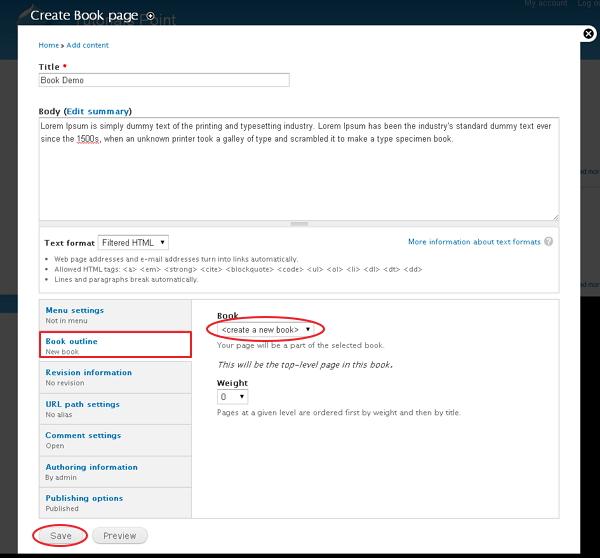 Spread out the section under Book outline and select create a new book. You can set the weight to 0.
Click on Save button and your top level page is created.
Step (4): Once your book has been created, you can create children on any page in your book by clicking the Add child link at the bottom of the book page.
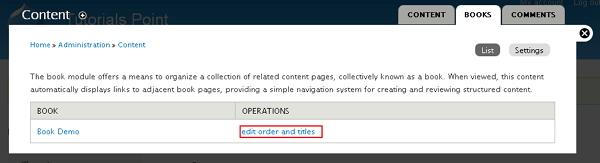
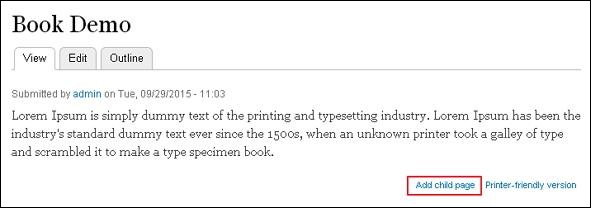 Step (5): Further, click on Content management -> Books -> List as shown below. Next, click on edit order and titles under Operations column.
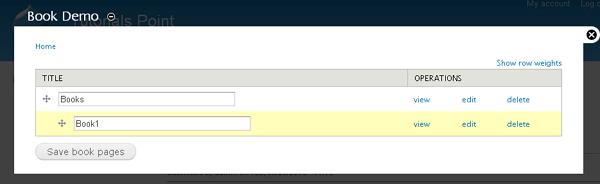
 Step (6): You will see the screen as shown below. This page
allows you to move your book pages around to fit your needs. Press and
hold on the four pronged arrow and move it to the position to rearrange
your pages. You can as well drag the page to the right to make it a
child of a page.
Step (6): You will see the screen as shown below. This page
allows you to move your book pages around to fit your needs. Press and
hold on the four pronged arrow and move it to the position to rearrange
your pages. You can as well drag the page to the right to make it a
child of a page.
Following are the simple steps to configure Book module in Drupal.
Step (1): Enable the Book in Modules and click on Save configuration.
Step (2): Next, click on Content and check the boxes, select the content type that you want to enable for books.
Click on Save configuration button to save your content type.Step (3): Click on Create content -> Book page or on Shortcut bar Book page as shown below.
Spread out the section under Book outline and select create a new book. You can set the weight to 0.Click on Save button and your top level page is created.
Step (4): Once your book has been created, you can create children on any page in your book by clicking the Add child link at the bottom of the book page.
Step (5): Further, click on Content management -> Books -> List as shown below. Next, click on edit order and titles under Operations column.
Step (6): You will see the screen as shown below. This page
allows you to move your book pages around to fit your needs. Press and
hold on the four pronged arrow and move it to the position to rearrange
your pages. You can as well drag the page to the right to make it a
child of a page.

No comments:
Post a Comment