
In this chapter we'll study how to generate invoice in Drupal.
Invoice is a document with a statement of amount and cost, unique
invoice number and tax information.
Following are the steps to generate invoice in Drupal.
Step (1):Download the latest file of Invoice module and install in your Drupal site.
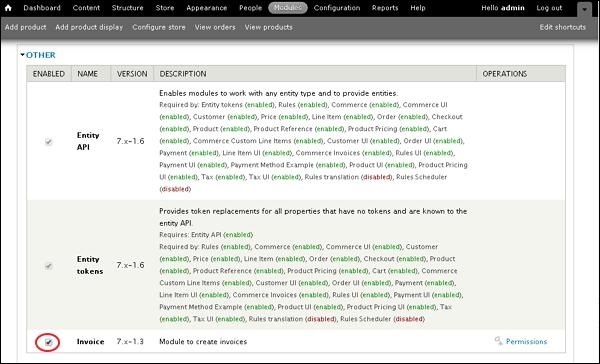
Step (2): Next, enable the Invoice in Modules and click on Save configuration.
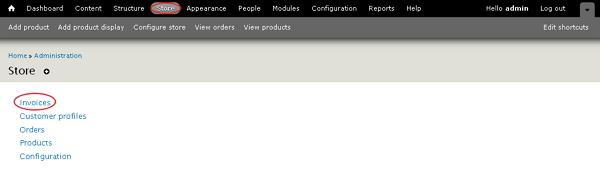
 Step (3): Next, go to Store --> Invoices.
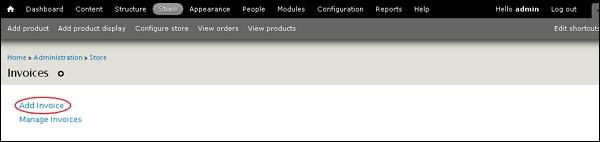
 Step (4): Click on Add Invoice.
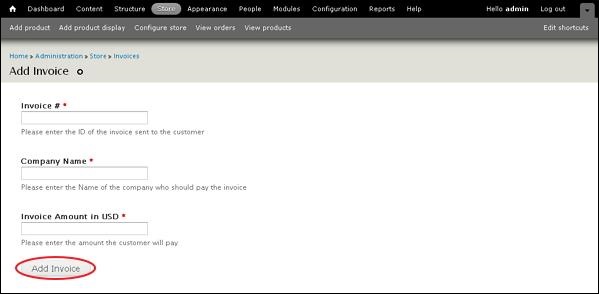
 Step (5): Next, you can view the Add Invoice page.
Step (6): Go to Store --> Invoice --> Manage Invoices, here, you can view your pending and paid invoices.
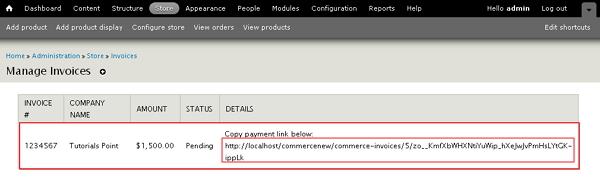 Copy the link given in the detail column and it'll redirect you to the checkout page.
Step (7):Next, you can also pay it by navigating to the given link localhost<Your Site Name>user/invoices/pay, it'll redirect you to Pay Invoice page as shown below.
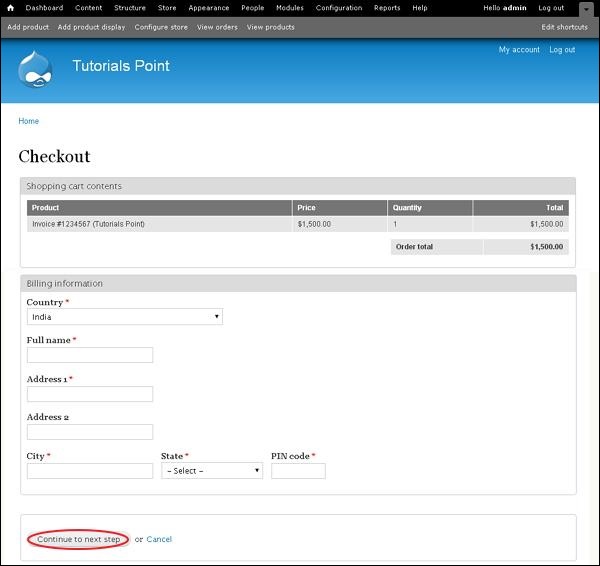
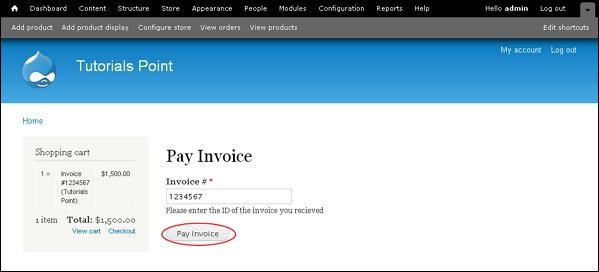 Here, you have to enter you invoice number and click on Pay Invoice button then it will redirect you to Checkout page as shown below. Here, you can enter the information for billing and click on Continue to next step button.
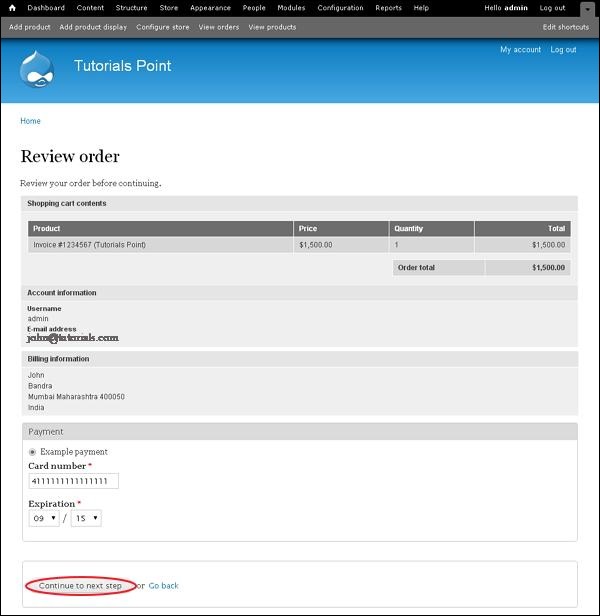
 Step (8): Next, you can review the product information and also the invoice number and company name. click on Continue to next step button.
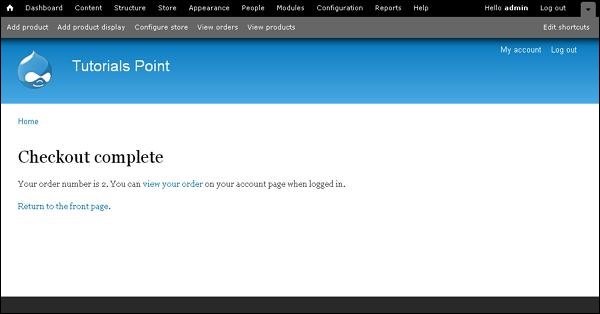
 Step (9): Next, a message will get displayed as Checkout complete as shown below.
Following are the steps to generate invoice in Drupal.
Step (1):Download the latest file of Invoice module and install in your Drupal site.
Step (2): Next, enable the Invoice in Modules and click on Save configuration.
Step (3): Next, go to Store --> Invoices.
Step (4): Click on Add Invoice.
Step (5): Next, you can view the Add Invoice page.
- Invoice #: Enter the invoice id number sent to the customer.
- Company Name: Enter the company name who should pay the invoice.
- Invoice Amount in USD: Enter the amount that customer has to pay.
Step (6): Go to Store --> Invoice --> Manage Invoices, here, you can view your pending and paid invoices.
Copy the link given in the detail column and it'll redirect you to the checkout page.Step (7):Next, you can also pay it by navigating to the given link localhost<Your Site Name>user/invoices/pay, it'll redirect you to Pay Invoice page as shown below.
Here, you have to enter you invoice number and click on Pay Invoice button then it will redirect you to Checkout page as shown below. Here, you can enter the information for billing and click on Continue to next step button.
Step (8): Next, you can review the product information and also the invoice number and company name. click on Continue to next step button.
Step (9): Next, a message will get displayed as Checkout complete as shown below.

No comments:
Post a Comment