
In this chapter we will study about creating contact form in Drupal.
Contact form is used to submit the information of user in Drupal.
Following are the steps to add contact module.
Step (1): Click on Modules menu .
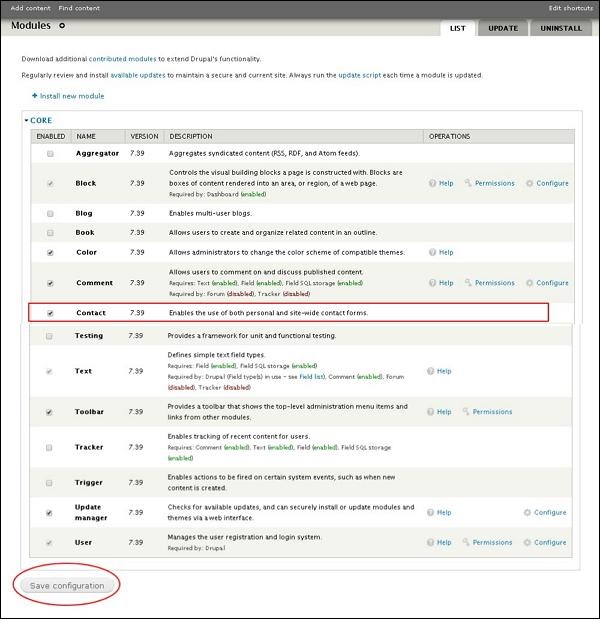
 Step (2): Next, a list of different modules gets displayed. Enable the Contact module and click on Save Configuration as shown below.
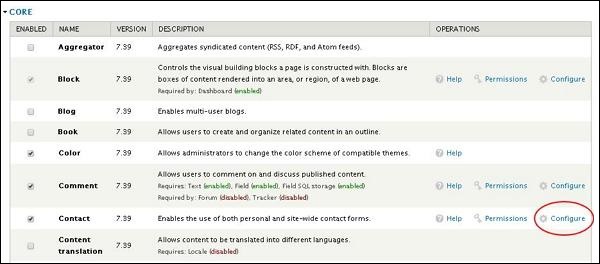
 Step (3): Next, go back to the contact module and click on the Configure as shown below.
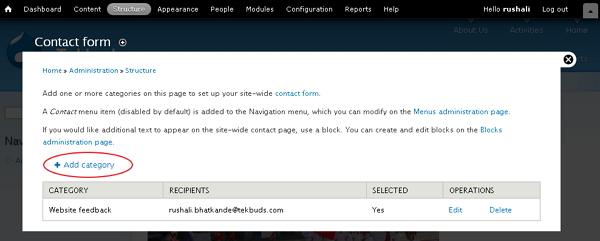
 Step (4): Here you can view the information of all the categories and you can also add extra contacts. Click on Add Category.
 Step (5): Next, contact form gets displayed as shown below.
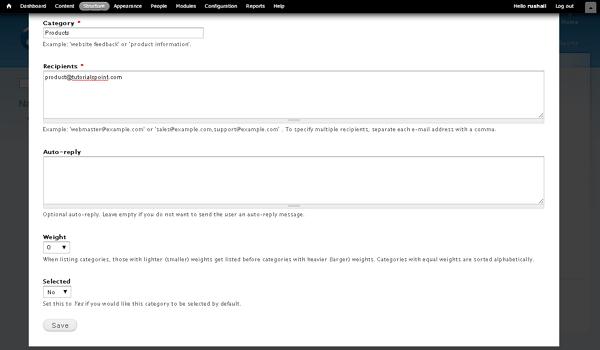 It contains the following fields.
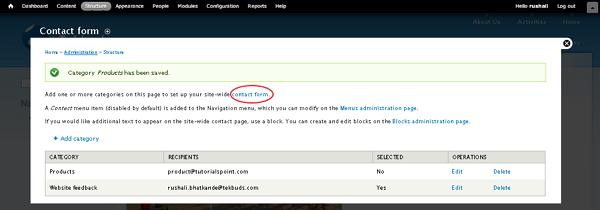
Step (6): Here you can see the created contact form in the list as shown below. To view the contact form, click on Contact form as shown below.
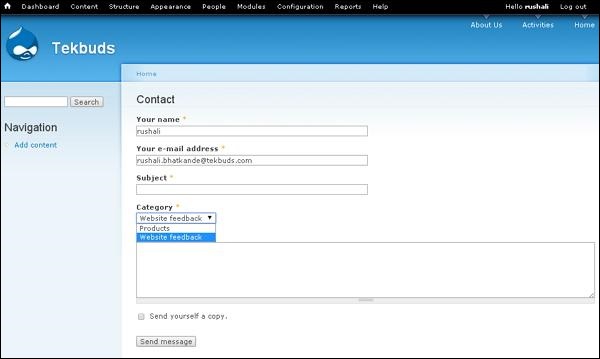
 Step (7):Next, the category which you have added will get displayed in the category field as shown below.
Following are the steps to add contact module.
Step (1): Click on Modules menu .
Step (2): Next, a list of different modules gets displayed. Enable the Contact module and click on Save Configuration as shown below.
Step (3): Next, go back to the contact module and click on the Configure as shown below.
Step (4): Here you can view the information of all the categories and you can also add extra contacts. Click on Add Category.
Step (5): Next, contact form gets displayed as shown below.
It contains the following fields.- Category: Specify the name of the category for feedback form.
- Recipients: Email address where the mail you wish to receive.
- Auto-reply: Sends the automatic reply message to the user.
- Weight: Sets the list in order.
- Selected: Selecting Yes option, it sets the category as default.
Step (6): Here you can see the created contact form in the list as shown below. To view the contact form, click on Contact form as shown below.
Step (7):Next, the category which you have added will get displayed in the category field as shown below. 

No comments:
Post a Comment