
In this chapter, we will study about Drupal URL Alias.
URL or Uniform Resource Locater Aliases is a page address in your web
page, it changes the existing system path to new path alias.
Following are the simple steps for URL Aliases in Drupal.
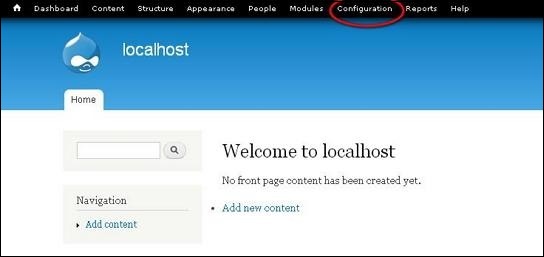
Step (1) : Click on Configuration as shown below.
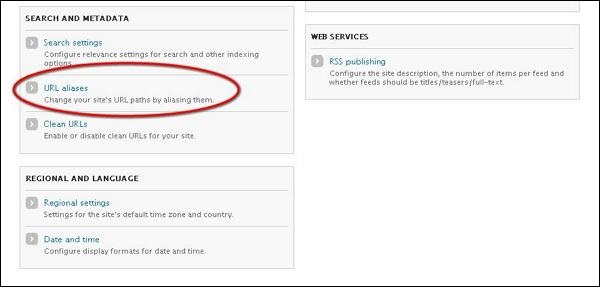
 Step (2): Next, click on URL aliases.
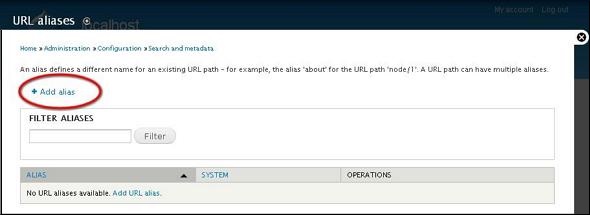
 Step (3): Next, click on Add alias.
 Step (4): Next, Url aliases page will get display as shown below
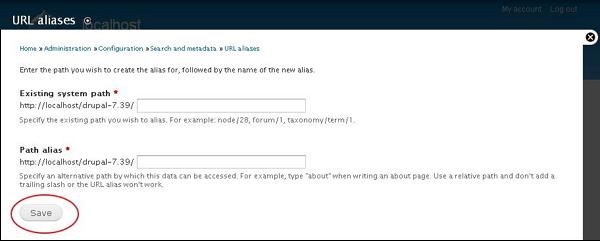 Following are the details about the fields present in URL aliases page.
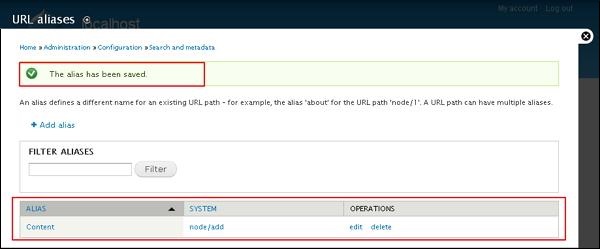
Step (5): Here, you can view your created URL aliases in the list as shown below.
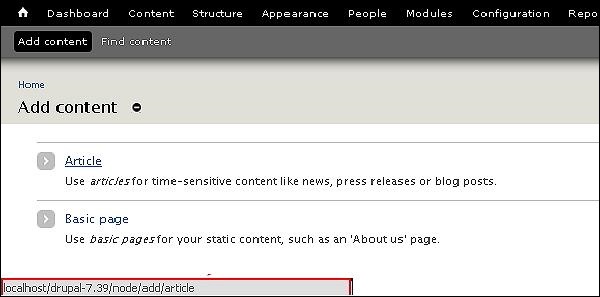
 Step (6): When you go back to Drupal Admin panel and hover over Article it will display the newly added Path alias at the left bottom of the screen as shown below.
Following are the simple steps for URL Aliases in Drupal.
Step (1) : Click on Configuration as shown below.
Step (2): Next, click on URL aliases.
Step (3): Next, click on Add alias.
Step (4): Next, Url aliases page will get display as shown below
Following are the details about the fields present in URL aliases page. - Language: Specifies the language to be used in URL aliases.
- Existing system path: Existing system path of an Article/Pages in Drupal site.
- Path alias: New path alias that replaces with the existing system path of an Article/Pages.
Step (5): Here, you can view your created URL aliases in the list as shown below.
Step (6): When you go back to Drupal Admin panel and hover over Article it will display the newly added Path alias at the left bottom of the screen as shown below. 

No comments:
Post a Comment