
In this chapter we will study about how to create Static Pages
in Drupal. Let's add some static pages named About Us and Services. The
main purpuse for using a static pages is speed and steadiness. Static
websites are more faster than a dynamic site.
Following are the simple steps to create static page.
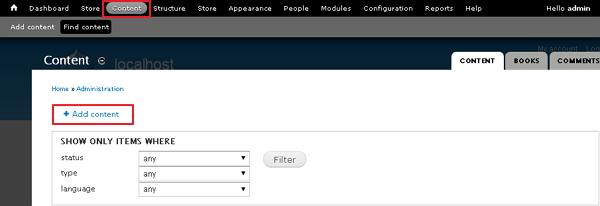
Step (1): Click on Content -- > Add content link.
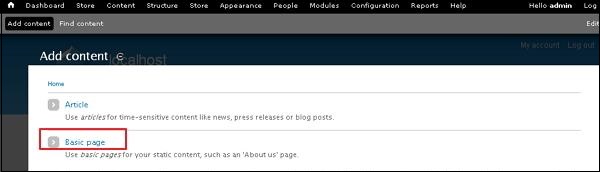
 Step (2): Next, click on Basic pages.
 Step (3): Next, Create basic page will get displayed as shown below.
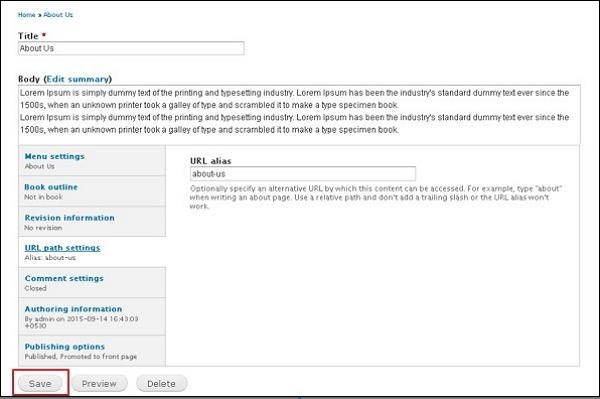 Below we have mentioned the details about the fields present in above screen.
You can click on Publishing options and check the box of published option to publish your page.
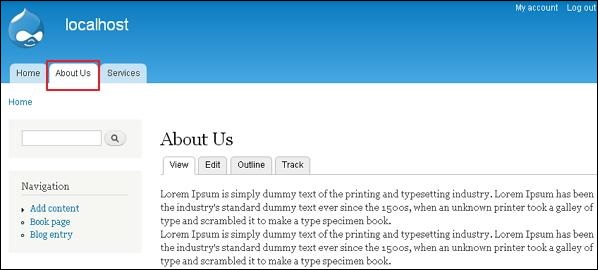
Step (4): Next click on About Us tab, you will see the created about us page as shown below.
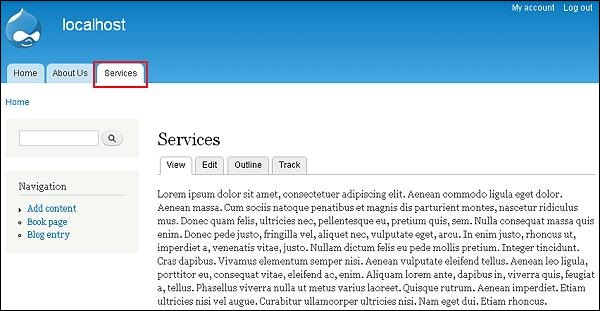
 Step (5): Click on Services tab, you will see the created services page as shown below.
Following are the simple steps to create static page.
Step (1): Click on Content -- > Add content link.
Step (2): Next, click on Basic pages.
Step (3): Next, Create basic page will get displayed as shown below.
Below we have mentioned the details about the fields present in above screen.- Title: It specifies the title of the static page.
- Body: It displays the body content of the page.
- URL path settings: You can specify alternative URL by which content can be accessed. Don't add slash at the end or beginning of the URL alias or else it will not work.
You can click on Publishing options and check the box of published option to publish your page.
Step (4): Next click on About Us tab, you will see the created about us page as shown below.
Step (5): Click on Services tab, you will see the created services page as shown below.

No comments:
Post a Comment