
This chapter shows how to setup the live store on your Magento website.
Step (1): Login to your Magento Admin Panel.
Step (2): Go to System menu and click on the Manage Stores option.
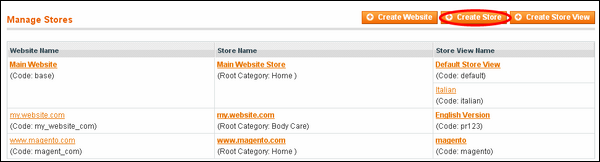
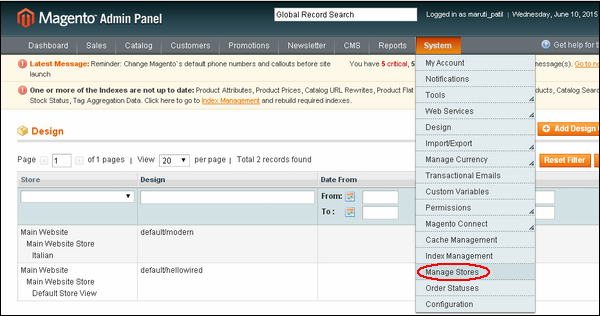 Step (3): Under Manage Stores section, you will get website names, store names and Store View Name columns. Click on the Create Store button to begin with setting up the Magento live store.
 Step (4): The store information includes some options such as:
 After done with the settings, click on the Save Store button.
Step (1): Login to your Magento Admin Panel.
Step (2): Go to System menu and click on the Manage Stores option.
Step (3): Under Manage Stores section, you will get website names, store names and Store View Name columns. Click on the Create Store button to begin with setting up the Magento live store.
Step (4): The store information includes some options such as:- Website which allows selecting the website name which you created before
- Name option specifies name of your second website name
- Root Category option specifies the root category that will be used for store.
After done with the settings, click on the Save Store button.

No comments:
Post a Comment