
Magento allows to create an order from a shopping cart. You can create an order in Magento store as described in the following steps.
Step (1): Login to your Magento Admin Panel
Step (2): Go to Sales menu and click on the Orders option.
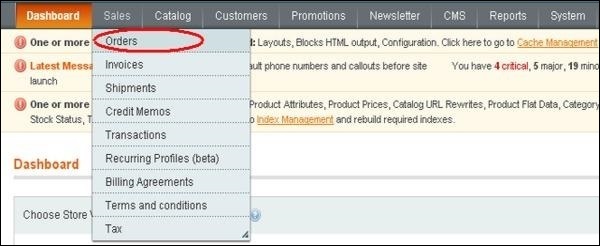 Step (3): Click on the Create New Order button to create new order in the Magento store.
 Step (4): Next it will display the list of customers under New Order section. If there are no records, then click on Create New Customer button.
 Step (5): Moving forward, you need to select your desired store to precede the next step.
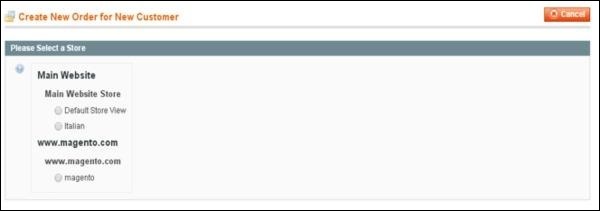 Step (6): Under Items Ordered section, it will display the ordered products information. If there are no ordered items, then click on the Add Products button to select the product which you want to order.
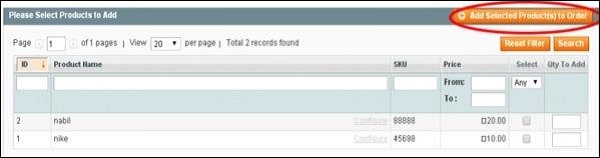
 Step (7): Select the product from the list which you want to order and click on the Add Selected Product(s) to Order button.
 Step (8): Scroll down a bit and select the Payment Method and Shipping Method for your order.
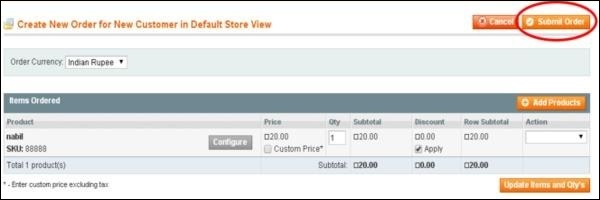
 Step (9): After selecting your payment method and shipping method, click on the Submit Order button to save your order.
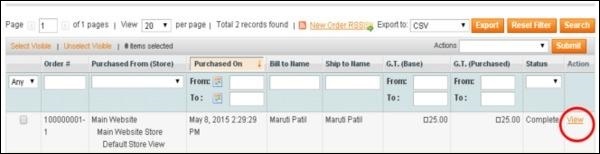
 Step (10): To see the status of the order, go to Sales menu and click on the Orders option. To see the details of the product, click on the View link as shown in the screen.
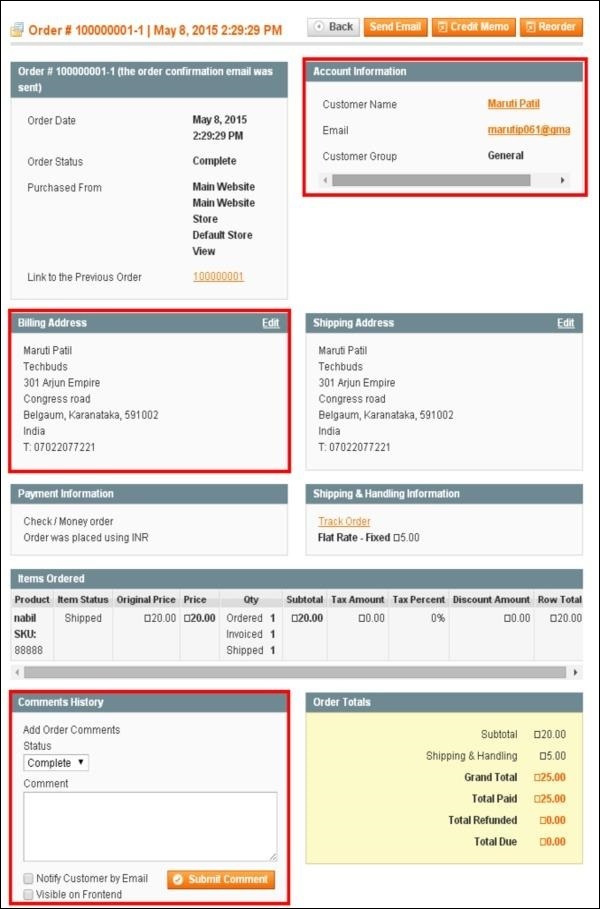
 Step (11): Next you will see the account information and billing address of the customer. Scroll down the page, you will see the status of the product and comment area under the Comments History column.
Step (1): Login to your Magento Admin Panel
Step (2): Go to Sales menu and click on the Orders option.
Step (3): Click on the Create New Order button to create new order in the Magento store.
Step (4): Next it will display the list of customers under New Order section. If there are no records, then click on Create New Customer button.
Step (5): Moving forward, you need to select your desired store to precede the next step.
Step (6): Under Items Ordered section, it will display the ordered products information. If there are no ordered items, then click on the Add Products button to select the product which you want to order.
Step (7): Select the product from the list which you want to order and click on the Add Selected Product(s) to Order button.
Step (8): Scroll down a bit and select the Payment Method and Shipping Method for your order.
Step (9): After selecting your payment method and shipping method, click on the Submit Order button to save your order.
Step (10): To see the status of the order, go to Sales menu and click on the Orders option. To see the details of the product, click on the View link as shown in the screen.
Step (11): Next you will see the account information and billing address of the customer. Scroll down the page, you will see the status of the product and comment area under the Comments History column. 

No comments:
Post a Comment