
In this chapter we explained you how to rotate an object using JOGL.
Rotation of objects can be done along any of the three axes, using the glRotatef(float angle, float x, float y, float z) method of GLMatrixFunc interface. You need to pass an angle of rotation and x, y, z axes as parameters to this method.
The following steps guide you to rotate an object successfully −
It creates an FPSAnimator with a given target frames-per-second value
and a flag indicating whether to use fixed rate scheduling.
start() and stop() are the two important methods in this class. The following program shows how to rotate a triangle using FPSAnimator class −
The following steps guide you to rotate an object successfully −
- Clear the color buffer and depth buffer initially using gl.glClear(GL2.GL_COLOR_BUFFER_BIT | GL2.GL_DEPTH_BUFFER_BIT) method. This method erases the previous state of the object and makes the view clear.
- Reset the projection matrix using the glLoadIdentity() method.
FPSAnimator Class
Below given ar the various constructors of FPSAnimator class.| Sr.No. | Methods and Descriptions |
|---|---|
| 1 | FPSAnimator(GLAutoDrawable drawable, int fps) It creates an FPSAnimator with a given target frames-per-second value and an initial drawable to animate. |
| 2 | FPSAnimator(GLAutoDrawable drawable, int fps, boolean cheduleAtFixedRate) It creates an FPSAnimator with a given target frames-per-second value, an initial drawable to animate, and a flag indicating whether to use fixed-rate scheduling. |
| 3 | FPSAnimator(int fps) It creates an FPSAnimator with a given target frames-per-second value. |
| 4 | It creates an FPSAnimator with a given target frames-per-second value and a flag indicating whether to use fixed rate scheduling. |
start() and stop() are the two important methods in this class. The following program shows how to rotate a triangle using FPSAnimator class −
import javax.media.opengl.GL2;
import javax.media.opengl.GLAutoDrawable;
import javax.media.opengl.GLCapabilities;
import javax.media.opengl.GLEventListener;
import javax.media.opengl.GLProfile;
import javax.media.opengl.awt.GLCanvas;

import javax.swing.JFrame;

import com.jogamp.opengl.util.FPSAnimator;

public class TriangleRotation implements GLEventListener {
   private float rtri;  //for angle of rotation

   @Override
   public void display( GLAutoDrawable drawable ) {

      final GL2 gl = drawable.getGL().getGL2();
      gl.glClear (GL2.GL_COLOR_BUFFER_BIT |  GL2.GL_DEPTH_BUFFER_BIT );

      // Clear The Screen And The Depth Buffer
      gl.glLoadIdentity();  // Reset The View

      //triangle rotation
      gl.glRotatef( rtri, 0.0f, 1.0f, 0.0f );

      // Drawing Using Triangles
      gl.glBegin( GL2.GL_TRIANGLES );

      gl.glColor3f( 1.0f, 0.0f, 0.0f );   // Red
      gl.glVertex3f( 0.5f,0.7f,0.0f );    // Top
      gl.glColor3f( 0.0f,1.0f,0.0f );     // blue
      gl.glVertex3f( -0.2f,-0.50f,0.0f ); // Bottom Left
      gl.glColor3f( 0.0f,0.0f,1.0f );     // green
      gl.glVertex3f( 0.5f,-0.5f,0.0f );   // Bottom Right

      gl.glEnd();
      gl.glFlush();

      rtri += 0.2f;  //assigning the angle
   }

   @Override
   public void dispose( GLAutoDrawable arg0 ) {
      //method body
   }

   @Override
   public void init( GLAutoDrawable arg0 ) {
      // method body
   }

   @Override
   public void reshape( GLAutoDrawable drawable, int x, int y, int width, int height ) {

      public static void main( String[] args ) {

         //getting the capabilities object of GL2 profile
         final GLProfile profile  = GLProfile.get(GLProfile.GL2 );
         GLCapabilities capabilities  = new GLCapabilities( profile );

         // The canvas
         final GLCanvas glcanvas = new GLCanvas( capabilities);
         TriangleRotation triangle = new TriangleRotation();
         glcanvas.addGLEventListener( triangle );
         glcanvas.setSize( 400, 400 );

         // creating frame
         final JFrame frame = new JFrame ("Rotating Triangle");

         // adding canvas to it
         frame.getContentPane().add( glcanvas );
         frame.setSize(frame.getContentPane() .getPreferredSize());
         frame.setVisible( true );

         //Instantiating and Initiating Animator
         final FPSAnimator animator = new FPSAnimator(glcanvas, 300,true);
         animator.start();
      }

   } //end of main

} //end of class
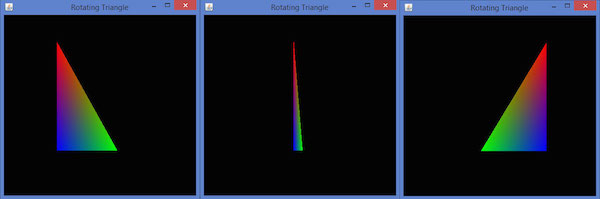
If you compile and execute the above program, it generates the following output. Here, you can observe various snapshots of a rotating the colored triangle around the x-axis.


No comments:
Post a Comment