
In this chapter, we will see how to test a FTP site using JMeter. Let us create a Test Plan to test the FTP site.
 The following details are entered in this element −
 The following details are entered in this element −
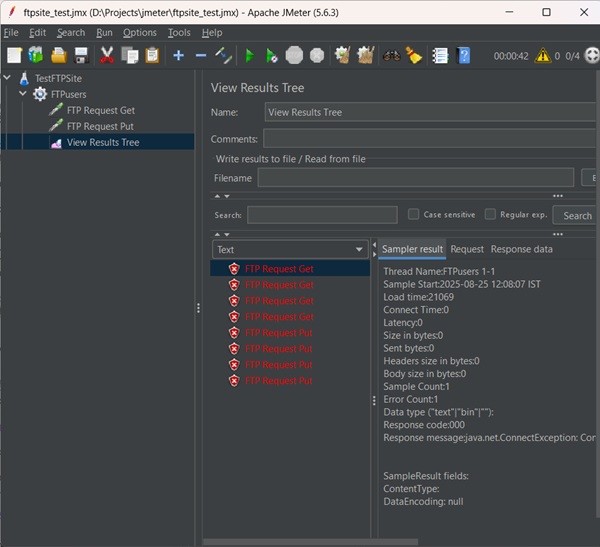
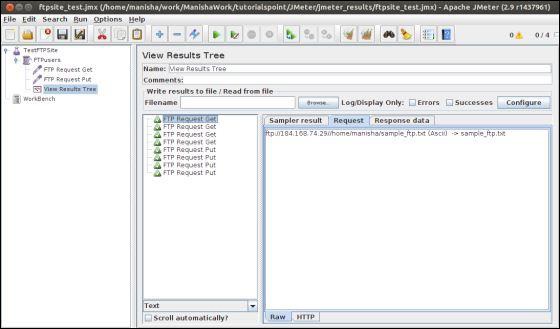
 You can see that four requests are made for each FTP request and the
test is successful. The retrieved file for GET request is stored in the
/bin folder. In our case, it is /home/manisha/apache-jmeter-2.9/bin/. For PUT request, the file is uploaded at the path /home/manisha/.
You can see that four requests are made for each FTP request and the
test is successful. The retrieved file for GET request is stored in the
/bin folder. In our case, it is /home/manisha/apache-jmeter-2.9/bin/. For PUT request, the file is uploaded at the path /home/manisha/.
Rename Test Plan
- Open the JMeter window by clicking /home/manisha/apache-jmeter-2.9/bin/jmeter.sh
- Click on the Test Plan node.
- Rename this Test Plan node as TestFTPSite.
Add Thread Group
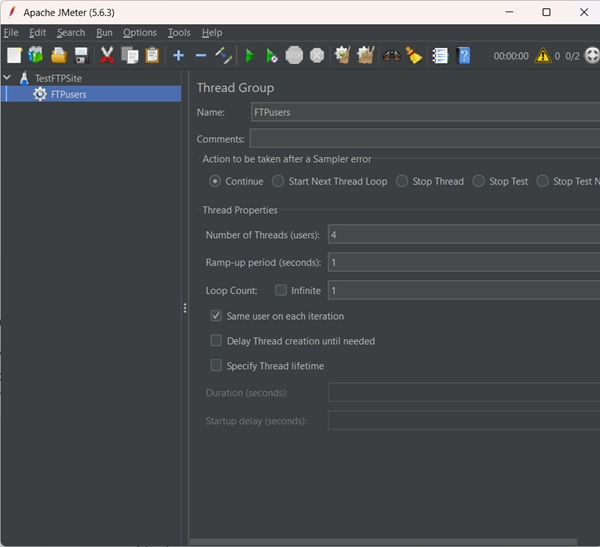
Add one Thread Group, which is placeholder for all other elements like Samplers, Controllers, and Listeners.- Right click on TestFTPSite (our Test Plan)
- Select Add > Threads(Users) > Thread Group. Thread Group will get added under the Test Plan (TestFTPSite) node.
- Modify the default properties of the Thread Group to suit our testing as follows −
- Name − FTPusers
- Number of Threads (Users) − 4
- Ramp-Up Period − leave the the default value of 0 seconds.
- Loop Count − 1
Add Sampler − FTP Request
Now that we have defined our users, it is time to define the tasks that they will be performing. Add FTP Request elements. We add two FTP request elements, one which retrieves a file and the other which puts a file on the ftp site.- Select the FTPusers element.
- Right-click the mouse button to get the Add menu
- Select Add > Sampler > FTP Request.
- Select the FTP Request element in the tree.
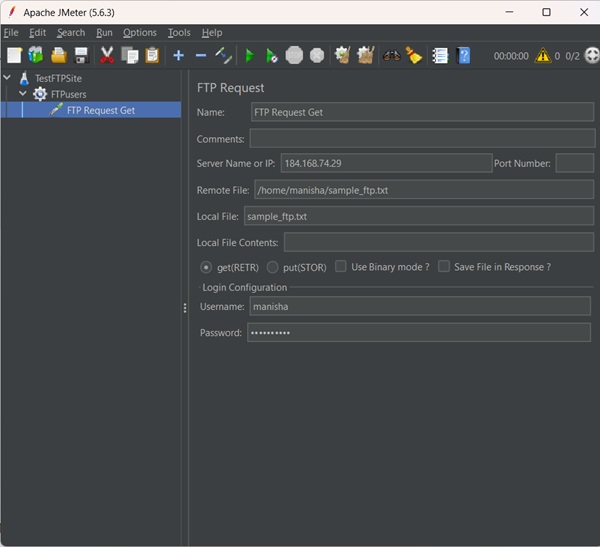
- Edit the following properties as shown below −
The following details are entered in this element −- Name − FTP Request Get
- Server Name or IP − 184.168.74.29
- Remote File − /home/manisha/sample_ftp.txt
- Local File − sample_ftp.txt
- Select get(RETR)
- Username − manisha
- Password − manisha123
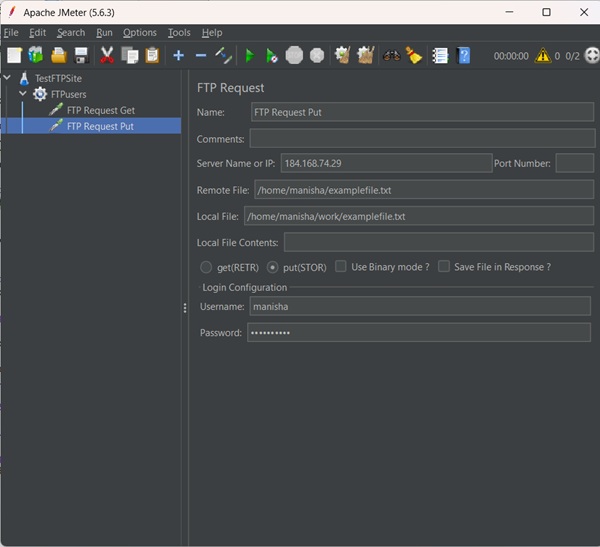
The following details are entered in this element −- Name − FTP Request Put
- Server Name or IP − 184.168.74.29
- Remote File − /home/manisha/examplefile.txt
- Local File − /home/manisha/work/examplefile.txt
- Select put(STOR)
- Username − manisha
- Password − manisha123
Add Listener
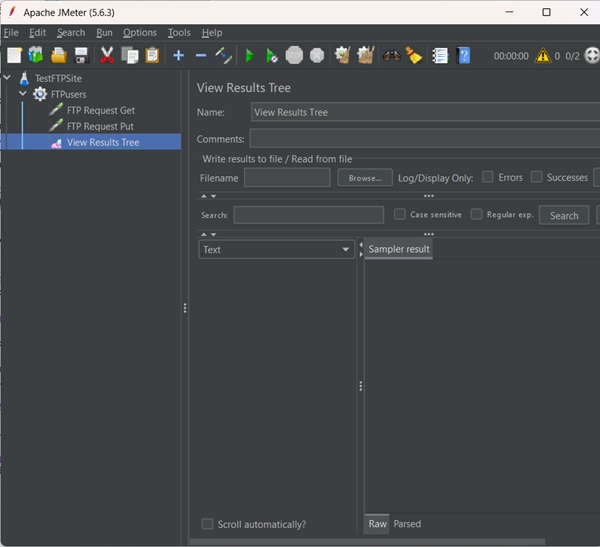
The final element you need to add to your Test Plan is a Listener. This element is responsible for storing all of the results of your FTP requests in a file and presenting a visual model of the data.- Select the FTPusers element.
- Add a View Results Tree listener by selecting Add > Listener > View Results Tree.
Run the Test Plan
Now save the above test plan as ftpsite_test.jmx. Execute this test plan using Run > Start option.View the Output
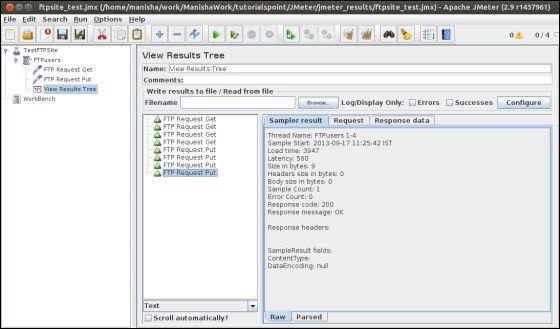
The following output can be seen in the listener.
You can see that four requests are made for each FTP request and the
test is successful. The retrieved file for GET request is stored in the
/bin folder. In our case, it is /home/manisha/apache-jmeter-2.9/bin/. For PUT request, the file is uploaded at the path /home/manisha/.

No comments:
Post a Comment