
This chapter explains you how to apply lighting effect to an object using JOGL.
To set lighting, initially enable lighting using the glEnable() method. Then apply lighting for the objects, using the glLightfv(int light, int pname, float[] params, int params_offset) method of GLLightingFunc interface. This method takes four parameters.
The following table describes the parameters of gllightfv() method.
Lighting is enabled or disabled using glEnable() and glDisable () methods with the argument GL_LIGHTING.
The following template is given for lighting −
To set lighting, initially enable lighting using the glEnable() method. Then apply lighting for the objects, using the glLightfv(int light, int pname, float[] params, int params_offset) method of GLLightingFunc interface. This method takes four parameters.
The following table describes the parameters of gllightfv() method.
| Sr.No. | Parameter Name and Description |
|---|---|
| 1 | Light Specifies a light. The number of lights depends on the implementation, but at least eight lights are supported. It accepts ten values, those parameters are discussed in a separate table named Light Source Parameters given below. |
| 2 | Pname Specifies a single valued light source parameter. For light source, there are ten parameters as discussed below. |
| 3 | Params Specifies a pointer to the value or values that is set to the parameter pname of light source light. |
| 4 | Light source parameter You can use any of the light source parameters given below. |
Light source parameters
The following template is given for lighting −
gl.glEnable(GL2.GL_LIGHTING);
gl.glEnable(GL2.GL_LIGHT0);
gl.glEnable(GL2.GL_NORMALIZE);

float[] ambientLight = { 0.1f, 0.f, 0.f,0f };  // weak RED ambient
gl.glLightfv(GL2.GL_LIGHT0, GL2.GL_AMBIENT, ambientLight, 0);

float[] diffuseLight = { 1f,2f,1f,0f };  // multicolor diffuse
gl.glLightfv(GL2.GL_LIGHT0, GL2.GL_DIFFUSE, diffuseLight, 0);
Applying Light to a Rotating Polygon
Follow the given steps for applying light to a rotating polygon.Rotate the polygon using glRotate() method
gl.glClear(GL2.GL_COLOR_BUFFER_BIT | GL2.GL_DEPTH_BUFFER_BIT);

// Clear The Screen And The Depth Buffer
gl.glLoadIdentity();

// Reset The View
gl.glRotatef(rpoly, 0.0f, 1.0f, 0.0f);
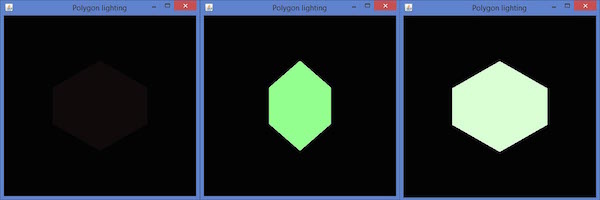
Let us go through the program to apply light to a rotating polygon −import javax.media.opengl.GL2; import javax.media.opengl.GLAutoDrawable; import javax.media.opengl.GLCapabilities; import javax.media.opengl.GLEventListener; import javax.media.opengl.GLProfile; import javax.media.opengl.awt.GLCanvas; import javax.swing.JFrame; import com.jogamp.opengl.util.FPSAnimator; public class PolygonLighting implements GLEventListener { private float rpoly; @Override public void display( GLAutoDrawable drawable ) { final GL2 gl = drawable.getGL().getGL2(); gl.glColor3f(1f,0f,0f); //applying red // Clear The Screen And The Depth Buffer gl.glClear( GL2.GL_COLOR_BUFFER_BIT | GL2.GL_DEPTH_BUFFER_BIT ); gl.glLoadIdentity(); // Reset The View gl.glRotatef( rpoly, 0.0f, 1.0f, 0.0f ); gl.glBegin( GL2.GL_POLYGON ); gl.glVertex3f( 0f,0.5f,0f ); gl.glVertex3f( -0.5f,0.2f,0f ); gl.glVertex3f( -0.5f,-0.2f,0f ); gl.glVertex3f( 0f,-0.5f,0f ); gl.glVertex3f( 0f,0.5f,0f ); gl.glVertex3f( 0.5f,0.2f,0f ); gl.glVertex3f( 0.5f,-0.2f,0f ); gl.glVertex3f( 0f,-0.5f,0f ); gl.glEnd(); gl.glFlush(); rpoly += 0.2f; //assigning the angle gl.glEnable( GL2.GL_LIGHTING ); gl.glEnable( GL2.GL_LIGHT0 ); gl.glEnable( GL2.GL_NORMALIZE ); // weak RED ambient float[] ambientLight = { 0.1f, 0.f, 0.f,0f }; gl.glLightfv(GL2.GL_LIGHT0, GL2.GL_AMBIENT, ambient-Light, 0); // multicolor diffuse float[] diffuseLight = { 1f,2f,1f,0f }; gl.glLightfv( GL2.GL_LIGHT0, GL2.GL_DIFFUSE, diffuse-Light, 0 ); } @Override public void dispose( GLAutoDrawable arg0 ) { //method body } @Override public void init( GLAutoDrawable arg0 ) { // method body } @Override public void reshape( GLAutoDrawable arg0, int arg1, int arg2, int arg3, int arg4 ) { // method body } public static void main( String[] args ) { //getting the capabilities object of GL2 profile final GLProfile profile = GLProfile.get( GLProfile.GL2 ); GLCapabilities capabilities = new GLCapabilities( profile); // The canvas final GLCanvas glcanvas = new GLCanvas( capabilities ); PolygonLighting polygonlighting = new PolygonLighting(); glcanvas.addGLEventListener( polygonlighting ); glcanvas.setSize( 400, 400 ); //creating frame final JFrame frame = new JFrame (" Polygon lighting "); //adding canvas to it frame.getContentPane().add( glcanvas ); frame.setSize( frame.getContentPane().getPreferredSize()); frame.setVisible( true ); //Instantiating and Initiating Animator final FPSAnimator animator = new FPSAnimator(glcanvas, 300,true ); animator.start(); } //end of main } //end of classIf you compile and execute the above program, it generates the following output. Here, you can observe various snapshots of a rotating polygon with lighting.


No comments:
Post a Comment