
This chapter explains you how to draw a JOGL basic frame using Canvas, and JFrame
class of javax.swing package. In here we will instantiate a JFrame and
add the canvas object to the instance of JFrame using the add() method.
Using Canvas with AWT gives you a graphical frame with heavyweight features. For having a lightweight graphical frame, you need to use GLCanvas with Swing. While using GLCanvas with Swing, you can place GLCanvas in the JFrame window directly, or you can add it to JPanel.
Below given is the program which creates a JOGL basic frame with the combination of JOGL's GLCanvas class and JFrame class of the javax.swing package.
Using Canvas with AWT gives you a graphical frame with heavyweight features. For having a lightweight graphical frame, you need to use GLCanvas with Swing. While using GLCanvas with Swing, you can place GLCanvas in the JFrame window directly, or you can add it to JPanel.
Below given is the program which creates a JOGL basic frame with the combination of JOGL's GLCanvas class and JFrame class of the javax.swing package.
import javax.media.opengl.GLAutoDrawable;
import javax.media.opengl.GLCapabilities;
import javax.media.opengl.GLEventListener;
import javax.media.opengl.GLProfile;
import javax.media.opengl.awt.GLCanvas;

import javax.swing.JFrame;

public class BasicFrame implements GLEventListener {

   @Override
   public void display(GLAutoDrawable arg0) {
      // method body
   }

   @Override
   public void dispose(GLAutoDrawable arg0) {
      //method body
   }

   @Override
   public void init(GLAutoDrawable arg0) {
      // method body
   }

   @Override
   public void reshape(GLAutoDrawable arg0, int arg1, int arg2, int arg3, int arg4) {
      // method body
   }

   public static void main(String[] args) {

      //getting the capabilities object of GL2 profile
      final GLProfile profile = GLProfile.get(GLProfile.GL2);
      GLCapabilities capabilities = new GLCapabilities(profile);

      // The canvas
      final GLCanvas glcanvas = new GLCanvas(capabilities);
      BasicFrame b = new BasicFrame();
      glcanvas.addGLEventListener(b);
      glcanvas.setSize(400, 400);

      //creating frame
      final JFrame frame = new JFrame (" Basic Frame");

      //adding canvas to it
      frame.getContentPane().add(glcanvas);
      frame.setSize(frame.getContentPane().getPreferredSize());
      frame.setVisible(true);

   }//end of main

}//end of classimport
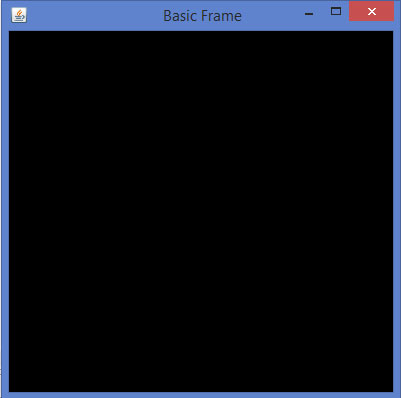
If you compile and execute the above program, the following output is generated. It shows a basic frame formed when we use GLCanvas with Swing window.


No comments:
Post a Comment