
Transformation means changing some graphics into something else by
applying rules. We can have various types of transformations such as Translation, Scaling Up or Down, Rotation, Shearing, etc.
Using JavaFX, you can apply transformations on nodes such as rotation, scaling and translation. All these transformations are represented by various classes and these belong to the package
javafx.scene.transform.
Save this code in a file with the name −
MultipleTransformationsExample.java.
Save this code in a file with the name RotationExample3D.java.
Using JavaFX, you can apply transformations on nodes such as rotation, scaling and translation. All these transformations are represented by various classes and these belong to the package
javafx.scene.transform.
| S.No | Transformation & Description |
|---|---|
| 1 | Rotation
In rotation, we rotate the object at a particular angle θ (theta) from its origin. |
| 2 | Scaling
To change the size of an object, scaling transformation is used. |
| 3 | Translation
Moves an object to a different position on the screen. |
| 4 | Shearing
A transformation that slants the shape of an object is called the Shear Transformation. |
Multiple Transformations
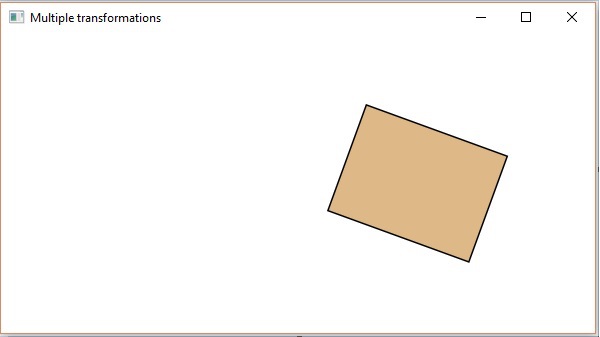
You can also apply multiple transformations on nodes in JavaFX. The following program is an example which performs Rotation, Scaling and Translation transformations on a rectangle simultaneously.Save this code in a file with the name −
MultipleTransformationsExample.java.
import javafx.application.Application;
import javafx.scene.Group;
import javafx.scene.Scene;
import javafx.scene.paint.Color;
import javafx.scene.shape.Rectangle;
import javafx.scene.transform.Rotate;
import javafx.scene.transform.Scale;
import javafx.scene.transform.Translate;
import javafx.stage.Stage;

public class MultipleTransformationsExample extends Application {
   @Override
   public void start(Stage stage) {
      //Drawing a Rectangle
      Rectangle rectangle = new Rectangle(50, 50, 100, 75);

      //Setting the color of the rectangle
      rectangle.setFill(Color.BURLYWOOD);

      //Setting the stroke color of the rectangle
      rectangle.setStroke(Color.BLACK);

      //creating the rotation transformation
      Rotate rotate = new Rotate();

      //Setting the angle for the rotation
      rotate.setAngle(20);

      //Setting pivot points for the rotation
      rotate.setPivotX(150);
      rotate.setPivotY(225);

      //Creating the scale transformation
      Scale scale = new Scale();

      //Setting the dimensions for the transformation
      scale.setX(1.5);
      scale.setY(1.5);

      //Setting the pivot point for the transformation
      scale.setPivotX(300);
      scale.setPivotY(135);

      //Creating the translation transformation
      Translate translate = new Translate();

      //Setting the X,Y,Z coordinates to apply the translation
      translate.setX(250);
      translate.setY(0);
      translate.setZ(0);

      //Adding all the transformations to the rectangle
      rectangle.getTransforms().addAll(rotate, scale, translate);

      //Creating a Group object
      Group root = new Group(rectangle);

      //Creating a scene object
      Scene scene = new Scene(root, 600, 300);

      //Setting title to the Stage
      stage.setTitle("Multiple transformations");

      //Adding scene to the stage
      stage.setScene(scene);

      //Displaying the contents of the stage
      stage.show();
   }
   public static void main(String args[]){
      launch(args);
   }
}
Compile and execute the saved java file from the command prompt using the following commands.
javac MultipleTransformationsExample.java
java MultipleTransformationsExample
On executing, the above program generates a JavaFX window as shown below.
Transformations on 3D Objects
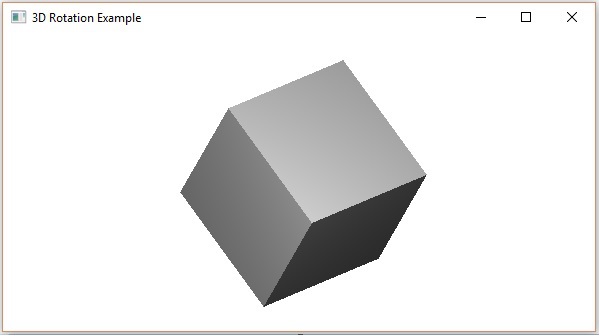
You can also apply transformations on 3D objects. Following is an example which rotates and translates a 3-Dimensional box.Save this code in a file with the name RotationExample3D.java.
import javafx.application.Application;
import javafx.scene.Group;
import javafx.scene.Scene;
import javafx.scene.shape.Box;
import javafx.scene.transform.Rotate;
import javafx.scene.transform.Translate;
import javafx.stage.Stage;

public class RotationExample3D extends Application {
   @Override
   public void start(Stage stage) {
      //Drawing a Box
      Box box = new Box();

      //Setting the properties of the Box
      box.setWidth(150.0);
      box.setHeight(150.0);
      box.setDepth(150.0);

      //Creating the translation transformation
      Translate translate = new Translate();
      translate.setX(400);
      translate.setY(150);
      translate.setZ(25);

      Rotate rxBox = new Rotate(0, 0, 0, 0, Rotate.X_AXIS);
      Rotate ryBox = new Rotate(0, 0, 0, 0, Rotate.Y_AXIS);
      Rotate rzBox = new Rotate(0, 0, 0, 0, Rotate.Z_AXIS);
      rxBox.setAngle(30);
      ryBox.setAngle(50);
      rzBox.setAngle(30);
      box.getTransforms().addAll(translate,rxBox, ryBox, rzBox);

      //Creating a Group object
      Group root = new Group(box);

      //Creating a scene object
      Scene scene = new Scene(root, 600, 300);

      //Setting title to the Stage
      stage.setTitle("Drawing a cylinder");

      //Adding scene to the stage
      stage.setScene(scene);

      //Displaying the contents of the stage
      stage.show();
   }
   public static void main(String args[]){
      launch(args);
   }
}
Compile and execute the saved java file from the command prompt using the following commands.
javac RotationExample3D.java
java RotationExample3D
On executing, the above program generates a JavaFX window as shown below.


No comments:
Post a Comment