The 3D charts are the ones, which appear in a three-dimensional
format. You can use these charts to provide better display and clear
information. A 3D Pie chart is same as the pie chart additionally with a
nice 3D effect. A 3D effect can achieved by adding a little extra code
which will take care of creating 3D effect in a pie chart.
3D Pie chart
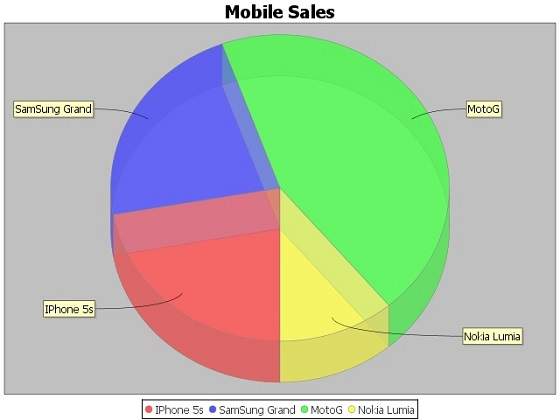
Consider the following example to depict mobile sale with the help of
a 3D pie chart. Following is a list of different mobile brands and
their sale (units per day).
| S.N. |
Mobile Brands |
Sales (UNITS per day) |
| 1 |
Iphone 5S |
20 |
| 2 |
Samsung Grand |
20 |
| 3 |
MOTO G |
40 |
| 4 |
Nokia Lumia |
10 |
Following is the code to create 3D Pie Chart from the above given
information. This code helps you embed a pie chart in any AWT based
application.
import java.io.*;
import org.jfree.chart.ChartFactory;
import org.jfree.chart.JFreeChart;
import org.jfree.chart.plot.PiePlot3D;
import org.jfree.data.general.DefaultPieDataset;
import org.jfree.chart.ChartUtilities;

public class PieChart3D
{
   public static void main( String[ ] args )throws Exception
   {
      DefaultPieDataset dataset = new DefaultPieDataset( );
      dataset.setValue( "IPhone 5s" , new Double( 20 ) );
      dataset.setValue( "SamSung Grand" , new Double( 20 ) );
      dataset.setValue( "MotoG" , new Double( 40 ) );
      dataset.setValue( "Nokia Lumia" , new Double( 10 ) );

      JFreeChart chart = ChartFactory.createPieChart3D(
         "Mobile Sales" ,  // chart title
         dataset ,         // data
         true ,            // include legend
         true,
         false);

      final PiePlot3D plot = ( PiePlot3D ) chart.getPlot( );
      plot.setStartAngle( 270 );
      plot.setForegroundAlpha( 0.60f );
      plot.setInteriorGap( 0.02 );
      int width = 640; /* Width of the image */
      int height = 480; /* Height of the image */
      File pieChart3D = new File( "pie_Chart3D.jpeg" );
      ChartUtilities.saveChartAsJPEG( pieChart3D , chart , width , height );
   }
}
Let us keep the above Java code in
PieChart3D.java file, and then compile and run it from command prompt as follows :
$javac PieChart3D.java
$java PieChart3D
If everything is fine , it will compile and run to create JPEG image file named
PieChart3D.jpeg having the following 3D Pie Chart :
3D Bar Chart
A 3D Bar chart is same as the bar chart additionally with a nice 3D
effect. A 3D effect can achieved by adding a little extra code which
will take care of creating 3D effect in a bar chart. Consider the
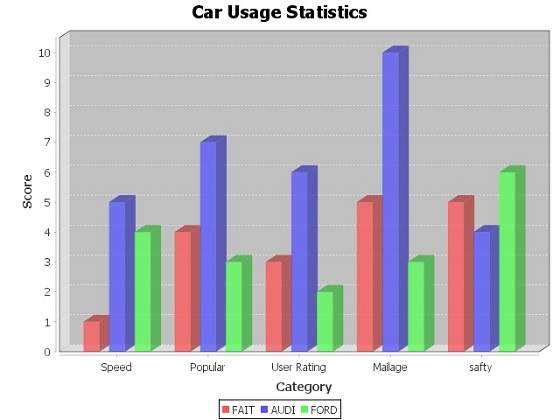
following example that depicts various car statistics with the help of a
3D bar chart. Following is a list of car brands along with their
different characteristics, which we will show using a bar chart :
| Car |
Speed |
User Rating |
Millage |
Safety |
| FIAT |
1.0 |
3.0 |
5.0 |
5.o |
| AUDI |
5.0 |
6.0 |
10.0 |
4.0 |
| FORD |
4.0 |
2.0 |
3.0 |
6.0 |
Following code creates 3D Bar Chart from the above given information.
This code helps you embed a bar chart in any AWT based application.
import java.io.*;
import org.jfree.chart.ChartFactory;
import org.jfree.chart.JFreeChart;
import org.jfree.chart.plot.PlotOrientation;
import org.jfree.data.category.DefaultCategoryDataset;
import org.jfree.chart.ChartUtilities;

public class BarChart3D
{
   public static void main( String[ ] args )throws Exception
   {
      final String fait = "FAIT";
      final String audi = "AUDI";
      final String ford = "FORD";
      final String speed = "Speed";
      final String popular = "Popular";
      final String mailage = "Mailage";
      final String userrating = "User Rating";
      final String safty = "safty";
      final DefaultCategoryDataset dataset = new DefaultCategoryDataset( );

      dataset.addValue( 1.0 , fait , speed );
      dataset.addValue( 4.0 , fait , popular );
      dataset.addValue( 3.0 , fait , userrating );
      dataset.addValue( 5.0 , fait , mailage );
      dataset.addValue( 5.0 , fait , safty );
      dataset.addValue( 5.0 , audi , speed );
      dataset.addValue( 7.0 , audi , popular );
      dataset.addValue( 6.0 , audi , userrating );
      dataset.addValue( 10.0 , audi , mailage );
      dataset.addValue( 4.0 , audi , safty );
      dataset.addValue( 4.0 , ford , speed );
      dataset.addValue( 3.0 , ford , popular );
      dataset.addValue( 2.0 , ford , userrating );
      dataset.addValue( 3.0 , ford , mailage );
      dataset.addValue( 6.0 , ford , safty );
      JFreeChart barChart = ChartFactory.createBarChart3D(
         "Car Usage Statistics",
         "Category",
         "Score",
         dataset,
         PlotOrientation.VERTICAL,
         true, true, false);

      int width = 640; /* Width of the image */
      int height = 480; /* Height of the image */
      File barChart3D = new File( "barChart3D.jpeg" );
      ChartUtilities.saveChartAsJPEG( barChart3D, barChart, width, height);
   }
}
Let us keep the above Java code in
BarChart3D.java file, and then compile and run it from command prompt as follows :
$javac BarChart3D.java
$java BarChart3
If everything is fine with your environment, it will compile and run to create JPEG image file
BarChart3D.jpeg having the following 3D Bar Chart:


No comments:
Post a Comment