
In this chapter, we will study about Who's Online Module in Joomla. This module helps to display the user's information who are accessing the website.
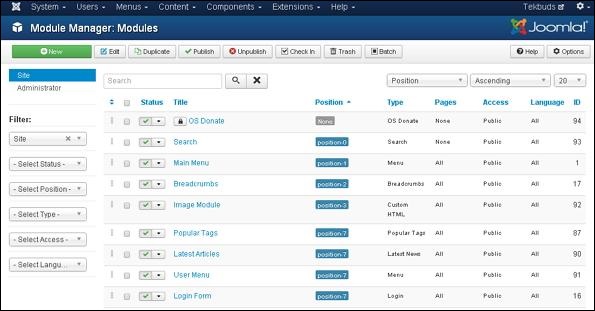
Step (1) − Click Extension → Module Manager in Joomla administrator, the following screen will be displayed.
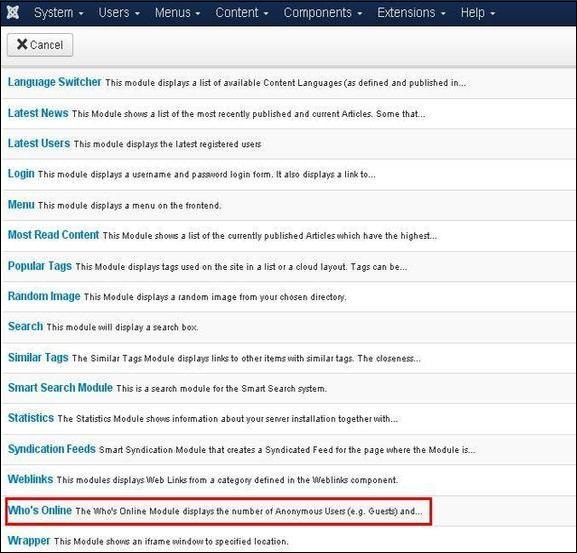
 Step (2) − Next, click on New button and the following screen will get displayed. In this page, click on Who's Online.
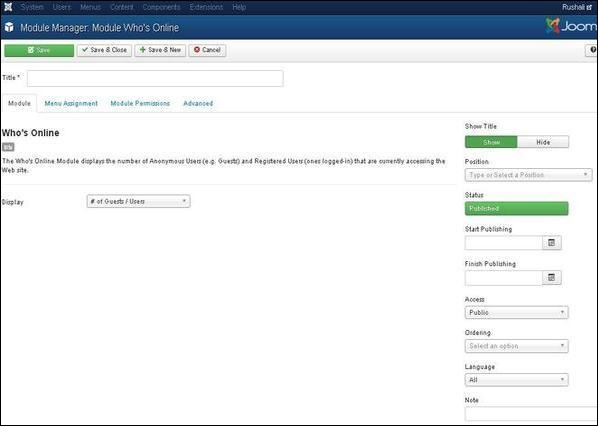
 Step (3) − After clicking on Who's Online, the existing Who's Online module will get displayed as shown below.
 By default, the Module tab is displayed. Below, we have mentioned the details of the fields present in the Module tab.
Who's Online Module
Following are the simple steps to edit an existing Who's Online Module in Joomla.Step (1) − Click Extension → Module Manager in Joomla administrator, the following screen will be displayed.
Step (2) − Next, click on New button and the following screen will get displayed. In this page, click on Who's Online.
Step (3) − After clicking on Who's Online, the existing Who's Online module will get displayed as shown below.
By default, the Module tab is displayed. Below, we have mentioned the details of the fields present in the Module tab.- Title − Displays the title of Module
- Display − Select the following option to be displayed i.e. #of Guests/Users, Usernames or Both.
- Show Title − Displays the title of the module in the front end.
- Position − It will select the position of the module to be displayed.
- Status − It displays the status of the article such as Published, Unpublished and Trashed.
- Start Publishing − It will start publishing on the assigned date and time.
- Finish Publishing − It will finish publishing at the assigned date and time.
- Access − It allows access only the selected users from the dropdown list such as Guest, Public, Super Users, Registered and Special options to view the items.
- Ordering − Displays the drop-down of all modules present in the position.
- Language − It specifies the language of the site. It provides either ALL or English (UK) options.
- Note − It is used to enter the text information.
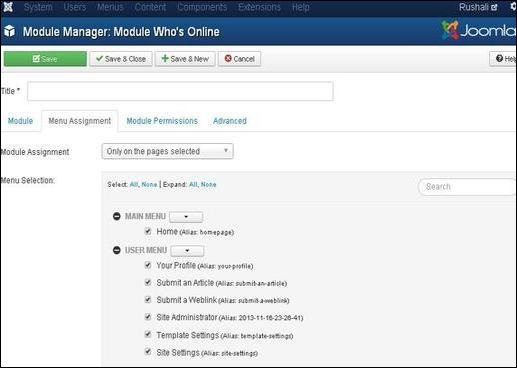
- Module Assignment − Selects the option to view the item from the dropdown list such as on all Pages, no pages, only on the pages selected or on all pages except those selected.
- Menu Selection − After selecting the option only on the pages selected or on all pages except those selected, it will display all menu items present in the Joomla. It will allow assigning module to some and not all pages.
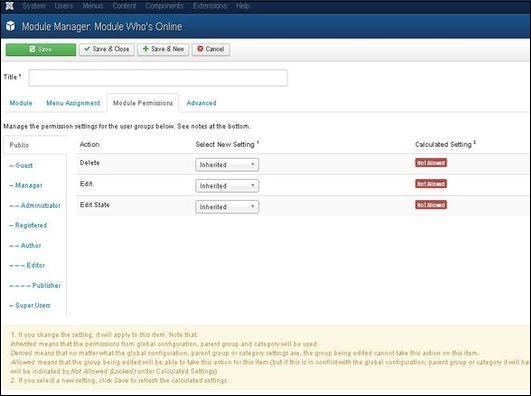
- Delete − It allows users in group to delete the content present in the module.
- Edit − It allows users in group to edit the content present in the module.
- Edit State − It allows users in the group to change the state of content present in the module.
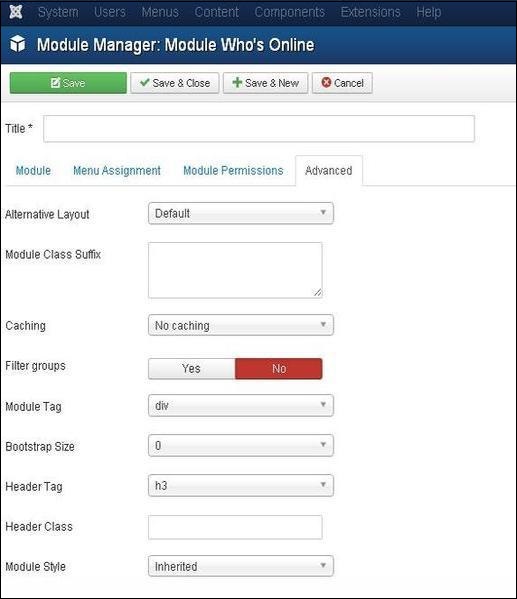
- Alternative Layout − Selects the layout to use for this module, which you have already defined as one or more layouts for module in Joomla or template.
- Module Class Suffix − Setting this parameter causes Joomla to either add a new CSS class or modify the existing CSS class for the div element for this specific module.
- Caching − Caches the content of the module. Use Global is used to cache settings from global configuration. No Caching is used, whether to cache the content of the module or not.
- Cache Time − Specifies the time in minutes before the module is re-cached.
- Module Tag − Specifies the HTML tag for the modules.
- Bootstrap Size − Selects width of the module built in bootstrap.
- Header Tag − Modules uses the HTML header tags.
- Header Class − Optional CSS classes are added in the module header.
- Module Style − Overrides the template style for its position.
Toolbar
Following are the details about the toolbar function tabs present in who's Online.- Save − Saves your modules.
- Save & Close − Saves the modules and will close the current screen.
- Save & New − Saves the modules and opens a new creating module screen.
- Cancel − Cancels the created modules in Joomla.


No comments:
Post a Comment