
The Control Panel provides default features and functions of
Joomla to access through clickable icons, menu bar etc. When you login
to the Joomla administrative panel, you will get the screen as shown
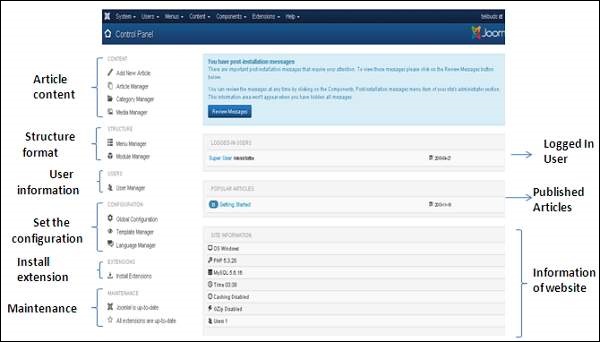
below. Important icons of control panel and their functions are marked
in the following screen −
Article Content
There are four icons under the CONTENT section as shown below −- Add New Article − It creates a new article page.
- Article Manager − It manages all your present articles.
- Category Manager − It creates new categories and helps in publishing/unpublishing the categories.
- Media Manager − It manages the files by uploading various new files or deleting the existing ones on your web server.
Structure Format
In STRUCTURE section, there are two groups of icons −- Menu Manager − Menu manager allows creating custom menus for your website and navigating through your website.
- Module Manager − It manages the modules such as location and function of modules that are installed on site.
User Information
Under USERS section, there is one icon located −- User Manager − It manages the user information, which allows creating or deleting the user, changing passwords, time and languages. You can also assign the user to User Groups.
Set the configuration
Three icons are located under the CONFIGURATION section as given below −- Global Configuration − This is an important part in the Joomla back-end. Any changes made in this configuration, will affect the entire website.
- Template Manager − It manages the templates used in the website.
- Language Manager − It manages installed language by setting the default language for your site.
Install Extension
There are many Extensions available in Joomla. You can install different types of extensions to extend the functionality of the site.Maintenance
In MAINTENANCE section, there are two icons located −- Joomla is up-to-date − It views the current update status of the Joomla installation.
- All extensions are up-to-date − It views the current update status of the Joomla extension.


No comments:
Post a Comment