
In this chapter, we will study about Adding Forum in Joomla. We can install the forum extension in Joomla to share or discuss ideas and views on particular issues.
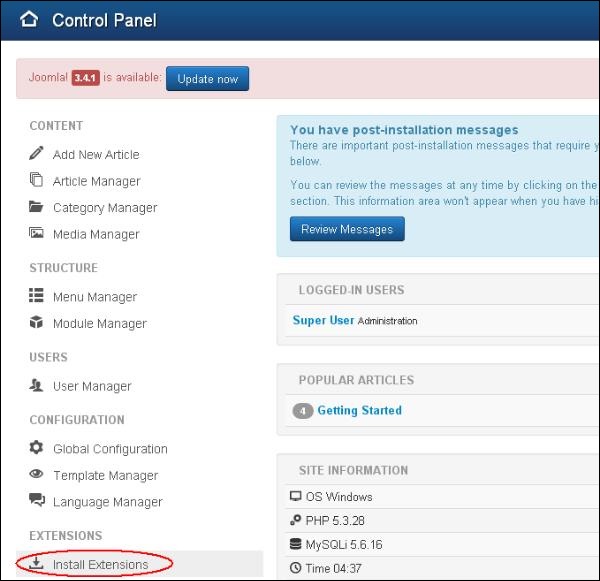
Step (1) − Click on Install Extensions option in Joomla.
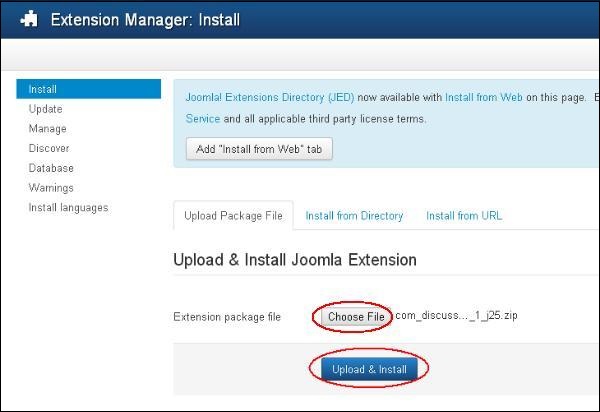
 Step (2) − Click on Choose File button and choose the extensions forum you have downloaded to include in your web site. After choosing the file, click on Upload & Install button.
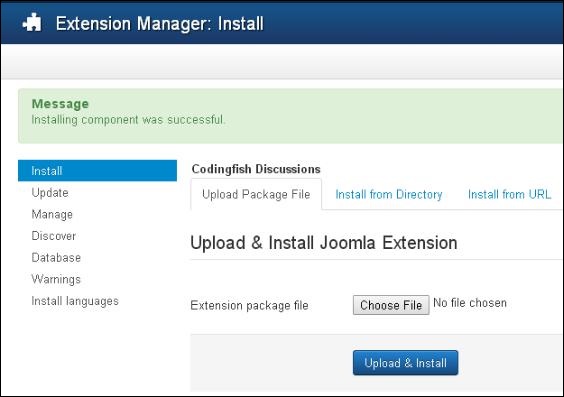
 Step (3) − Joomla starts installing the Forum extension for your site. After the installation is complete, you get the screen below showing the success message.
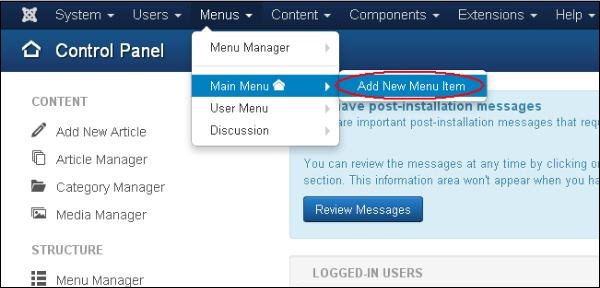
 Step (4) − Click on Menus → Main Menu → Add New Menu Item option in Joomla.
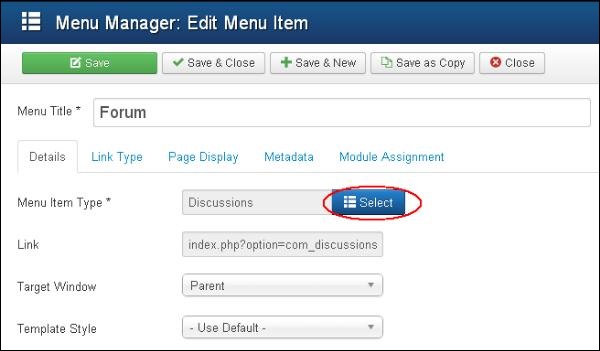
 Step (5) − In Add New Menu Item page, specify title in the Menu Title. Click on the Select button to choose the Forum extension for your website.
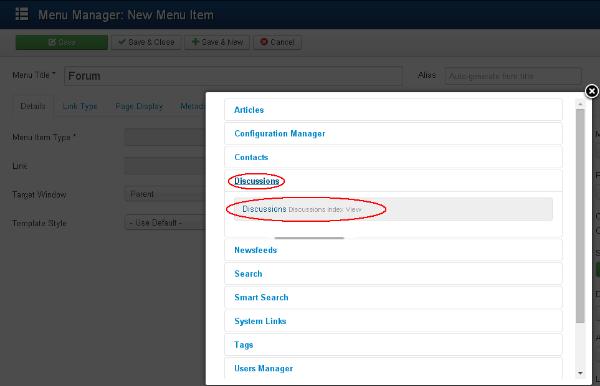
 Step (6) − Click on the Discussion and choose the Discussion discussion index views.
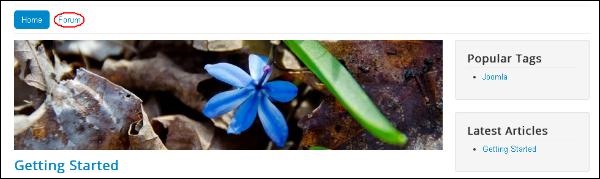
 Step (7) − Open your website which contains the Forum menu as shown in the screen below.
Joomla Adding Forum
Following are the simple steps used to set the Joomla Adding Forum.Step (1) − Click on Install Extensions option in Joomla.
Step (2) − Click on Choose File button and choose the extensions forum you have downloaded to include in your web site. After choosing the file, click on Upload & Install button.
Step (3) − Joomla starts installing the Forum extension for your site. After the installation is complete, you get the screen below showing the success message.
Step (4) − Click on Menus → Main Menu → Add New Menu Item option in Joomla.
Step (5) − In Add New Menu Item page, specify title in the Menu Title. Click on the Select button to choose the Forum extension for your website.
Step (6) − Click on the Discussion and choose the Discussion discussion index views.
Step (7) − Open your website which contains the Forum menu as shown in the screen below.
Toolbar
Given below are few details about the toolbars present in Forum.- Save − Saves your forums.
- Save & Close − Saves the forums and closes the current screen.
- Save & New − Saves the forums and opens a new create forum screen.
- Cancel − Cancels the created forums in Joomla.


No comments:
Post a Comment