
In this chapter, we will study about Website backup in Joomla. It allows backup of files, folders and re-opens it in Joomla.
Step (1) − Click on System → Global Configuration in Joomla administrator. You will get the following screen.
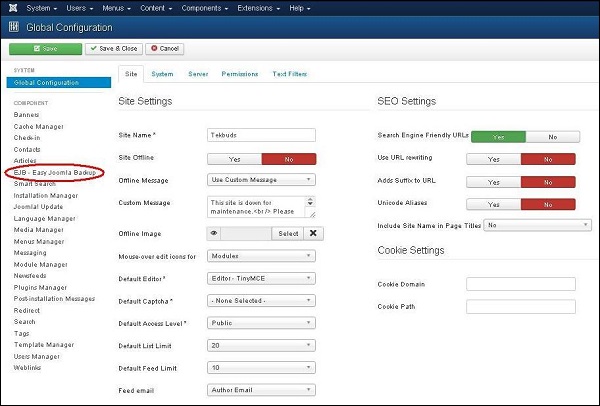 Step (2) − Next, click on EJB - Easy Joomla Backup at the left sidebar. You get a basic editor page for Joomla Backup. Here by default, the Component tab is displayed.
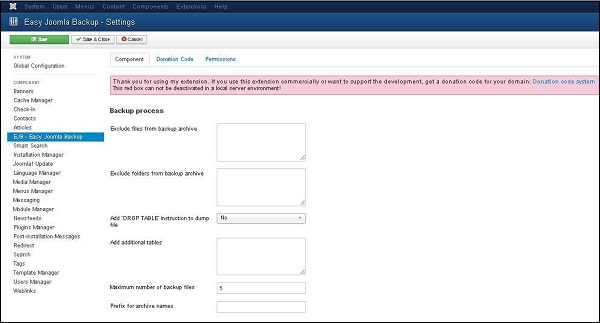 Below we have mentioned the details of the fields present in the Component tab on the page −
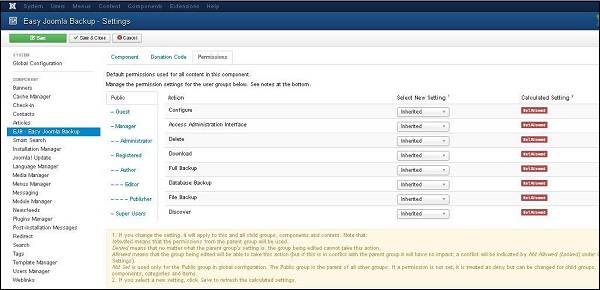 Following are the details that are present on the Permissions tab −
Website Backup
Following are the simple steps used to backup the website in Joomla −Step (1) − Click on System → Global Configuration in Joomla administrator. You will get the following screen.
Step (2) − Next, click on EJB - Easy Joomla Backup at the left sidebar. You get a basic editor page for Joomla Backup. Here by default, the Component tab is displayed.
Below we have mentioned the details of the fields present in the Component tab on the page −- Exclude files from backup archive − It indicates the name of the files with the path address to be excluded from a backup archive.
- Exclude folders from backup archive − It indicates the name of the folders with the path address to be excluded from a backup archive.
- Add 'DROP TABLE' instruction to dump file − It indicates to add drop table instruction to dump files without deleting the tables by selecting either (Yes/No).
- Add additional tables − It indicates to add additional tables, but it should not have the same prefix.
- Maximum number of backup files − It indicates the maximum number of backup files.
- Prefix for archive names − It indicates to use prefixes for archive names of backup file.
Following are the details that are present on the Permissions tab −- Configure − It allows the user to edit the user option.
- Access Administration Interface − It allows the users to access the administration interface.
- Delete − It allows the user in group to delete the content present in the extension.
- Download − It allows the user to download the backup archive file.
- Full Backup − It allows the user to create full backup file permission.
- Database Backup − It allows the user to create database backup.
- File Backup − It allows the user to permit creation of file backup.
- Discover − It allows the user to discover backup files or new entries into the database.
Toolbar
Following are the toolbar options in the Website Backup screen −- Save − Saves your Backup of website.
- Save & Close − Saves the Backup of website and closes the current screen.
- Cancel − Cancels the created Backup of website in Joomla.


No comments:
Post a Comment