
In this chapter, we will study about Template Manager in
Joomla. It manages the various templates that are used in the website.
The templates can be used without changing the content structure of the
website.
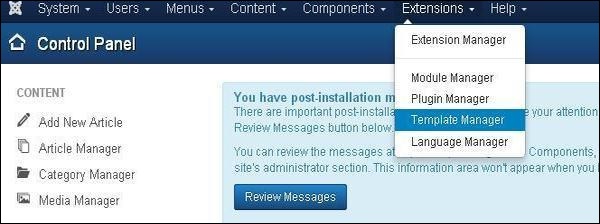
Step (1) − Click Extensions → Template Manager as shown below.
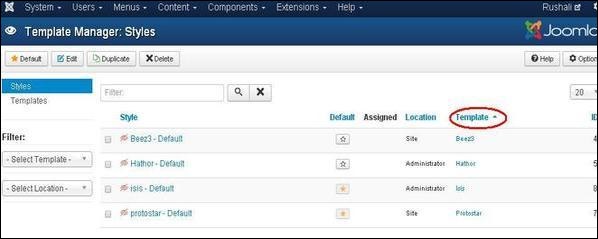
 Step (2) − Template Manager:Styles page get displayed as shown below. Here, you can click directly on any of the templates listed in Template column.
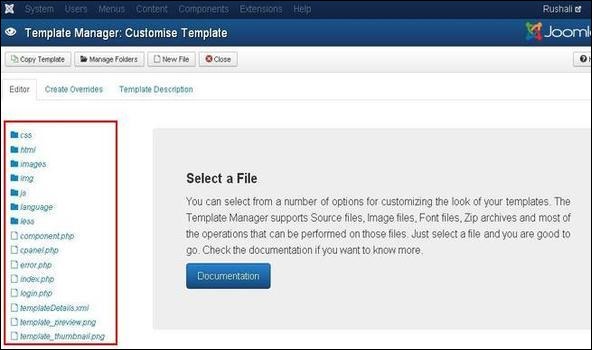
 Step (3) − After clicking on any one of the above templates you will get the screen as shown below. In the Editor tab, template files are listed on the left side of the page as seen in the screenshot below −
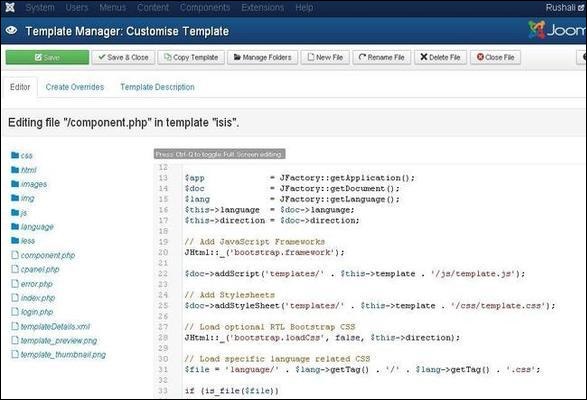
 Step (4) − Select any of the files by clicking on it for editing.
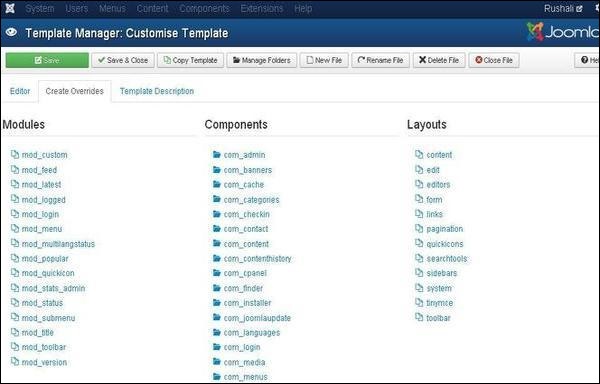
 Step (5) − Click on Create Overrides tab, you will see the list of Modules, Components, and Layouts present in the template manager as shown below. Here you can easily override the new templates.
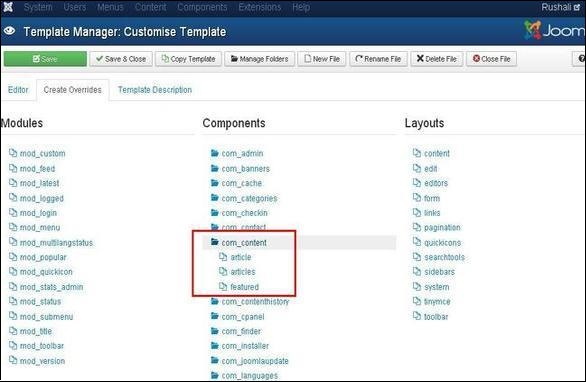
 Step (6) − Click on any one component and you will see many sub components present inside it as shown below.
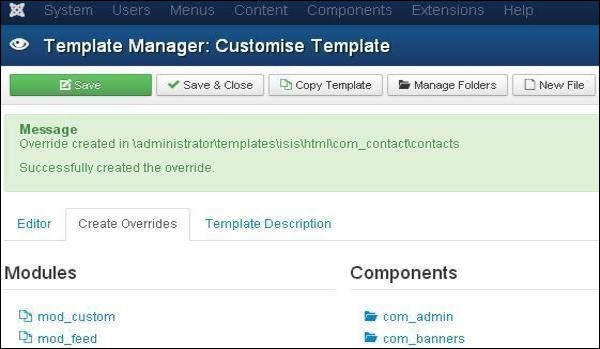
 Step (7) − When you click on any one sub component then you will get the following message.
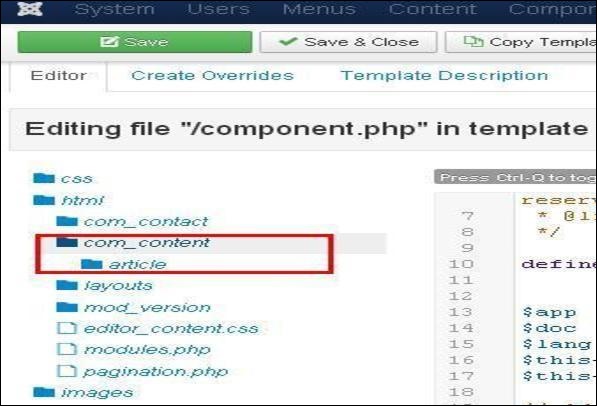
 Step (8) − You can go back to Editor tab to check if override file is available for editing or not as shown below.
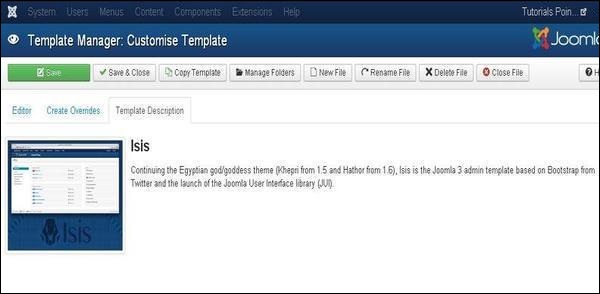
 Step (9) − Click on Template Description tab, you will see the detailed description of the selected template as shown below.
Template Manager
Following are the simple steps to edit the Template Manager in Joomla.Step (1) − Click Extensions → Template Manager as shown below.
Step (2) − Template Manager:Styles page get displayed as shown below. Here, you can click directly on any of the templates listed in Template column.
Step (3) − After clicking on any one of the above templates you will get the screen as shown below. In the Editor tab, template files are listed on the left side of the page as seen in the screenshot below −
Step (4) − Select any of the files by clicking on it for editing.
Step (5) − Click on Create Overrides tab, you will see the list of Modules, Components, and Layouts present in the template manager as shown below. Here you can easily override the new templates.
Step (6) − Click on any one component and you will see many sub components present inside it as shown below.
Step (7) − When you click on any one sub component then you will get the following message.
Step (8) − You can go back to Editor tab to check if override file is available for editing or not as shown below.
Step (9) − Click on Template Description tab, you will see the detailed description of the selected template as shown below.
Toolbar
Following are the toolbar options in the Template Manager.- Save − Saves your template manager.
- Save & Close − Saves the templates and closes the current screen.
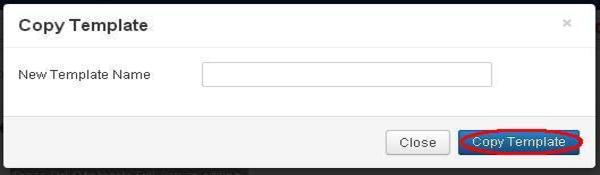
- Copy Template − Enter the template name and click on Copy Template button. This will copy the template.
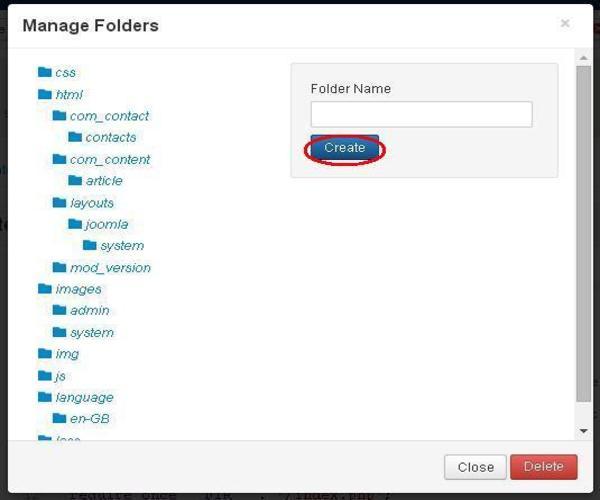
- Manage Folders − It creates a new folder inside the template. Enter the folder name in the field and click on Create button.
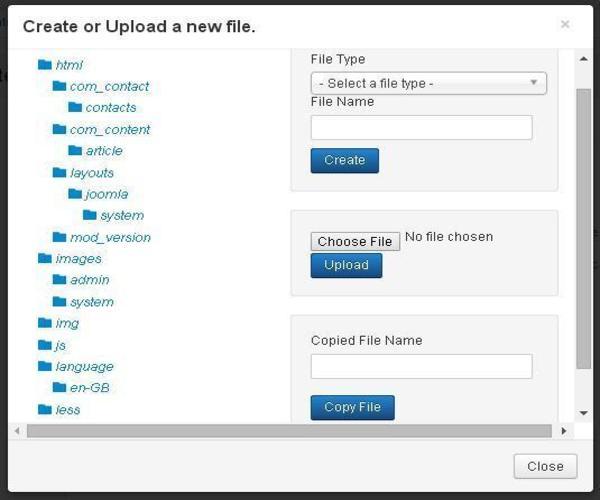
- New File − You can select the file type by clicking on the dropdown of File Type and enter the name of the file and click on Create button. This will create a new file. The second block is used to upload a file directly from your system and the last block is used to copy the file.
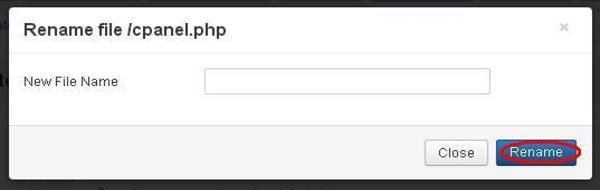
- Rename File − Enter the new name for the file and click on Rename button.
- Delete File − Deletes the particular file.
- Close File − Closes the current file.


No comments:
Post a Comment