
In this chapter, we will study the step-by-step procedure of how to Create Menus in Joomla. Menus are the important part and help to navigate through your website easily.
Step (1) − Click Menus → Menu Manager → Add New Menu as shown below.
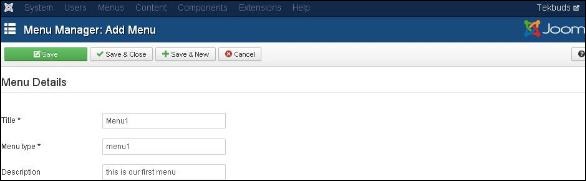
 Step (2) − After clicking on Add New Menu, the Menu Manager − Add Menu page will displayed as shown below. Here, we can add Menu Title (Name), Type and Description as shown.
Step (4) − We can also click on Save & Close button. It saves the menu bar and then closes the present screen. Finally, you get the following screen as shown below.
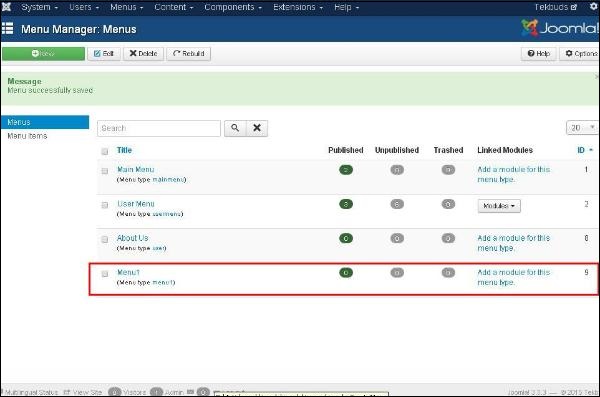 In this page, you can view the name of the menu you had created in previous step.
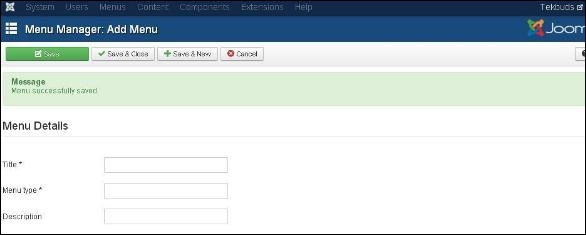
Step (5) − When we click on Save & New button, your menu is saved and it opens a new create menu screen as shown below.
 Step (6) − Using Cancel button, cancels the create menu action.
Create Menus
Here are a few simple steps to create menus in Joomla.Step (1) − Click Menus → Menu Manager → Add New Menu as shown below.
Step (2) − After clicking on Add New Menu, the Menu Manager − Add Menu page will displayed as shown below. Here, we can add Menu Title (Name), Type and Description as shown.
- Menu Title(Name) − It should indicate the Title( Name ) of the menu.
- Menu Type − The name of the menu type.
- Description − Description about the menu.
Step (4) − We can also click on Save & Close button. It saves the menu bar and then closes the present screen. Finally, you get the following screen as shown below.
In this page, you can view the name of the menu you had created in previous step.Step (5) − When we click on Save & New button, your menu is saved and it opens a new create menu screen as shown below.
Step (6) − Using Cancel button, cancels the create menu action.

No comments:
Post a Comment