
The messaging system allows to send messages to the back- end users of Joomla. You can send, read, write and delete messages.
Step (1) − You can create a new private message as shown in the screen below. Go to Components → Messaging → New Private Message to write a new private message.
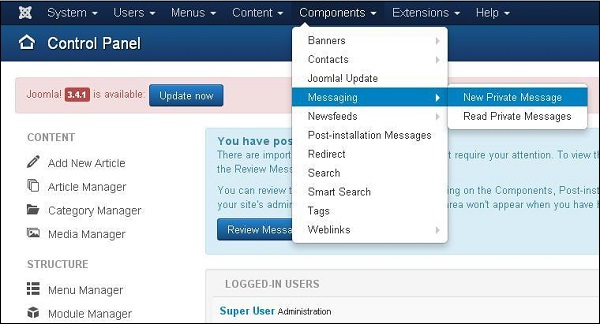 Step (2) − When you open the New Private Message, you will get the following screen.
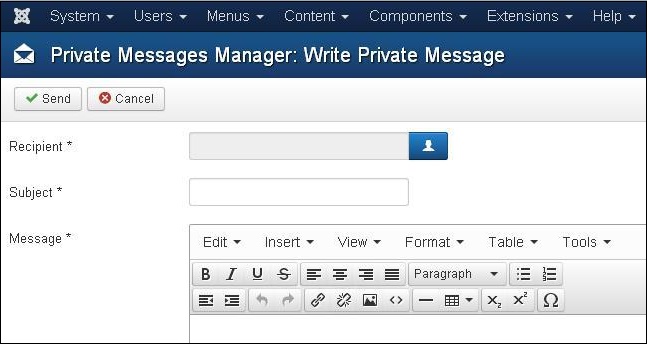 You can select a "Recipient" by clicking on the select user button.
Enter a subject in the "Subject" field. Enter your message in the
"Message" area. Message area provides an editor kind of interface with
options such as bold, italic, heading format, insertion of image, link,
table, indentation of text, text alignment, special characters etc.
You can select a "Recipient" by clicking on the select user button.
Enter a subject in the "Subject" field. Enter your message in the
"Message" area. Message area provides an editor kind of interface with
options such as bold, italic, heading format, insertion of image, link,
table, indentation of text, text alignment, special characters etc.
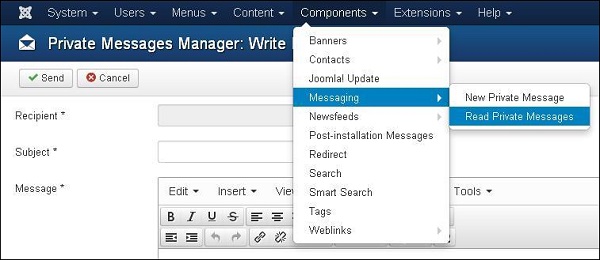
Step (3) − If you want to read the private messages, then go to Components → Messaging → Read Private Messages as shown in the following screen.
 When you open the above link, you will get the following screen.
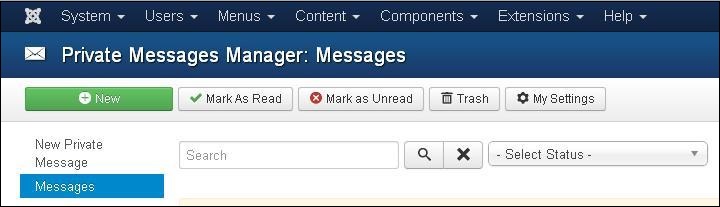 You can filter list of the messages by typing part of the subject in
the "Search" box. You can select the status of the message as "Read",
"Unread" and "Trash" by using the Select Status dropdown.
You can filter list of the messages by typing part of the subject in
the "Search" box. You can select the status of the message as "Read",
"Unread" and "Trash" by using the Select Status dropdown.
Step (4) − At the top left, you will see a toolbar that provides following functions −
Step (1) − You can create a new private message as shown in the screen below. Go to Components → Messaging → New Private Message to write a new private message.
Step (2) − When you open the New Private Message, you will get the following screen.
You can select a "Recipient" by clicking on the select user button.
Enter a subject in the "Subject" field. Enter your message in the
"Message" area. Message area provides an editor kind of interface with
options such as bold, italic, heading format, insertion of image, link,
table, indentation of text, text alignment, special characters etc.Step (3) − If you want to read the private messages, then go to Components → Messaging → Read Private Messages as shown in the following screen.
When you open the above link, you will get the following screen.
You can filter list of the messages by typing part of the subject in
the "Search" box. You can select the status of the message as "Read",
"Unread" and "Trash" by using the Select Status dropdown.Step (4) − At the top left, you will see a toolbar that provides following functions −
- New − It is used to create a new message.
- Mark as Read − It selects the status of message as Read.
- Mark as Unread − It selects the status of the message as Unread.
- Trash − It is used to delete the message.
- My Settings − It provides the pop-up window to change message settings.


No comments:
Post a Comment