
In this chapter, we will study how to add / install Template in Joomla.
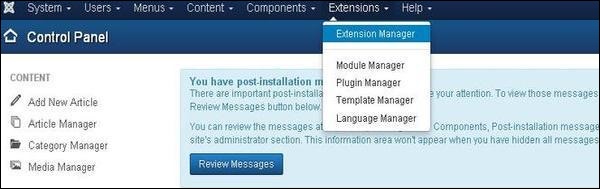
Step (1) − Click on Extensions → Extension Manager as shown below.
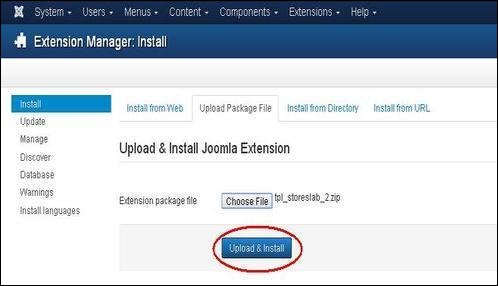
 Step (2) − After clicking on Extension Manager, you will get the following screen. Here you can Upload / Install the template file either from the Web, package, Directory or URL. Choose the template file which is available on your system and later click on the Upload &Install button.
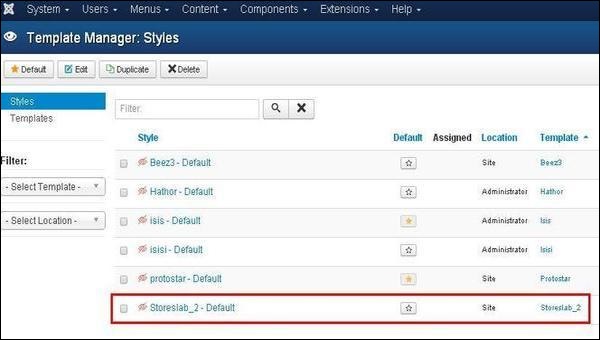
 Step (3) − After installing the template successfully, you can
go to the template manager and see the new installed template present
in the list as shown below.
Step (3) − After installing the template successfully, you can
go to the template manager and see the new installed template present
in the list as shown below.
Adding Template
Following are the simple steps to add / install template in Joomla.Step (1) − Click on Extensions → Extension Manager as shown below.
Step (2) − After clicking on Extension Manager, you will get the following screen. Here you can Upload / Install the template file either from the Web, package, Directory or URL. Choose the template file which is available on your system and later click on the Upload &Install button.
Step (3) − After installing the template successfully, you can
go to the template manager and see the new installed template present
in the list as shown below.
Toolbar
Following are the options on the toolbar of the Adding Template screen −- Default − Select the default template.
- Edit − Select the template for editing.
- Duplicate − Duplicate the copy of the selected template.
- Delete − Delete the template from Joomla site.


No comments:
Post a Comment