
In this chapter, we will study how to format content on the Joomla website.
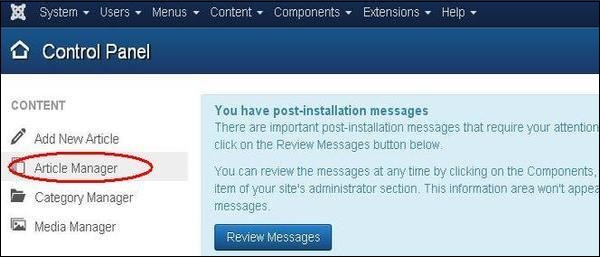
Step (1) − Click on Article Manager in Control Panel as shown below.
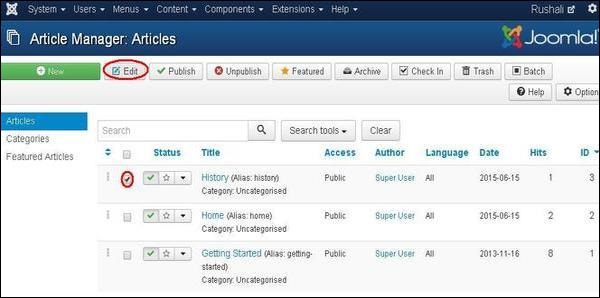
 Step (2) − Select the article to be formatted by clicking on the checkbox. Next, click on the Edit button as shown below.
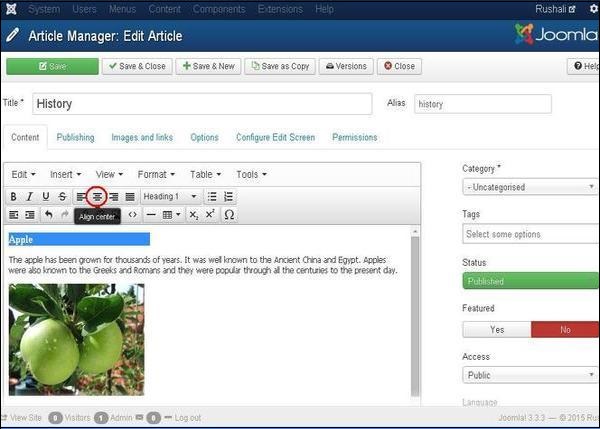
 Step (3) − Next, the article opens up for editing as shown below. Here we are aligning the heading Apple
in center using center alignment. Similarly, you can edit the image
alignment, font size and so on. You can study about the editor in detail
in the chapter Joomla - Adding Content.
Step (3) − Next, the article opens up for editing as shown below. Here we are aligning the heading Apple
in center using center alignment. Similarly, you can edit the image
alignment, font size and so on. You can study about the editor in detail
in the chapter Joomla - Adding Content.
Formatting Content
Following are the simple steps to format content in Joomla −Step (1) − Click on Article Manager in Control Panel as shown below.
Step (2) − Select the article to be formatted by clicking on the checkbox. Next, click on the Edit button as shown below.
Step (3) − Next, the article opens up for editing as shown below. Here we are aligning the heading Apple
in center using center alignment. Similarly, you can edit the image
alignment, font size and so on. You can study about the editor in detail
in the chapter Joomla - Adding Content.
Toolbar
Following are the toolbar options −- Save − Saves the contents and stays on the same screen.
- Save & Close − Saves the content and closes the screen.
- Save & New − Saves the content and opens a new content page.
- Save as Copy − Saves the formatted content and copies it.
- Versions − It is used to select versions of the page.
- Close − Closes the article without formatting.


No comments:
Post a Comment