
In this chapter, we will study about how to Customize Logo in Joomla. You can add the logo for your web sites and customize it as per your need.
Step (1) − Click on Extensions → Template Manager.
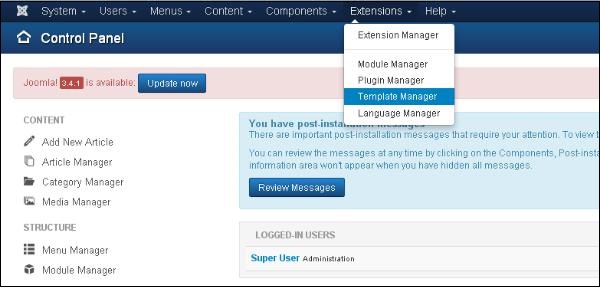 Step (2) − After clicking on the Template Manager, following screen will get displayed.
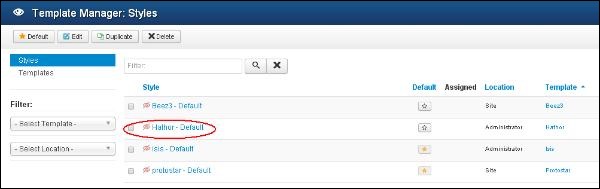 Step (3) − Click on the Hathor Default option, a screen as below will be displayed. You can customize the logo for your web site here.
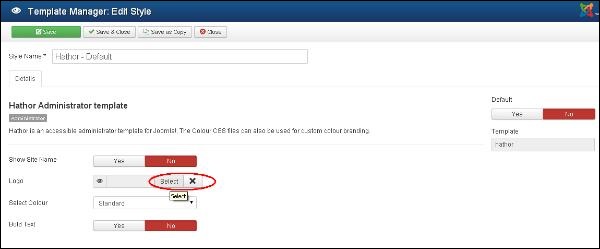 Following are the fields present in the Joomla Customize Logo page −
Joomla Customize Logo
Following are the simple steps used to set the customize logo in Joomla −Step (1) − Click on Extensions → Template Manager.
Step (2) − After clicking on the Template Manager, following screen will get displayed.
Step (3) − Click on the Hathor Default option, a screen as below will be displayed. You can customize the logo for your web site here.
Following are the fields present in the Joomla Customize Logo page −- Show Site Name − Shows the name of the site in the template header.
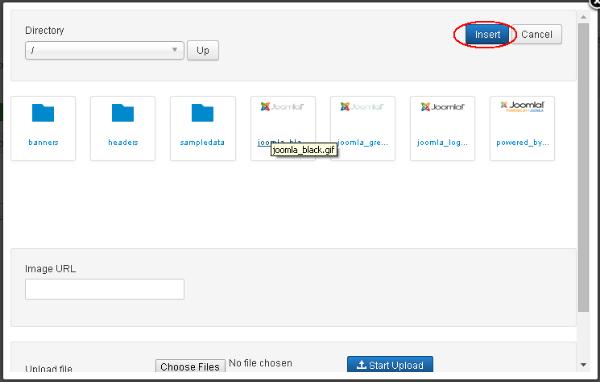
- Logo − Uploading the logo for the site. Click on the Select button to choose an image. You will get the following pop-up window when you click on the select button. Select the image from the following folder and click on Insert.
- Select Color − Select color for your logo.
- Bold Text − Use the bold text.
Toolbar
Following are the toolbar options present −- Save − Saves your customized logo.
- Save & Close − Saves the customized logo and closes the current screen.
- Save & New − Saves the logo opens a new create customize logo screen.
- Cancel − Cancels the customized logo in Joomla.


No comments:
Post a Comment