
Heading Tags
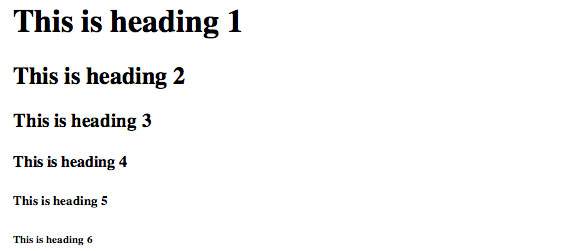
Any document starts with a heading. You can use different sizes for your headings. HTML also has six levels of headings, which use the elements <h1>, <h2>, <h3>, <h4>, <h5>, and <h6>. While displaying any heading, browser adds one line before and one line after that heading.Example
<!DOCTYPE html>
<html>
<head>
<title>Heading Example</title>
</head>
<body>
<h1>This is heading 1</h1>
<h2>This is heading 2</h2>
<h3>This is heading 3</h3>
<h4>This is heading 4</h4>
<h5>This is heading 5</h5>
<h6>This is heading 6</h6>
</body>
</html>
This will produce following result:
Paragraph Tag
The <p> tag offers a way to structure your text into different paragraphs. Each paragraph of text should go in between an opening <p> and a closing </p> tag as shown below in the example:Example
<!DOCTYPE html>
<html>
<head>
<title>Paragraph Example</title>
</head>
<body>
<p>Here is a first paragraph of text.</p>
<p>Here is a second paragraph of text.</p>
<p>Here is a third paragraph of text.</p>
</body>
</html>
This will produce following result:
Here is a first paragraph of text.
Here is a second paragraph of text.
Here is a third paragraph of text.
Here is a second paragraph of text.
Here is a third paragraph of text.
Line Break Tag
Whenever you use the <br /> element, anything following it starts from the next line. This tag is an example of an empty element, where you do not need opening and closing tags, as there is nothing to go in between them.The <br /> tag has a space between the characters br and the forward slash. If you omit this space, older browsers will have trouble rendering the line break, while if you miss the forward slash character and just use <br> it is not valid in XHTML
Example
<!DOCTYPE html>
<html>
<head>
<title>Line Break  Example</title>
</head>
<body>
<p>Hello<br />
You delivered your assignment ontime.<br />
Thanks<br />
Mahnaz</p>
</body>
</html>
This will produce following result:
Hello
You delivered your assignment ontime.
Thanks
Mahnaz
You delivered your assignment ontime.
Thanks
Mahnaz
Centering Content
You can use <center> tag to put any content in the center of the page or any table cell.Example
<!DOCTYPE html>
<html>
<head>
<title>Centring Content Example</title>
</head>
<body>
<p>This text is not in the center.</p>
<center>
<p>This text is in the center.</p>
</center>
</body>
</html>
This will produce following result:
This text is not in the center.
This text is in the center.
Horizontal Lines
Horizontal lines are used to visually break up sections of a document. The <hr> tag creates a line from the current position in the document to the right margin and breaks the line accordingly.For example you may want to give a line between two paragraphs as in the given example below:
Example
<!DOCTYPE html>
<html>
<head>
<title>Horizontal Line Example</title>
</head>
<body>
<p>This is paragraph one and should be on top</p>
<hr />
<p>This is paragraph two and should be at bottom</p>
</body>
</html>
This will produce following result:
This is paragraph one and should be on top
This is paragraph two and should be at bottom
Again <hr /> tag is an example of the empty element, where you do not need opening and closing tags, as there is nothing to go in between them.This is paragraph two and should be at bottom
The <hr /> element has a space between the characters hr and the forward slash. If you omit this space, older browsers will have trouble rendering the horizontak line, while if you miss the forward slash character and just use <hr> it is not valid in XHTML
Preserve Formatting
Sometimes you want your text to follow the exact format of how it is written in the HTML document. In those cases, you can use the preformatted tag <pre>.Any text between the opening <pre> tag and the closing </pre> tag will preserve the formatting of the source document.
Example
<!DOCTYPE html>
<html>
<head>
<title>Preserve Formatting Example</title>
</head>
<body>
<pre>
function testFunction( strText ){
   alert (strText)
}
</pre>
</body>
</html>
This will produce following result:
function testFunction( strText ){
   alert (strText)
}
Nonbreaking Spaces
Suppose you want to use the phrase "12 Angry Men." Here you would not want a browser to split the "12, Angry" and "Men" across two lines:An example of this technique appears in the movie "12 Angry Men."In cases where you do not want the client browser to break text, you should use a nonbreaking space entity instead of a normal space. For example, when coding the "12 Angry Men" in a paragraph, you should use something similar to the following code:
Example
<!DOCTYPE html> <html> <head> <title>Nonbreaking Spaces Example</title> </head> <body> <p>An example of this technique appears in the movie "12 Angry Men."</p> </body> </html>


No comments:
Post a Comment