
In this chapter you will learn how to setup YouTube videos to your Magento store as shown in the following steps.
Step (1): Login to Magento Admin Panel.
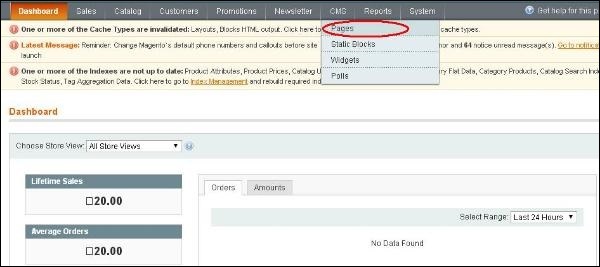
Step (2): Go to CMS menu and click on Pages option.
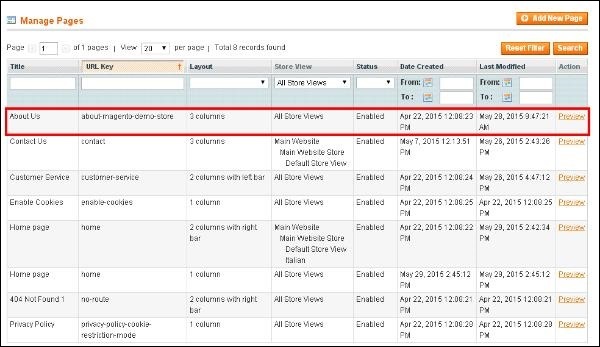
 Step (3): You will get the list of pages where you can create a new page or edit an existing page. Here we have selected the About Us page to add YouTube video in it.
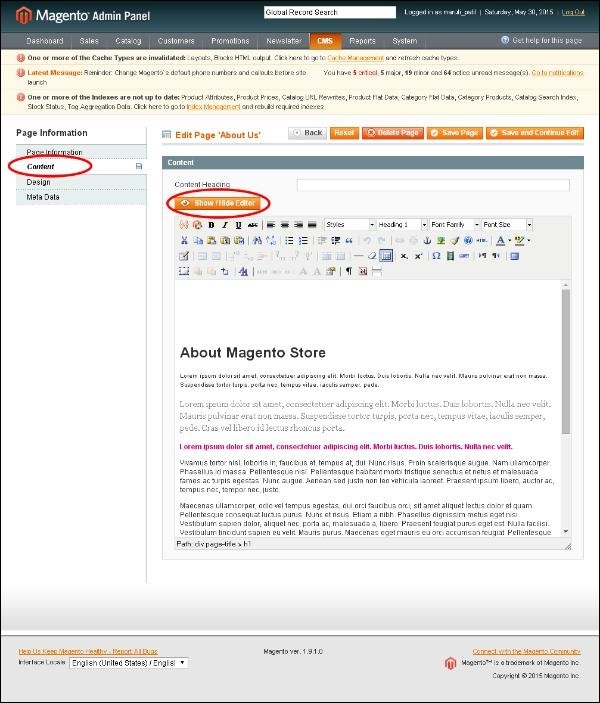
 Step (4): On the left menu, click on the Content option which displays the information of the page. The Show/Hide Editor button can be used to hide or show the editor.
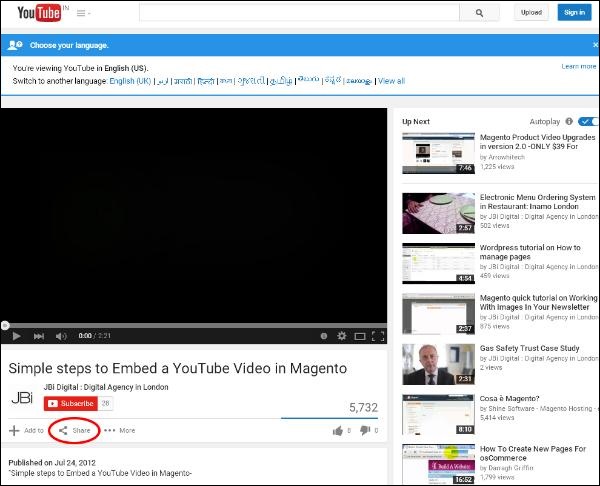
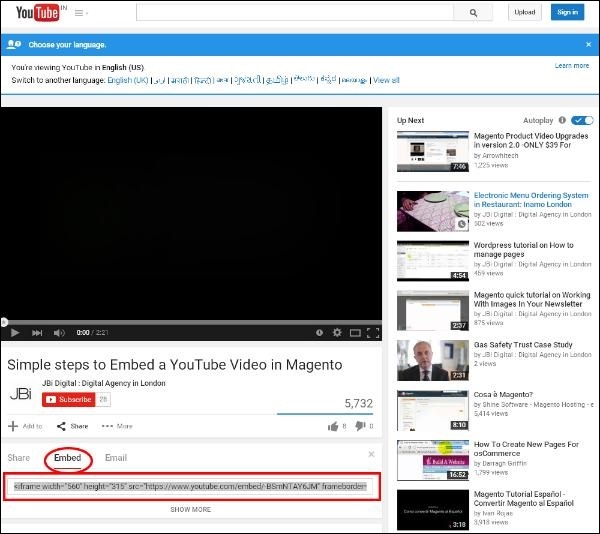
 Step (5): Open the www.youtube.com website and find the video you want to add. There is a Share button under the video, click on it.
 Step (7): Under the Share button, click on the embed link. It opens a small text area, then copy the code.
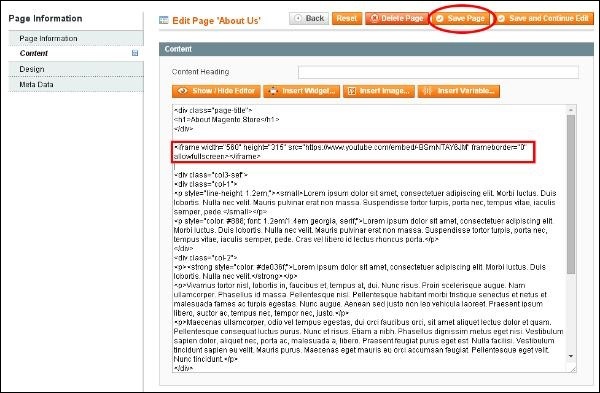
 Step (8): Go to your page and paste the code which was copied from the embed field and click on the Save Page button.
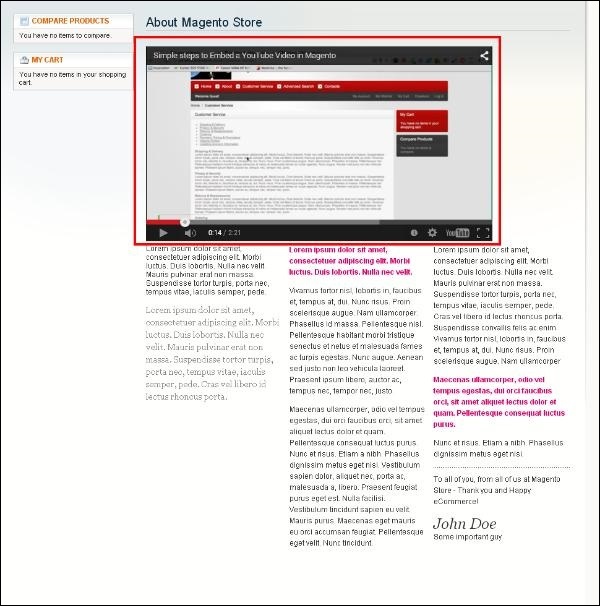
 Step (9): Open your website and you can see the video on the page you just edited.
Step (1): Login to Magento Admin Panel.
Step (2): Go to CMS menu and click on Pages option.
Step (3): You will get the list of pages where you can create a new page or edit an existing page. Here we have selected the About Us page to add YouTube video in it.
Step (4): On the left menu, click on the Content option which displays the information of the page. The Show/Hide Editor button can be used to hide or show the editor.
Step (5): Open the www.youtube.com website and find the video you want to add. There is a Share button under the video, click on it.
Step (7): Under the Share button, click on the embed link. It opens a small text area, then copy the code.
Step (8): Go to your page and paste the code which was copied from the embed field and click on the Save Page button.
Step (9): Open your website and you can see the video on the page you just edited.

No comments:
Post a Comment